
DOCSSTREAMS AND MEDIA DELIVERY
Add stream signals and share streams
Updated 31 October 2026
Use the Signals tab to mark intros, recaps, credits, and ad breaks. You can also create a share link for a stream, optionally protect it, restrict it by country, or embed its player on another website.
Add signals manually
- Open the stream and select Signals.
- Select Add signal, then choose a type:
- Intro, Recap, Opening credits, or Closing credits — each has a start and end time.
- Ad break — a point in time, with an optional ad-break length.
- Enter the times, such as
1:05.500or1:02:05, or use the preview player. Play to the required moment and select Set start to playhead or Set end to playhead. - Optionally enter a label.
- Select Save signals.
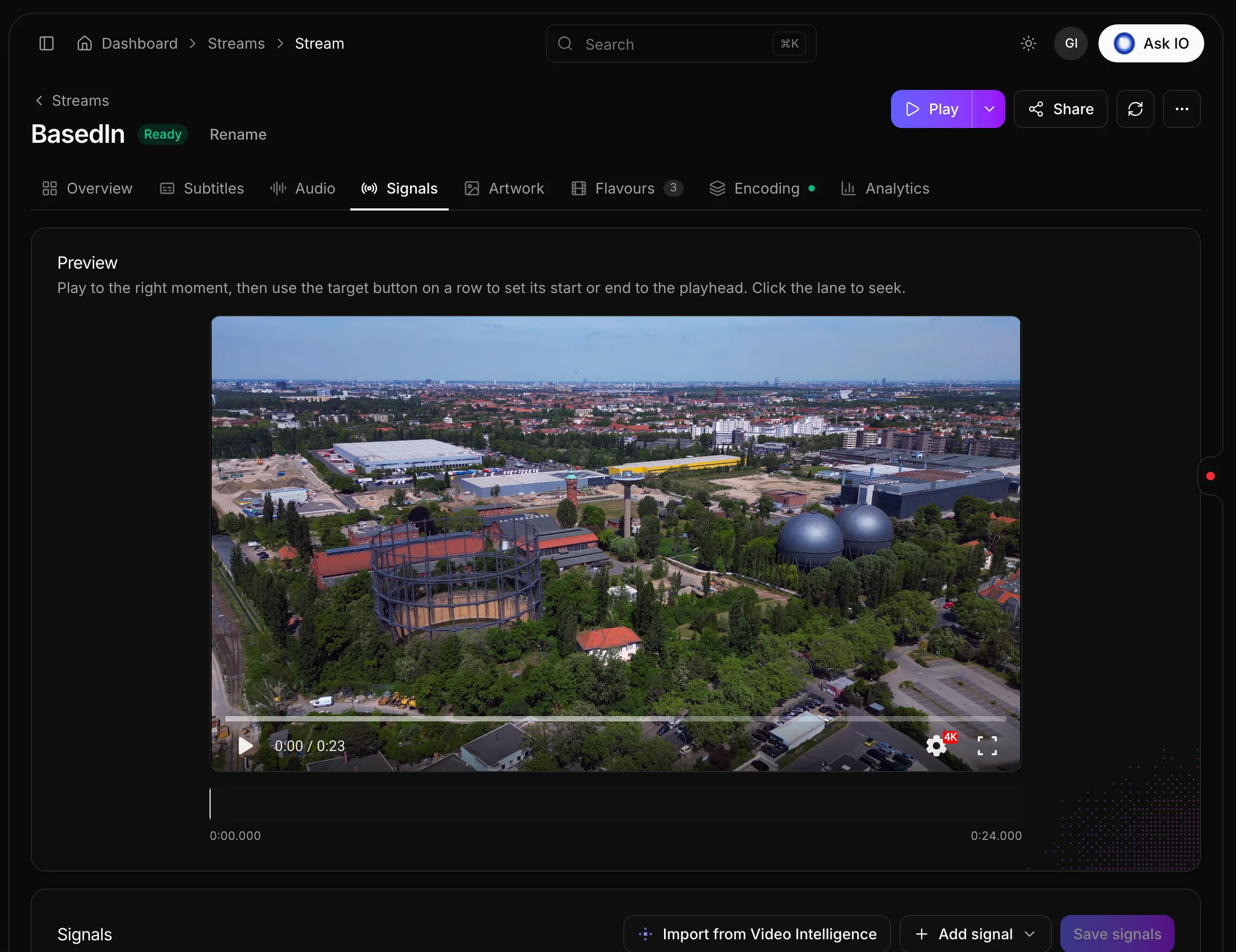
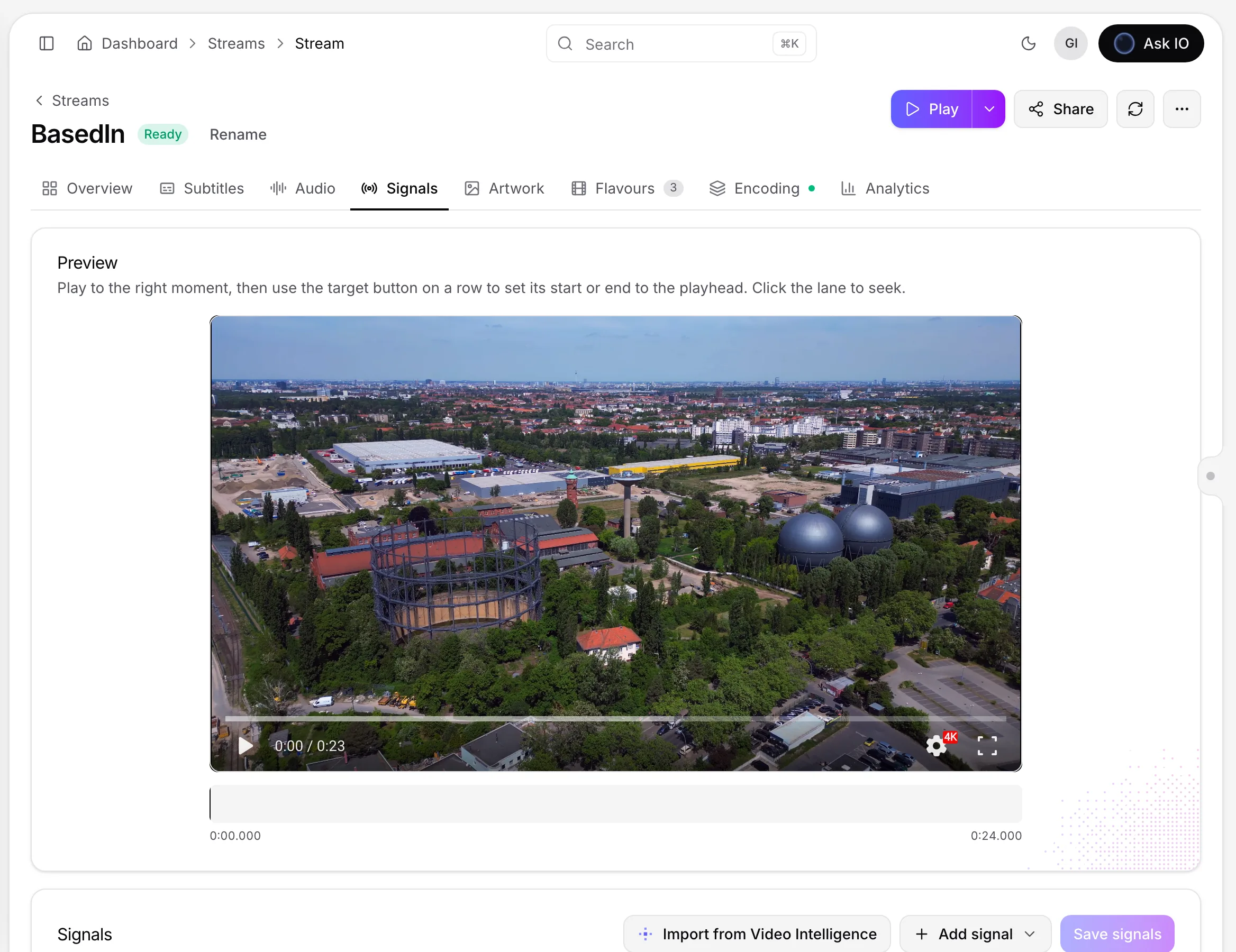
The preview becomes available after the stream finishes encoding, but you can enter times before then. Signals must fall within the stream, and an end time must be later than its start time. A stream can have only one signal of each span type, and two ad breaks cannot use the same time.
After saving, the stream's HLS and DASH manifests are updated. Players usually see the change within a few minutes. If the stream has not been packaged, its manifests remain unchanged. Select Discard changes to return to the saved signals. If you leave with unsaved changes, you are asked to confirm first.
You need permission to view and edit stream signals.
Import signals from Video Intelligence
You can import proposed signals after Video Intelligence has finished analysing the stream.
- Open the stream and select Signals.
- Select Import from Video Intelligence.
- Review the proposals. All proposals are selected initially; clear any that you do not want.
- Select Add. The button shows how many signals will be added.
- Check the imported times, then select Save signals.
Credits are based on scenes that Video Intelligence identifies as credits. Ad breaks are based on the best-rated, brand-safe scene cuts. Imported signals are marked as coming from Video Intelligence. Nothing is saved until you select Save signals.
This workflow requires permission to edit stream signals, permission to view Video Intelligence, and a completed Video Intelligence analysis. For details about starting an analysis, see How to start Video Intelligence on a stream.
Create a share link
- Open the stream and select Share.
- Under Who can watch, choose one of these options:
- Anyone with the link
- Password protected — enter a password of at least four characters.
- Signed-in storefront users — select the storefront whose signed-in users can watch.
- Choose a Page style:
- Player only
- Movie page — the stream must be linked to a catalogue.
- Choose the Player config: Default or one of your player configurations.
- Set Country restriction to No restriction, Only these countries, or Block these countries, then select the countries if needed.
- Select Create share link, then select Copy beside the link.
A stream can have one share link at a time. You need permission to view stream shares to access the sharing options and permission to create stream shares to create a link.
Embed the player on another website
- Open the stream and select Share.
- Set Page style to Player only, then save the link.
- Under Embed code, select Copy.
- Paste the code into your website's HTML.
The embed code is an iframe for the share page. An embed code is not available when Movie page is selected.
Change a share link
- Open the stream and select Share.
- Change the viewing access, page style, player configuration, or country restrictions.
- Select Save changes.
To keep the current password, leave the password field empty. You need permission to update stream shares.
Revoke a share link
- Open the stream and select Share.
- Under Revoke this link, select Revoke.
- Select Confirm.
The link stops working immediately and cannot be restored. You need permission to revoke stream shares.
Looking for a quick answer? Read the FAQ