
DOCSMONETIZATION
Prime Video revenue and analytics
Updated 31 October 2026
Use EYZFlow to import Prime Video Channels statements, match revenue to titles, post the results to royalty statements, and review subscriber, viewing, and earnings data.
You need the Distribution module in your plan and a Prime Video account on Platforms. To connect the account and set up distribution, see Distributing to Prime Video: platforms, titles and avails.
View Prime Video statements
Open Revenue under Distribution. The Platform revenue page lists statements by account and month, including the source file, revenue by currency, line counts, and status.
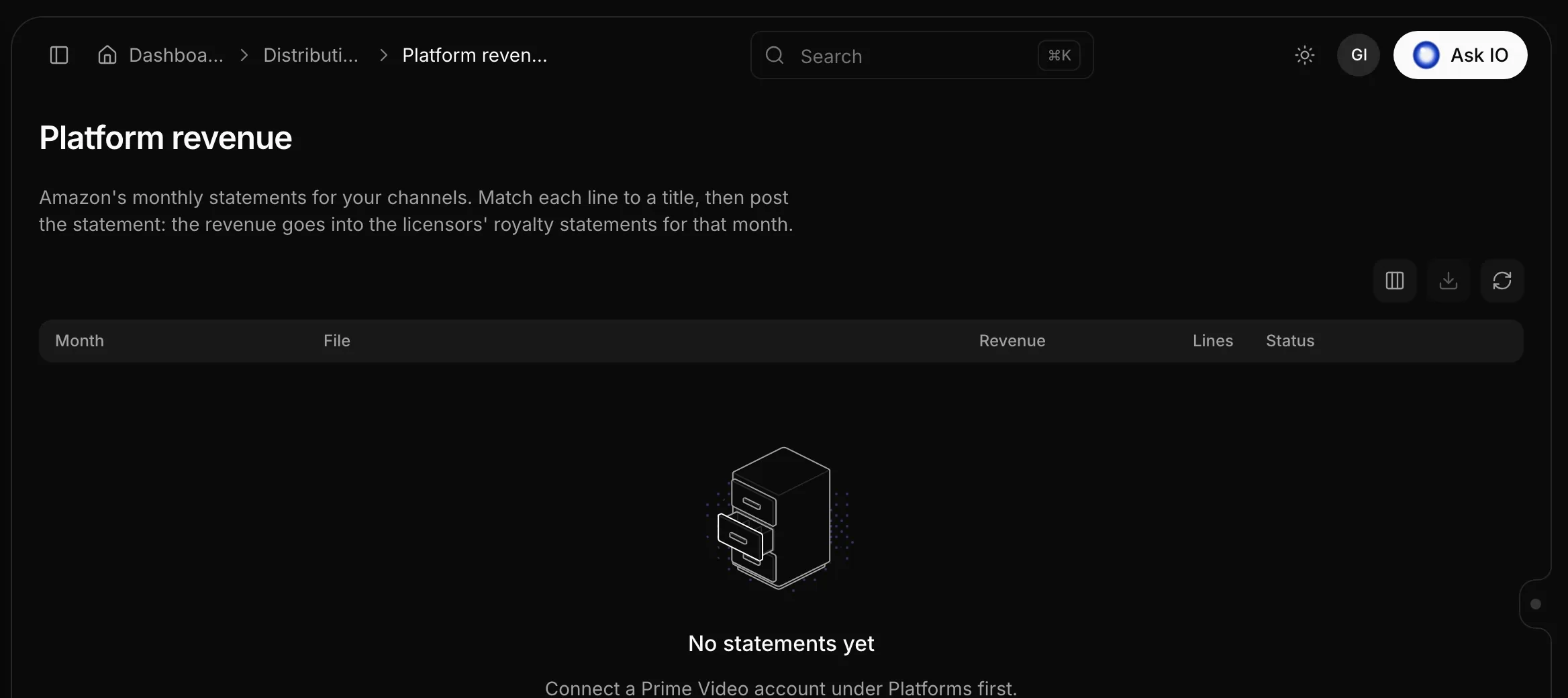
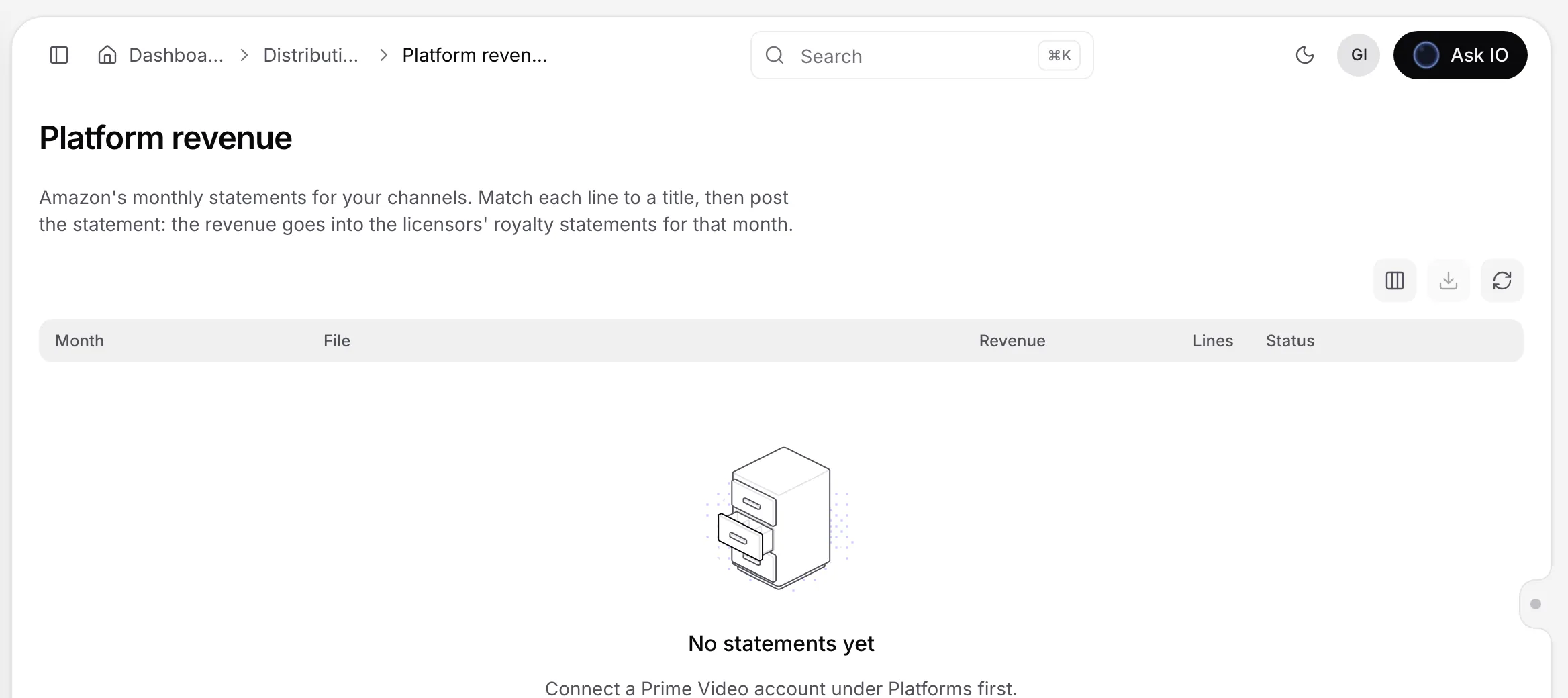
Statements can have these statuses:
- Not read
- Ready to post
- Posted
- Cannot read
Lines that still need matching are highlighted. Use the Account filter when you manage more than one account. Open a statement to inspect its lines. Viewing statements requires View Platform Revenue permission.
Import a statement from Amazon
- Open Revenue under Distribution.
- Click Fetch from Amazon.
- Select the account, if needed, and the Month.
- Click Fetch.
EYZFlow reads the Channels financial statement through the Analytics API. If Amazon has refreshed a statement, EYZFlow reads it again. The dialog reports how many statements were imported and how many were already current.
The account's Analytics API must be connected. Importing requires Import Platform Revenue permission.
Upload a statement file
- Open Revenue under Distribution.
- Click Upload statement.
- Select the Platform account and Month.
- Choose the statement file in CSV, TSV, or Excel format. You can also choose a stored file from Vault or Bridge.
- Click Upload and read.
EYZFlow opens the statement and matches its lines to titles where possible. Uploading requires Import Platform Revenue permission.
Match statement lines to titles
Open a statement to see its total revenue, lines, and any items blocking posting. A line can be marked Matched by id, Suggested, Confirmed, No title, or Ignored. The Licensor column identifies the licensor or shows No licensor offer.
- Set Show to Needs review, or search by title, ID, or licensor.
- For a suggested match, click Confirm on the line. You can also confirm all suggested matches with Confirm 3 title matches when that action is available.
- For a missing or incorrect match, click Choose title or Change, search for the Prime Video title, and select it.
- For revenue that should not be included, click Ignore.
A line needs review if its match is only suggested, it has revenue but no title, or its title has no licensor offer. Lines cannot be changed after the statement is posted. Matching requires Import Platform Revenue permission.
Re-read an uploaded file with different columns
If EYZFlow selected the wrong columns from an uploaded file:
- Open the statement and click Change columns.
- For each value—such as title, title ID, territory, channel, viewing figures, revenue, or currency—select the file column that contains it, or select — not in the file —.
- Click Read again.
EYZFlow keeps lines that you matched manually. The statement must not be posted, and the action requires Import Platform Revenue permission.
Post a statement to royalties
- Open the statement from Revenue.
- Resolve every item under Before posting by matching or ignoring the lines that need review.
- Click Post to royalties and confirm.
EYZFlow recalculates the royalty month and includes the revenue in the licensors' statements. The statement then shows Posted and the posting time. Posted Prime Video revenue appears in the licensor's Reports tab under Platform revenue, before the licensor's share.
Posting requires Manage Royalty Reports permission.
To edit a posted statement, click Take out of royalties and confirm. EYZFlow recalculates the month without the statement, allowing you to edit the lines and post it again.
Delete a statement
On the statement page, click Delete statement and confirm. This removes the file and its lines. A posted statement cannot be deleted until you take it out of royalties. Deleting requires Import Platform Revenue permission.
View Prime Video analytics
Open Prime Video analytics under Distribution. Choose a range such as Last 30 days, Last 90 days, Last 6 months, Last 12 months, or Year to date.
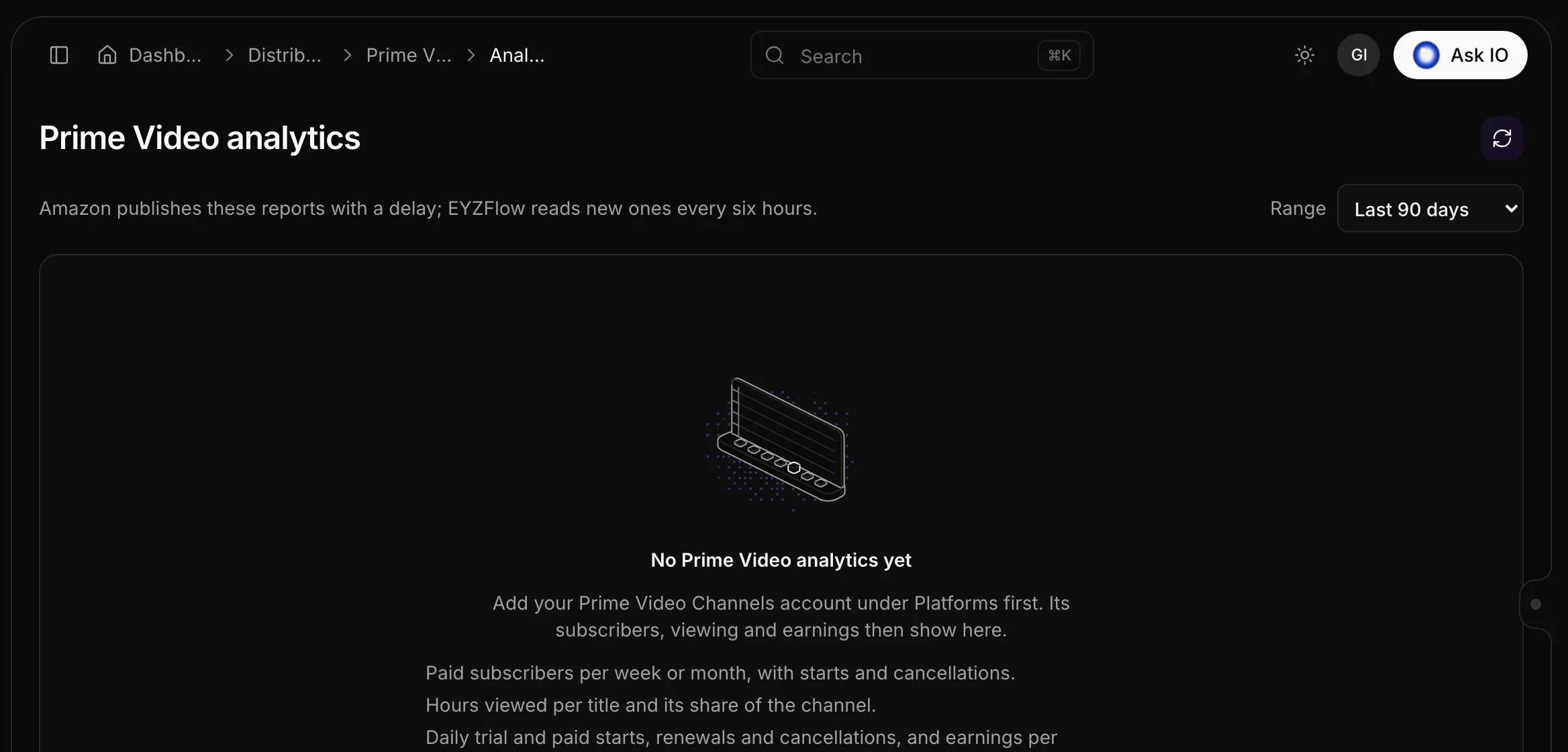
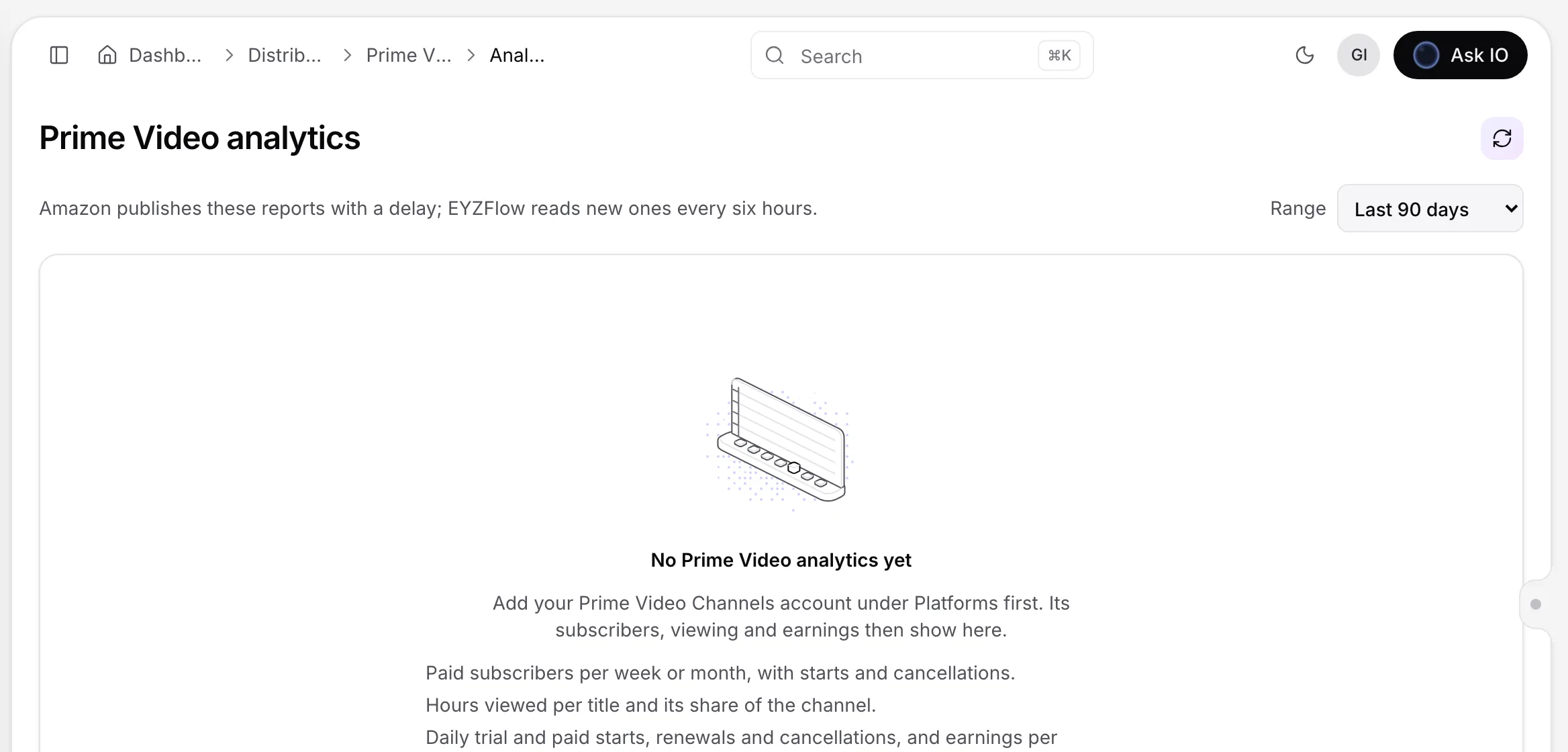
Analytics can include:
- active subscribers, including paid and free-trial subscribers, or paid subscribers at the end of the latest report period;
- hours viewed, starts, cancellations, net adds, and trial conversion;
- subscriber, viewing, and subscription-event charts;
- active subscribers by channel;
- top titles, their share of hours viewed, and viewing by title;
- marketplaces and earnings by currency, marked Posted to royalties or Not posted yet;
- reports and datasets read from Amazon.
Use the Account, Channel, and Marketplace filters when applicable. The page indicates how recent the data is. Amazon publishes reports with a delay, and EYZFlow checks for new reports every six hours. Viewing analytics requires View Platform Analytics permission.
Sync the latest analytics reports
- Open Prime Video analytics under Distribution.
- Click Sync now.
EYZFlow reads new reports for each connected account, or only the account selected in the Account filter. It reports how many reports it read. If more reports are waiting at Amazon, sync again or wait for the next automatic sync.
Sync now appears only when an account's Analytics API is connected. Syncing requires Import Platform Revenue permission.
Import a downloaded analytics report
- Open Prime Video analytics.
- Click Import report.
- Select the account and report type: Contractual Subscriptions, Contractual Content Usage, or Subscription Event Log.
- For the first two report types, choose Weekly or Monthly. If the file has no date column, also select the first day of the period.
- Choose a CSV, XLSX, or JSON file, or select a stored file from Vault or Bridge.
- Click Import.
Importing the same period again replaces the existing data. This action requires Import Platform Revenue permission.
If analytics are not available
If the analytics page shows No Prime Video analytics yet, connect the account's Analytics API using the required Login with Amazon security profile and Analytics account ID, or import a report downloaded from Prime Video.
Once the Analytics API is connected, new reports are read within six hours. You can also use Sync now to request an immediate read.
Looking for a quick answer? Read the FAQ