
DOCSWORKSPACE ADMINISTRATION
Finding your way around EYZFlow
Updated 31 October 2026
EYZFlow is organized around a sidebar, a header, and—on wider screens—a right-edge dock. The pages and tools available to you depend on your role and your organisation’s plan.
Start from the sidebar
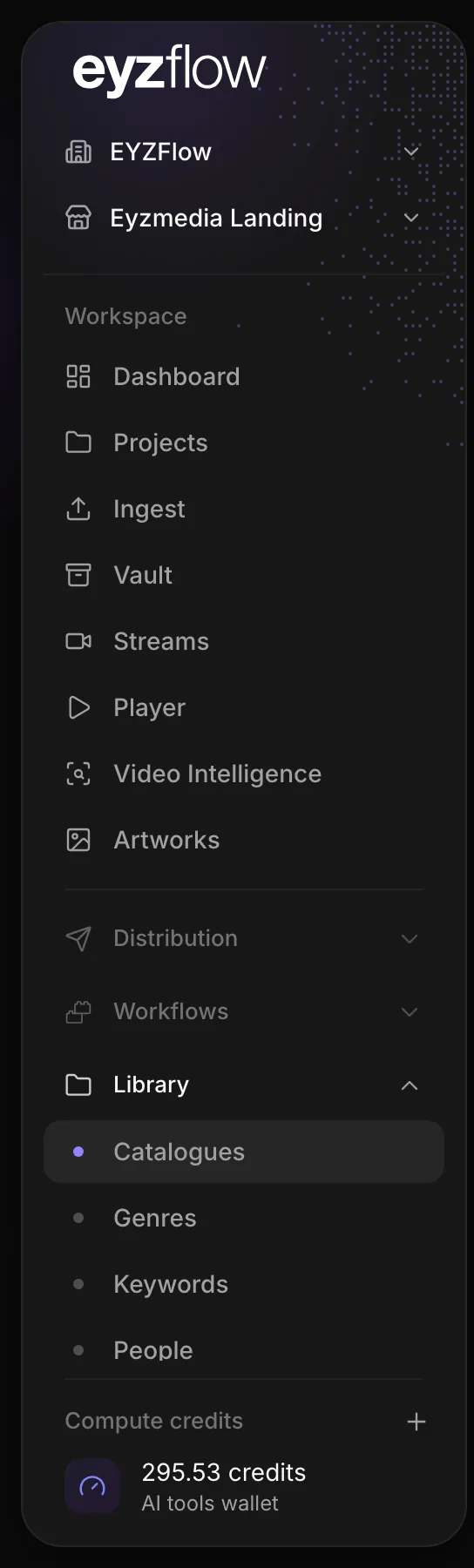
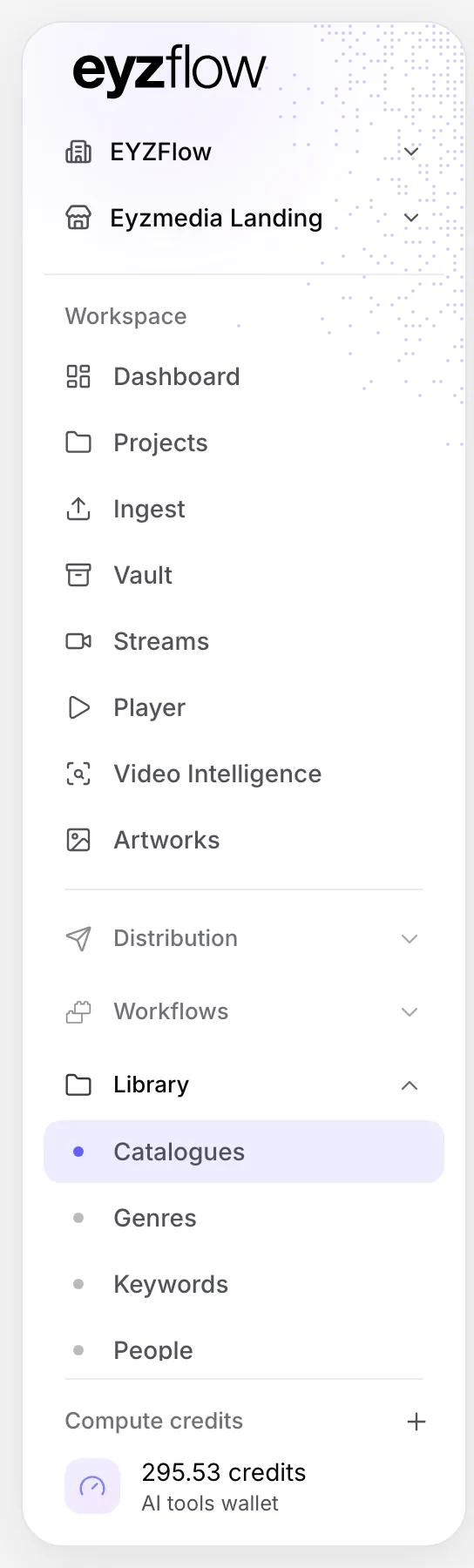
The sidebar is your main navigation. It includes these workspace pages:
- Dashboard — your home page, with widgets for current work, resource usage, attention items, and quick actions. You can show or hide widgets with Customize.
- Projects — subtitle, transcription, hard-of-hearing audio, and audio description projects.
- Ingest — bring titles and sources into EYZFlow and let AI draft catalogue information.
- Vault — keep your organisation’s master files.
- Streams — manage videos, encoded versions, audio, and captions.
- Live channels — schedule live channels.
- Player — manage player configurations.
- Video Intelligence — view analyses of your videos.
- Artworks — manage artwork files.
The sidebar also contains sections that you can open or fold. The section for your current page opens automatically.
Explore the main sections
Distribution
Use Distribution to manage deliveries, platform accounts, Prime Video titles and availability, platform analytics, and revenue statements.
Workflows
Use Workflows to access your workflows, templates, activity, and Questions for me—the area for workflow questions waiting for your review.
Library
The Library contains your catalogues and the lists that titles can refer to, including genres, keywords, people, companies, awards, and festivals.
Content
The Content section is for storefront content, including feeds, promotional cards, storefronts, content blocks, forms, content pages, and menus.
Monetization
Monetization includes offers, products, coupons, purchases, the financial dashboard, and licensors.
Bridge
Use Bridge to work with incoming accounts files, collaborators, shared files, upload links, messages, and files that are expiring soon.
Support
Support is the chat with viewers on your storefront websites. It includes the inbox, knowledge base, setup tools, saved replies, and closed cases.
Note
A section or page may be unavailable because your organisation’s plan does not include its module or because your role does not have the required access. Plan-only features appear under More on Platform with a lock; pages unavailable to your role are not shown.
Switch organisation or storefront
- At the top of the sidebar, select your organisation name.
- Choose another organisation. EYZFlow switches to that organisation and opens its home page.
- If the organisation has storefronts, select the storefront line below the organisation name.
- Choose a storefront. Storefront-specific pages, such as pages under Content, now use the selected storefront.
Use the header
The header gives you access to common tools:
- Search finds catalogues and streams by name. Enter at least two letters and choose a result.
- Press ⌘K on Mac or Ctrl K on other systems to open search from any page.
- Use the sun or moon button to switch between light and dark mode.
- Open the account menu from your initials to access account and organisation information, documentation, settings, billing, user management, audit logs, password changes, add-ons, subscription, storage, and sign-out. Some options require additional access.
- Ask IO opens IO’s chat when the home-page IO box or a full-page chat is not already displayed. See Using IO, the EYZFlow assistant for help with IO.
Use the right-edge dock
On wider screens, the dock keeps activity close at hand:
- Select the notch on the right edge to open the dock.
- Choose an item such as Waiting for you, Notifications, Workflows, Open IO, New chat, or More.
- Open More for notifications, workflow activity when workflows are enabled, and the option to fold the dock away.
Select outside the dock or press Escape to close it. If IO is open as a large-screen sidebar, the dock moves aside.
Manage the sidebar on smaller screens
Select the panel button at the far left of the header to collapse the sidebar into an icon rail. Select it again to expand it. On phones, the same button opens and closes the navigation menu.
Check compute credits
If you have access to add-ons, your compute-credit balance appears at the bottom of the open sidebar. Select + or Add more to buy additional credits.
For an overview of roles, permissions, and plan-based access, see Team roles, permissions, and plan modules.
Looking for a quick answer? Read the FAQ