
DOCSWORKSPACE ADMINISTRATION
Notifications: view, manage, and respond to alerts
Updated 31 October 2026
Notifications keep you informed about activity and issues in your organisation, such as completed or failed processing, plan limits, workflow activity, and support replies.
View new notifications
On a wider screen, open the notification dock from the right edge of the page, then select Notifications. On a phone, select the bell in the header.
- A red number on the bell shows how many notifications arrived since you last opened the list.
- A red dot on the dock notch indicates that something is new.
- Notifications appear newest first and show a title, message, and how long ago they arrived.
Opening the notification list, or opening the Notifications page, clears the count on the bell. Notifications that were new when you opened the list retain a small red dot.
Open, acknowledge, or dismiss a notification
From the notification list:
- Select a notification to open the page related to it. For example, a processing notification can open the relevant stream.
- To acknowledge an active warning or error, select Acknowledge.
- To remove an active warning or error from the active list, select Dismiss.
- To acknowledge every active notification at once, select Mark all as read.
- To see the complete history, select View all notifications.
Opening an informational notification marks it as read.
Use the Notifications page
The Notifications page lists every notification for your organisation, including active and inactive notifications.
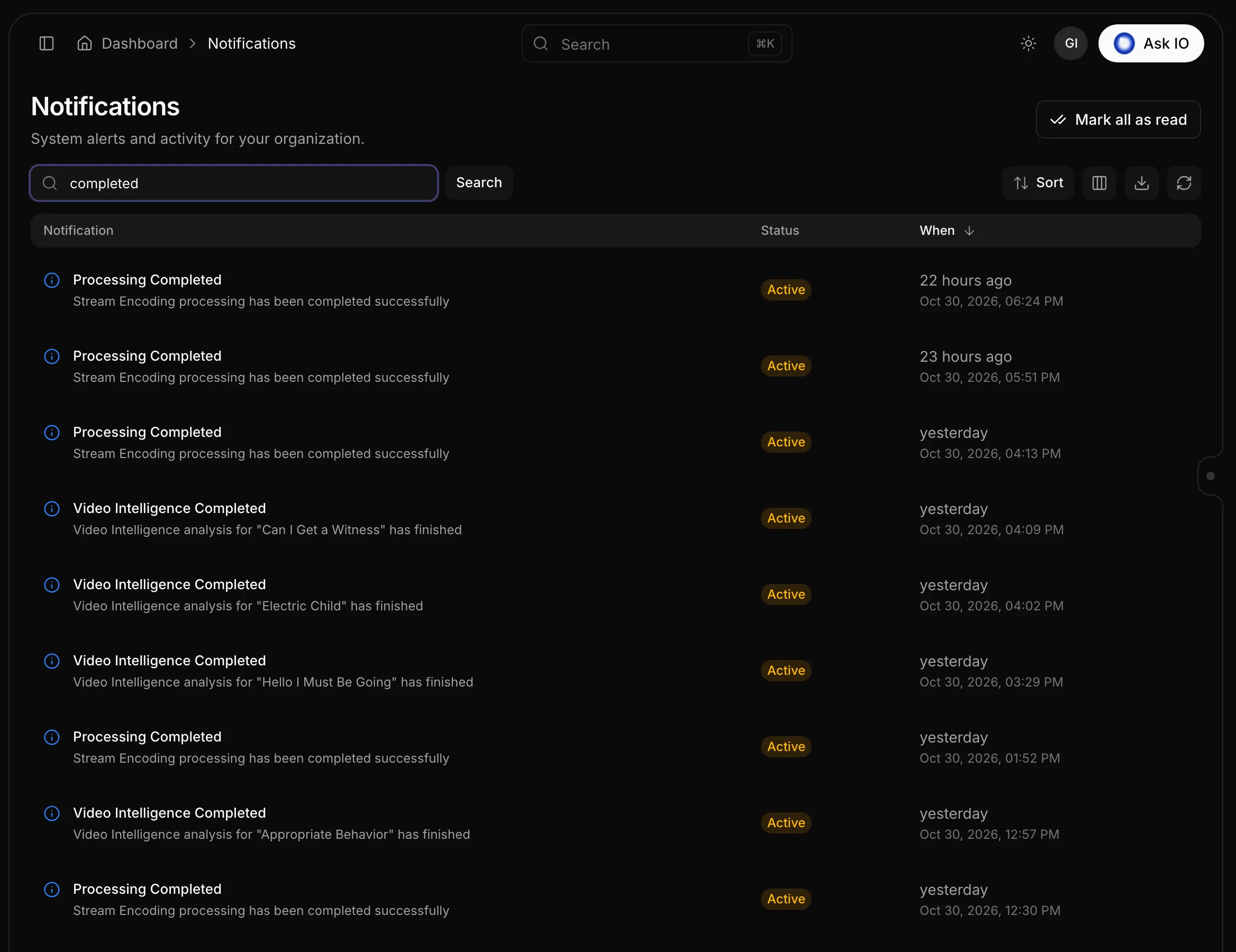
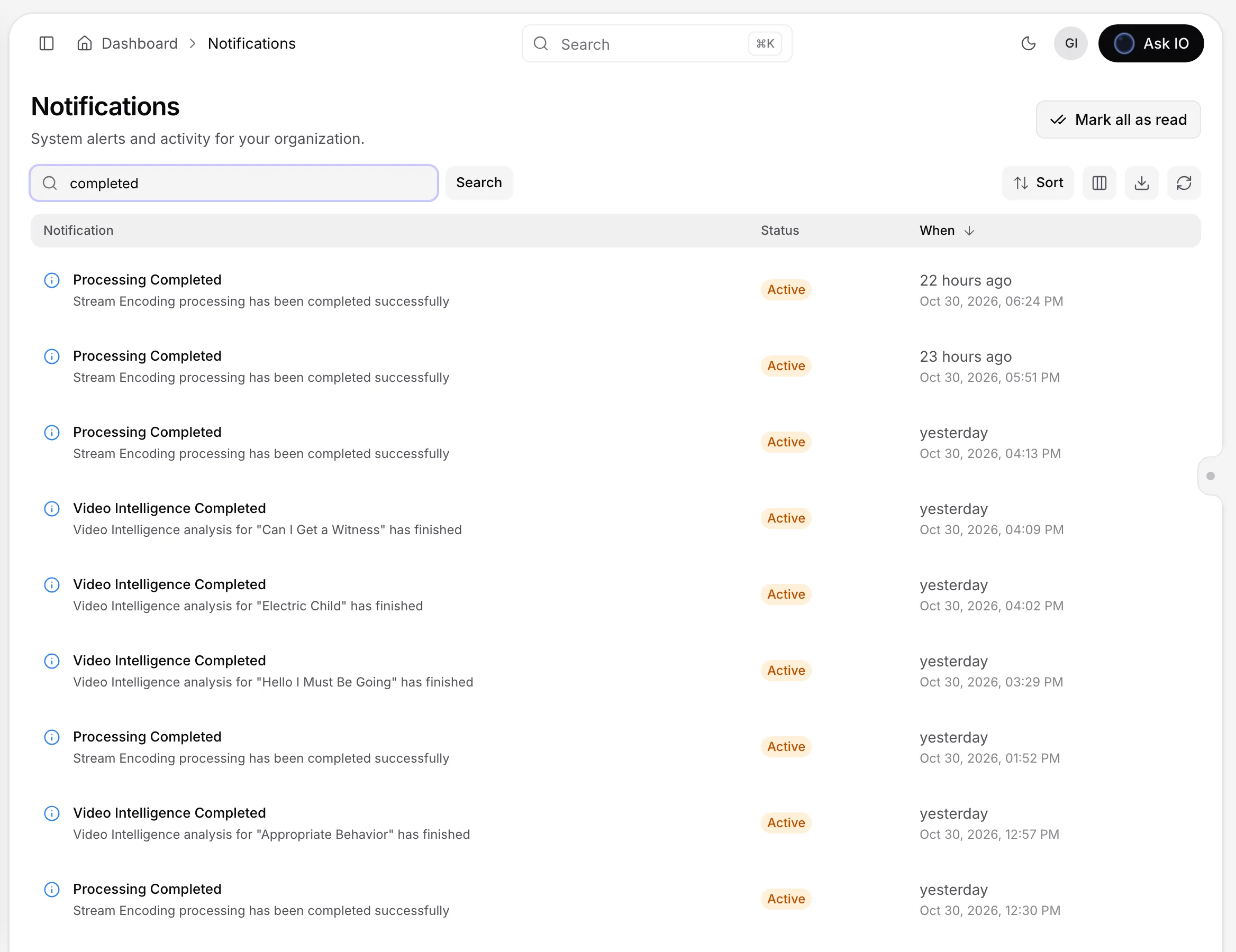
To find a notification:
- Enter text in Search notifications and select Search or press Enter.
- Review the Notification, Status, and When columns. Status can be Active, Acknowledged, Resolved, or Dismissed.
- Sort by notification or by arrival time. The default order is newest first.
- Select a row that links to another page to open the related item.
- For an active warning or error, use Acknowledge or Dismiss in the row.
- Use Mark all as read at the top to acknowledge all active notifications.
- Choose the number of rows per page and use the page controls at the bottom of the list.
You can open the Notifications page from View all notifications in the dock or from More → Notifications.
Understand where notifications lead
Notifications can open the item that needs attention:
- Stream encoding or processing, artwork, audio track, and caption events open the stream on the relevant tab.
- Storage or encoding limits, and subscription expiry notices, open Subscription.
- Workflow checks open the workflow. Failed or waiting workflow runs open the run.
- Support replies open the relevant IO chat.
- Viewer-support activity opens the relevant case.
- Mentions in ingest notes open the ingest and its notes.
- Other catalogue or stream notifications open the related catalogue or stream.
Errors use a red icon, warnings use an amber icon, and information notifications use a blue icon.
Check the Dashboard
The Needs attention widget on the Dashboard shows up to four active warnings and errors. It also appears alongside failed streams and plan limits that have been exceeded. Select an item to open its related page, or open the Notifications page when no other destination is available.
Looking for a quick answer? Read the FAQ