
DOCSSTREAMS AND MEDIA DELIVERY
Live channels: create, schedule, and operate a channel
Updated 31 October 2026
Live channels play streams on a 24/7 schedule and can deliver them as HLS for players or SRT for partner platforms. You can also switch temporarily to a live encoder feed, insert ad breaks, and review channel usage and audience analytics.
Before you start
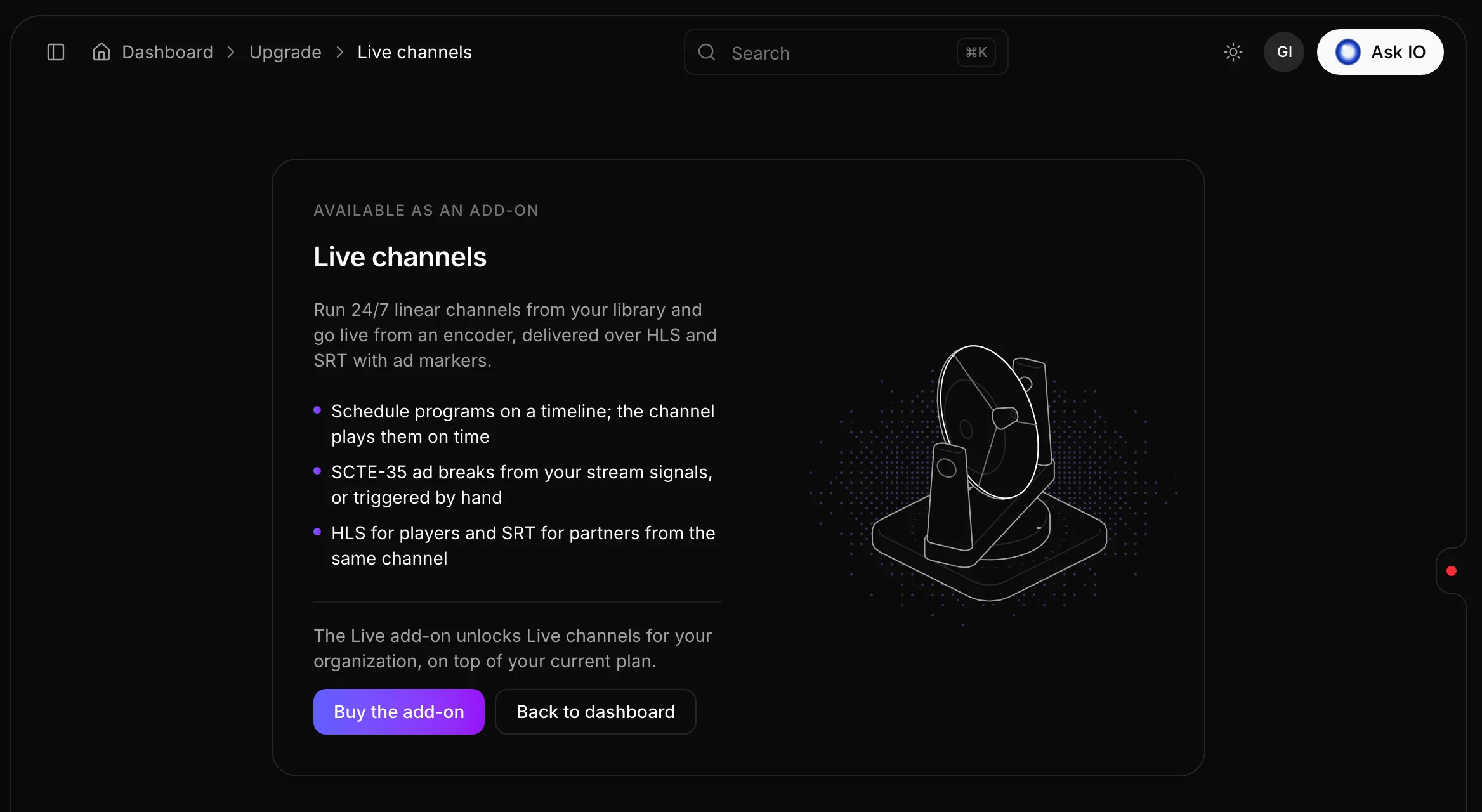
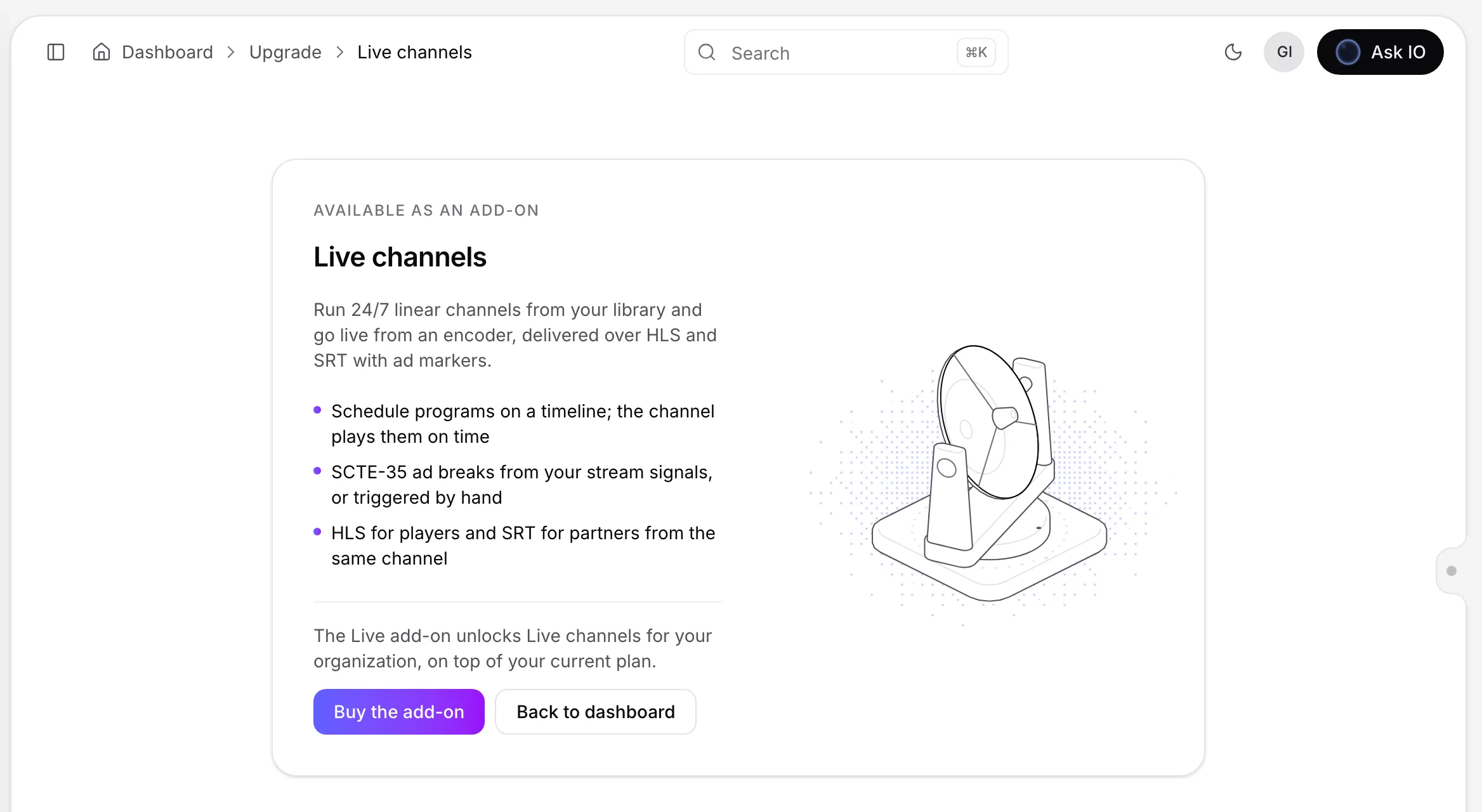
Live channels require the Live add-on. You also need the appropriate organisation access to view, create, edit, operate, or delete channels. If the add-on is not active, Live channels appears locked in the sidebar and provides an option to add it.
The add-on includes a set number of channels and SRT outputs. You can add more channels from the Live channels page. The page shows the current number of channels in use, the total allowance, and any applicable price or prorated charge. You cannot reduce the allowance below the number of channels currently in use; delete channels first if necessary.
Create a channel
- Open Live channels from the sidebar.
- Select New channel.
- Enter a name.
- Under What the channel airs, keep 24/7 scheduled. The other channel types are marked as coming soon.
- Choose the output qualities:
- Full HD: 1080p, 720p, and 480p
- HD: 720p and 480p
- Optionally change the slate text. The slate appears during hold breaks, schedule gaps, and when a program cannot play.
- Select Create channel.
The new channel opens on its Schedule tab.
Build the schedule
- Open the channel and select Schedule.
- Choose a day using the date controls or Today.
- Add schedule entries:
- Program: choose a stream. Its slot is based on the program duration and rounded up to five minutes.
- Slate: adds 15 minutes of slate.
- Live input: adds a one-hour slot for one of your live inputs.
- Drag entries to reposition them, or drag an entry's right edge to change its length.
- Select an entry to edit its title, start time, and slot length. For programs, you can also set the start and end points in the stream, choose how ad breaks behave, and select the ads for that airing.
- Select Save schedule.
Entries that are on air or scheduled to start within two minutes are locked. Overlaps and other problems must be fixed before the schedule can be saved. Times are displayed in your time zone. A program's ad breaks come from markers in the stream, so changing those markers changes every airing of the stream.
Note
Schedule changes are picked up within a few seconds. Select Discard changes to return to the last saved schedule.
Put the channel on air
- Open the channel.
- Select Go on air and confirm.
- To stop the channel, select Take off air and confirm.
The channel begins playing its schedule within a few seconds. Taking it off air removes the signal for viewers and partner platforms.
Use a live encoder input
A live input lets an encoder feed the channel temporarily or provide a source for a scheduled live-input slot.
Create an input
- Open Live inputs from the Live channels area.
- Select New input and enter a name.
- Choose how the feed arrives:
- Your encoder connects to EYZFlow: an encoder such as OBS, vMix, or a hardware encoder sends SRT or RTMP using a stream key.
- EYZFlow connects to an SRT server: enter the server and port, and optionally a stream ID, passphrase, and latency. You can limit the connection to times when a channel needs it.
- Select Create input.
- For an encoder input, copy the SRT connection details or the RTMP server and stream key into your encoder. Copy the stream key immediately because it is shown only once.
Send H.264 video with AAC audio and keyframes every two seconds. An input shows Receiving when its feed is arriving. Private and local addresses cannot be used for an SRT server connection.
Go live from an input
- Open an on-air channel and find the Live input card on Overview.
- Select a receiving input.
- Select Go live now and confirm.
- When the live segment is finished, select Return to schedule and confirm.
The schedule continues underneath the live input and resumes from its current position when you return to it. If the encoder has not connected, the channel shows its slate until the feed arrives.
You can rotate an input's stream key, rename an input, change the settings for an input that pulls from an SRT server, or delete an input from Live inputs. A replacement stream key is shown only once; encoders using the old key are refused from their next connection.
Configure outputs and channel settings
Open a channel's Settings tab to change:
- The channel name and slate text
- Output qualities
- Segment length: 2, 4, or 6 seconds
- Rewind window: 1 to 120 minutes
- Default ad break length when a stream marker has no length
- SRT outputs, including the stream ID and optional passphrase
The stream ID may contain 3–120 letters, digits, dots, dashes, or underscores. An SRT passphrase may contain 10–79 characters. The Live add-on determines how many SRT outputs a channel can have.
Save settings when finished. Changes other than the name and ad insertion settings restart the channel; if it is on air, you are asked to confirm, and viewers see a few seconds of slate.
Find playback and partner-platform outputs
On the channel's Overview tab, under Outputs, copy the HLS playlist for players. When ad insertion is enabled, an Ad-supported playlist (HLS) is also available. Each player opening the ad-supported playlist receives its own session and ads.
For SRT, use the listed output's stream ID together with the channel's connection details. The Overview also shows a live preview while the channel is on air, what is airing now and next, and recent starts, ad breaks, and playback problems.
Insert ads
Enable server-side ad insertion
- Open Settings for the channel.
- Under Ad insertion (SSAI), select Insert ads server-side.
- Enter your ad server's VAST tag address using HTTP or HTTPS.
- Save the settings.
Ads are stitched into the Ad-supported playlist (HLS). The channel's standard playlist and SRT outputs keep the original break. A new creative begins at the next break after the ad server returns it.
Insert a break manually
- Open an on-air channel's Overview tab.
- In the Ad break card, choose a length of 30, 60, 90, or 120 seconds, or enter 5–600 seconds.
- Choose whether to keep the program playing or pause it. When pausing, choose whether to push the rest of the schedule back or keep its scheduled times.
- Select Insert break and confirm.
The break begins four seconds after confirmation. Its status progresses through Queued, Sent, On air, or Refused. You can pause only while a program is airing and no live input is on air.
Monitor usage and analytics
The Live channels page shows delivery against the organisation's allowance, time on air, the HLS and SRT split, SRT viewer time, ad impressions, and the channels using the most delivery. The allowance is shared across channels. Channels continue airing above the allowance, with notices at 80% and 100%.
A channel's Overview shows its delivery, allowance share, time on air, and daily delivery for the last 31 days. Its Analytics tab can show:
- Viewer hours, average audience, peak viewers, unique viewers per day, and average viewing session
- Audience over time and the share of time on air
- Ad fill rate, impressions, breaks with ads, and ad time
- Program performance and retention
- Countries, devices, and playback qualities
- Current SRT callers
Choose a range of 24 hours, 7 days, 30 days, or 90 days. You can export audience-over-time data as a CSV file. HLS viewing data arrives about an hour after viewing occurs; SRT callers appear when they connect.
Delete a channel
- Take the channel off air if necessary.
- Open Settings and find Delete channel.
- Select Delete channel and confirm.
Deletion removes the channel and its schedule. Its HLS and SRT addresses stop working, and the action cannot be undone.
If the Live add-on payment fails
After a payment, activation can take a few seconds. If the latest payment fails, channels continue airing while payment is retried. If the add-on remains unpaid, channels continue until the date shown, then display a channel-unavailable slate and later go off air. Paying restores the channels and keeps their schedules.
If the add-on has ended, channels cannot go on air, but their schedules and settings are retained. Use the option to get the Live add-on again. An organisation user with billing-management access can use Update payment to change the payment method.
Looking for a quick answer? Read the FAQ