
DOCSBRIDGE FILE EXCHANGE
Manage collaborators and Bridge workspaces
Updated 31 October 2026
Collaborators are outside companies or people your organisation works with, such as post houses, designers, and studios. Create a collaborator profile to store contact information, then use Bridge to exchange files with them and, when needed, let their portal users upload files into a licensor’s Bridge folders.
Note
The Collaborators area is available only when the Collaborators plan module is enabled. Access also depends on your organisation’s permissions.
Find a collaborator
- In the sidebar, open Bridge > Collaborators.
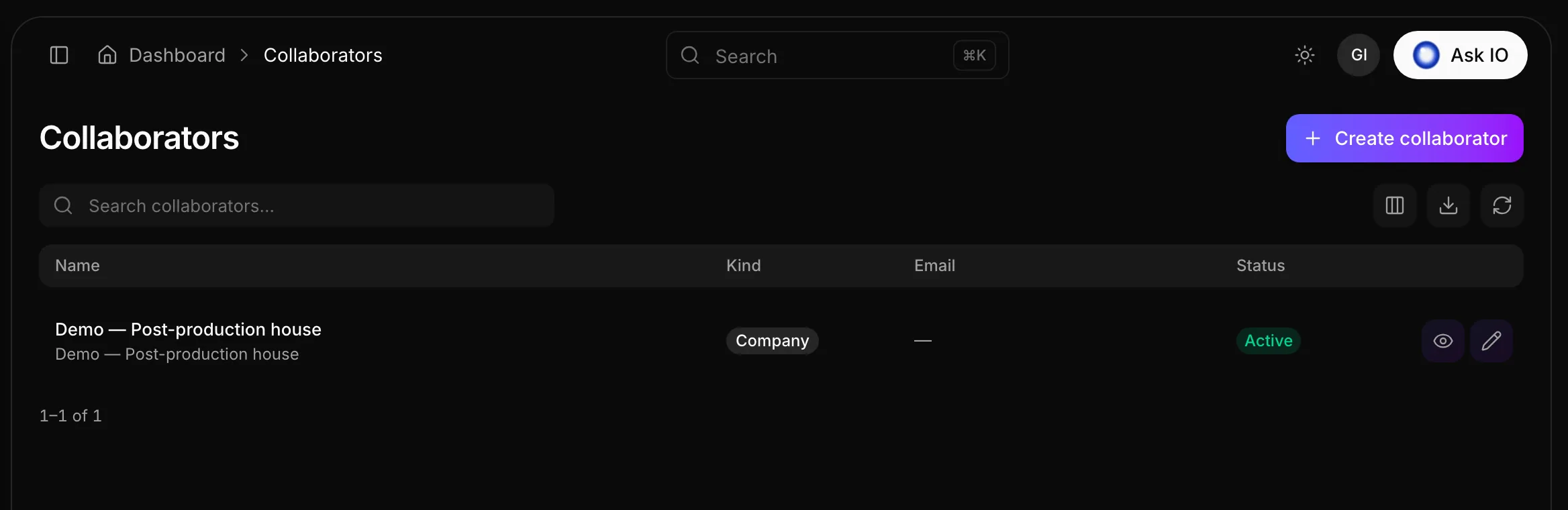
- Enter a name in Search collaborators…. The list filters as you type.
- Select a row to open the collaborator’s page.
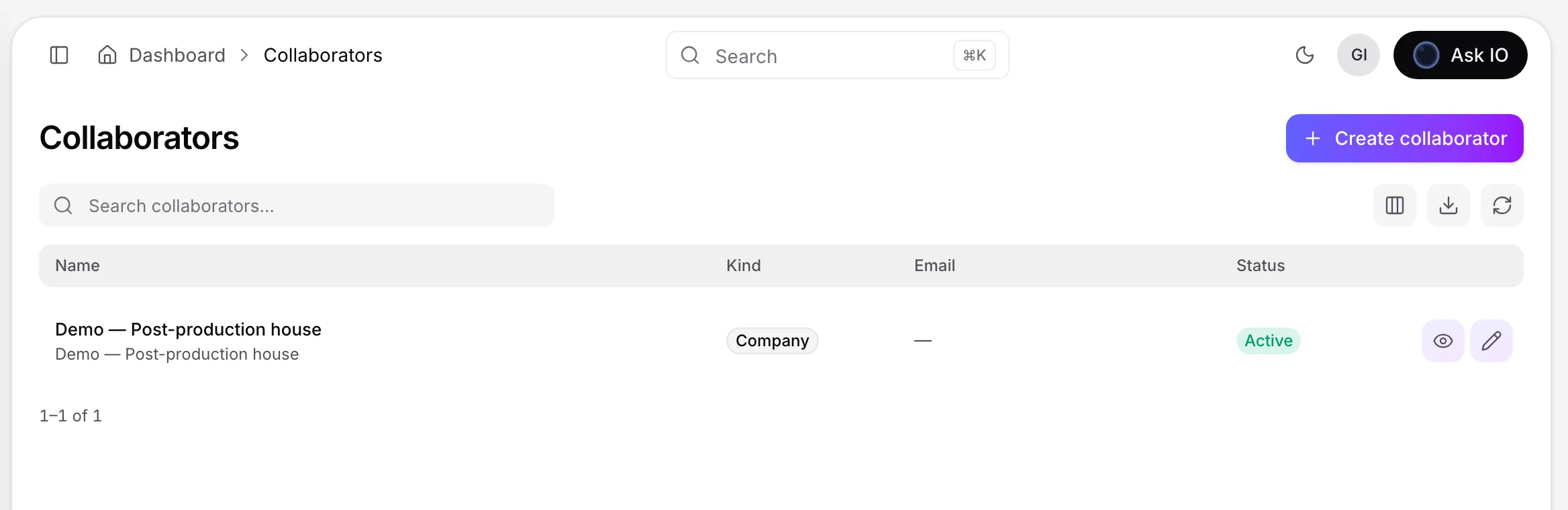
The list shows the collaborator’s name, company, kind, email, and status. Use the refresh control to reload the list and the page controls to move between pages.
Create a collaborator
- Open Bridge > Collaborators and select Create collaborator.
- In Profile, choose Company or Individual and enter the company name or full name. For an individual, you can also add a company.
- Optionally add comma-separated tags, such as
marketing, design, studio. - Under Primary contact, enter the contact person, email, phone, and website.
- To add more people, select Add contact under Additional contacts. You can record each contact’s name, department, email, phone, mobile, fax, and mailing country.
- Add the address and a description under Notes. Leave Active selected if you currently work with the collaborator.
- Select Create collaborator.
The name is required. The email addresses saved on the profile can later be used to invite people to the collaborator’s Bridge workspace. If you leave with unsaved changes, you are asked to confirm first.
Edit a collaborator
- Open the collaborator’s page from the Collaborators list.
- Select Edit.
- Update the profile, contacts, address, or notes. Clear Active to mark the collaborator inactive.
- Select Save changes. Select Cancel to leave without saving.
View collaborator details
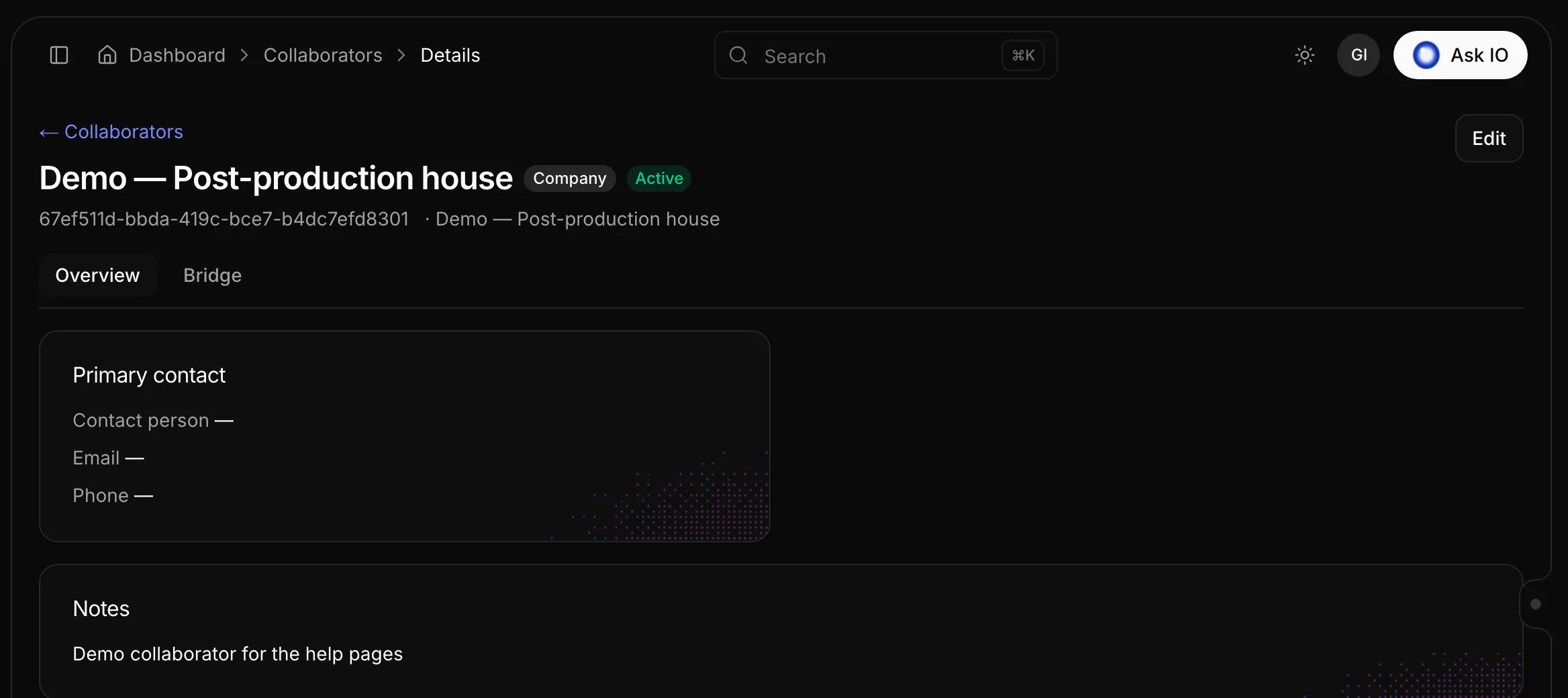
The collaborator page has two tabs:
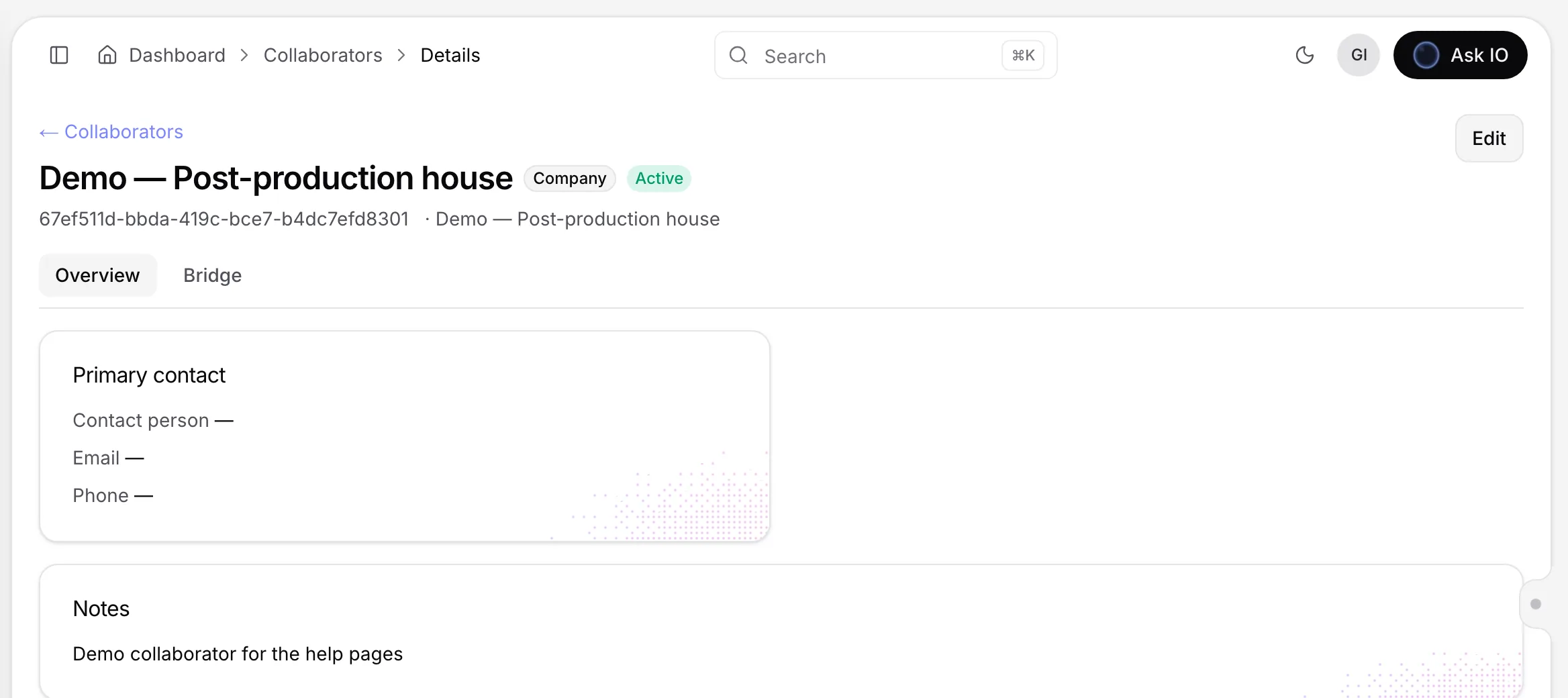
- Overview: primary contact details, tags, address, notes, and additional contacts.
- Bridge: attached licensors and the collaborator’s Bridge workspace.
The Bridge tab is visible only to users who have permission to view Bridge accounts.
Attach a licensor
Attach a licensor when a collaborator delivers files for that licensor. This lets the collaborator’s portal users upload into the licensor’s Bridge folders.
- Open the collaborator’s page and select the Bridge tab.
- Under Licensors, select Attach.
- Search for the licensor in Choose licensor and select Select.
If the licensor does not yet have a Bridge workspace, one is created when you attach it. Each attached licensor shows whether it is active and its Bridge status, or No Bridge. Select a licensor’s name to open its Bridge tab.
Remove a licensor
- On the collaborator’s Bridge tab, find the licensor under Licensors.
- Select the trash icon next to the licensor and confirm.
Removing the attachment stops portal access to that licensor’s folder. Files remain on the licensor’s workspace.
Give a collaborator a Bridge workspace
- On the collaborator’s Bridge tab, select Enable Bridge. A confirmation indicates that the workspace is ready.
- Select Invite member, choose one of the collaborator’s saved contact emails, and select Send invite.
- For an invitation that has not been accepted, select Resend.
- To remove a member, select the trash icon on that member’s row.
Only email addresses saved on the collaborator are available for invitations. If no addresses are available, add contact emails by editing the collaborator first.
Select Disable to turn off the workspace. Members then lose access. The workspace’s files are listed below the members. For file-sharing tasks, see Sharing and inspecting files with Bridge.
Access requirements
Your organisation’s administrator must enable the Collaborators plan module. Depending on the task, you may also need permissions to:
- View collaborators
- Create collaborators
- Update collaborators
- View licensors
- View Bridge accounts
- Create and update Bridge accounts
If an action or page is not available, ask an administrator to check your access.
Looking for a quick answer? Read the FAQ