
DOCSACCESSIBILITY AND LANGUAGE PROJECTS
Review and approve subtitles
Updated 31 October 2026
Use subtitle review to check an automatically created or edited subtitle track, record cue-level decisions, and give editors clear feedback.
Approve or flag cues
- Open the project from Projects and select a subtitle track.
- For each cue, choose Approve when it is correct, or Flag when it needs work. Select the same option again to clear the mark.
- Select Save changes.
The workspace header shows the number of approved, flagged, and still-open cues. On wide screens, the Approved cues bar also shows progress.
You need subtitle-editing permission to approve or flag cues. Without that permission, you can see the cue status but not change it.
Leave feedback on a cue
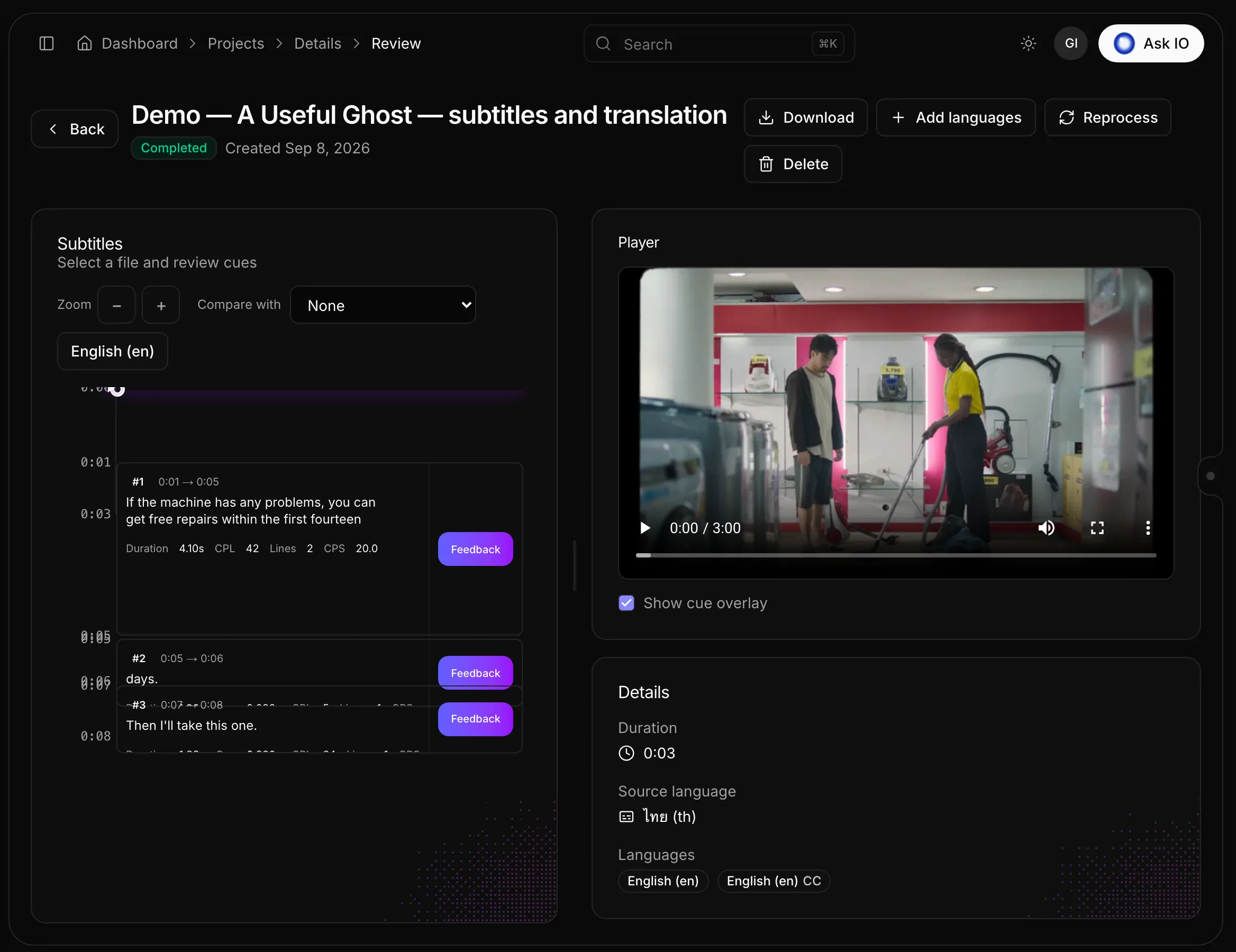
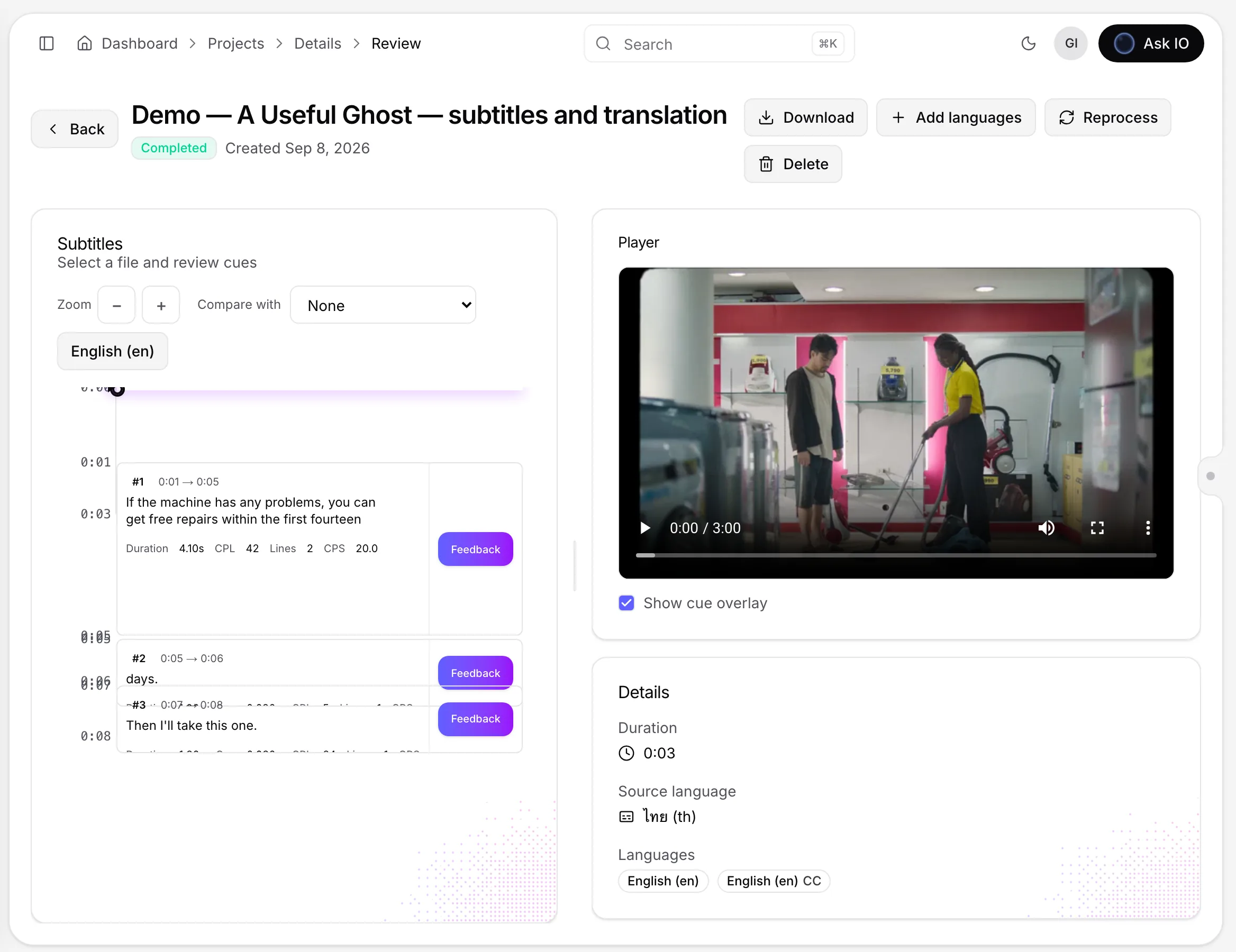
Use project review when a cue needs a written explanation or a more detailed check:
- In the subtitle workspace, select Review.
- Choose the track to review.
- Find the cue on the timeline by playing the video or scrolling, then select Feedback.
- Choose a feedback type: Time, Format, or Text.
- Enter a comment and select Submit.
The review page displays useful checks for each cue, including duration, the gap from the previous cue, characters per line, number of lines, and characters per second. Values that break the track's subtitle rules appear in red.
After feedback has been added, the cue displays a feedback count. Select that count to read existing entries or add another comment. Feedback entries include their type, comment, and date.
For more on changing individual subtitle cues, see Reviewing and editing subtitles in a project.
Compare subtitle versions
If the project contains more than one track:
- Open project review and select the track you want to review.
- Choose another track under Compare with.
- Review both versions side by side on the same timeline.
If the comparison track contains feedback, use the navigation arrows to move between cues with feedback. When the comparison cue has feedback and the current cue does not, select Copy to copy that feedback to the current cue. Choose None to stop comparing.
Comparison is useful after creating a new version: the existing track remains available while you check the new one.
Create a new version
To generate a new version of a track, select Reprocess from the workspace's More actions menu or from project review. Reprocessing creates a new track and keeps existing subtitle files, allowing you to compare the versions.
You need subtitle-editing permission to reprocess a track. For changes to only a few cues, edit those cues in the workspace instead.
Work with other reviewers
Several people can review the same project, but they should take turns editing a track because there is no live collaborative editing or track lock.
- Anyone who can open the project can leave and read feedback.
- People with subtitle-editing permission can edit cues and change approval marks.
- Feedback remains associated with its cue when cues are added, deleted, or retimed. Feedback for a deleted cue is listed separately with the cue's times.
- Each language track saves independently, so teams can divide work by language or work sequentially.
If another person saves the same track after you opened it, your save is refused and no changes are written. You can load the other person's version or download your version as an SRT file so you can recreate your edits.
Important
Save your changes regularly and coordinate with other editors before working on the same track.
A separate workflow can ask selected people to review subtitles and record an approval or rejection with a note.
Looking for a quick answer? Read the FAQ