
DOCSVAULT AND FILE STORAGE
View and free your organisation’s storage
Updated 31 October 2026
The Storage page shows how your organisation’s storage is being used and helps you free space by deleting Vault and Bridge files you no longer need.
Open the Storage page
- Open the account menu in the header.
- Select Storage.
You can also open Storage by selecting the storage meter on the dashboard. You need View Subscription permission to access the page.
See your storage usage
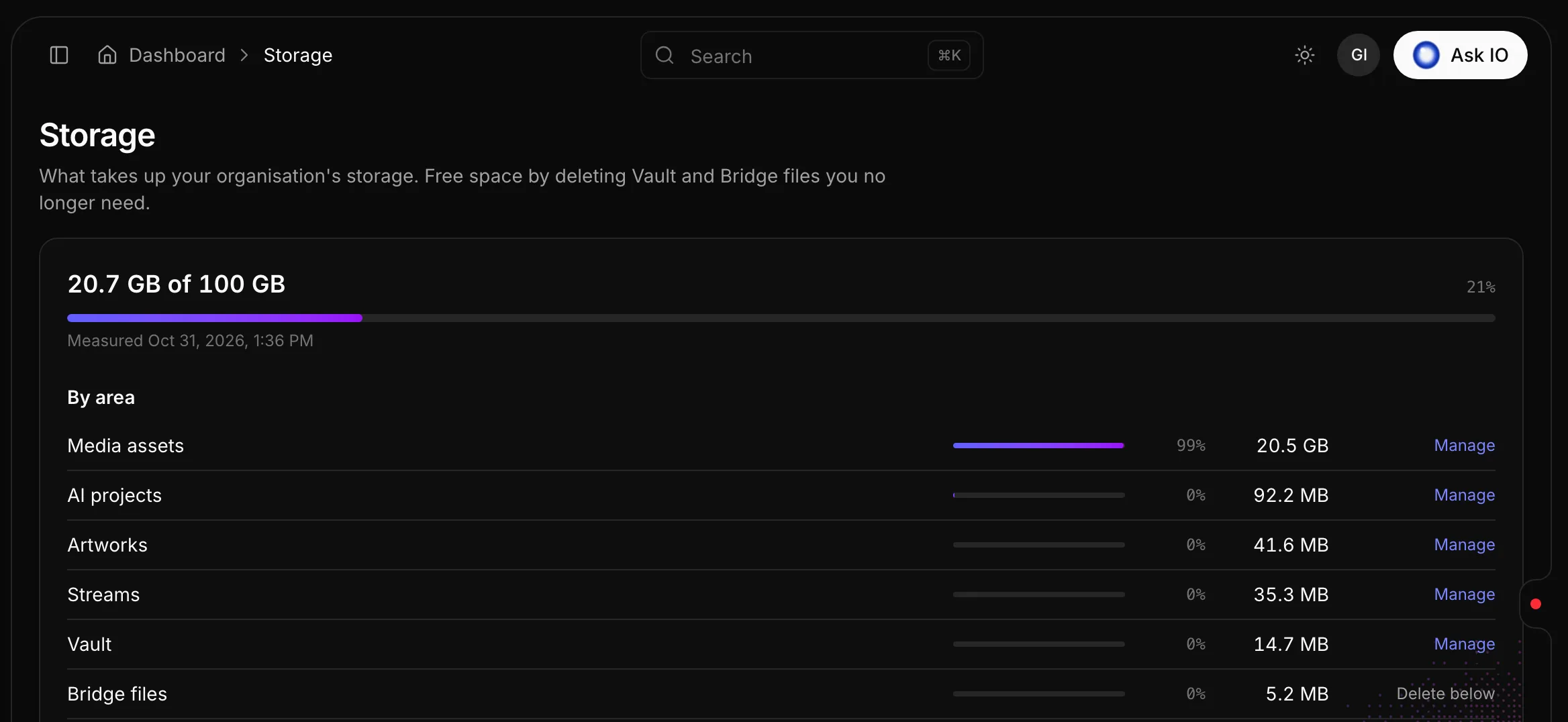
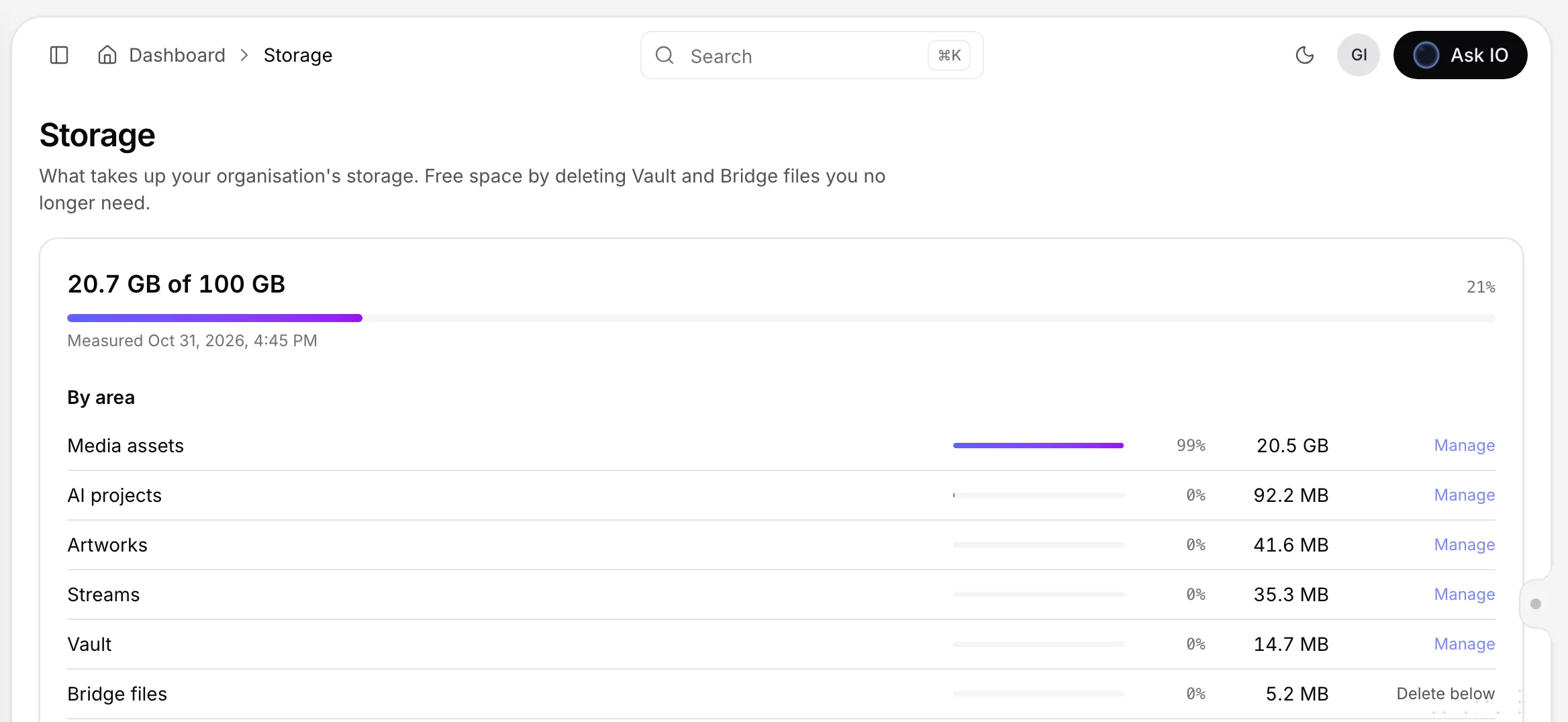
The summary card shows:
- Used against your plan — the amount used compared with your plan’s limit, or the amount used when your plan has unlimited storage.
- When it was measured — the time of the latest measurement, or a message saying that usage has not been measured yet.
- By area — the size and share of storage used by Streams, Media assets, Subtitles and captions, Artworks, Bridge files, AI projects and Vault.
Select Manage beside an area to open the page where its files are managed. Bridge files are deleted directly from the Storage page.
Find the largest files
The Largest files list shows the biggest Vault and Bridge files.
- Use Source to filter the list to Vault or Bridge.
- Review each file’s location, size, analysis status, upload details, usage and expiry date when applicable.
- Select an Analysed badge or View analysis to inspect the file’s analysis.
The Used in field shows where EYZFlow uses a file—for example, a media asset, stream source, artwork, subtitles, audio track, ingest, audio description, HoH subtitles, transcription or AI catalogue draft. It can also show Not used.
Bridge files also show when they were last downloaded, or Never downloaded. The list does not include files you cannot view.
Free space by deleting a file
- Find the file in Largest files.
- Check Used in to make sure the file is not needed.
- Select Delete on the file’s row and confirm.
Warning
Deleting a file cannot be undone.
A file marked Copy kept has a full copy elsewhere, so deleting it does not remove the only copy.
You need Manage Vault permission to delete Vault files and Delete Bridge Files permission to delete Bridge files. If you do not have the required permission, the file does not show a Delete button.
To tidy whole folders, manage them in Vault.
If your storage is full
When your organisation reaches its plan’s storage limit, uploads such as new streams and artworks stop with a Storage limit reached message. Delete files from Storage to free space, or upgrade your plan from Subscription.
Troubleshooting
- Could not load storage usage. Reload the page.
- Could not load the files. Select the grid’s refresh button.
- Could not delete the file. Try again and check that you have the required permission for the file type.
Looking for a quick answer? Read the FAQ