
DOCSSTREAMS AND MEDIA DELIVERY
Work with a stream
Updated 31 October 2026
Each stream has its own detail page, where you can review its status, play it, manage its media and encoding, link it to a catalogue, and inspect analytics.
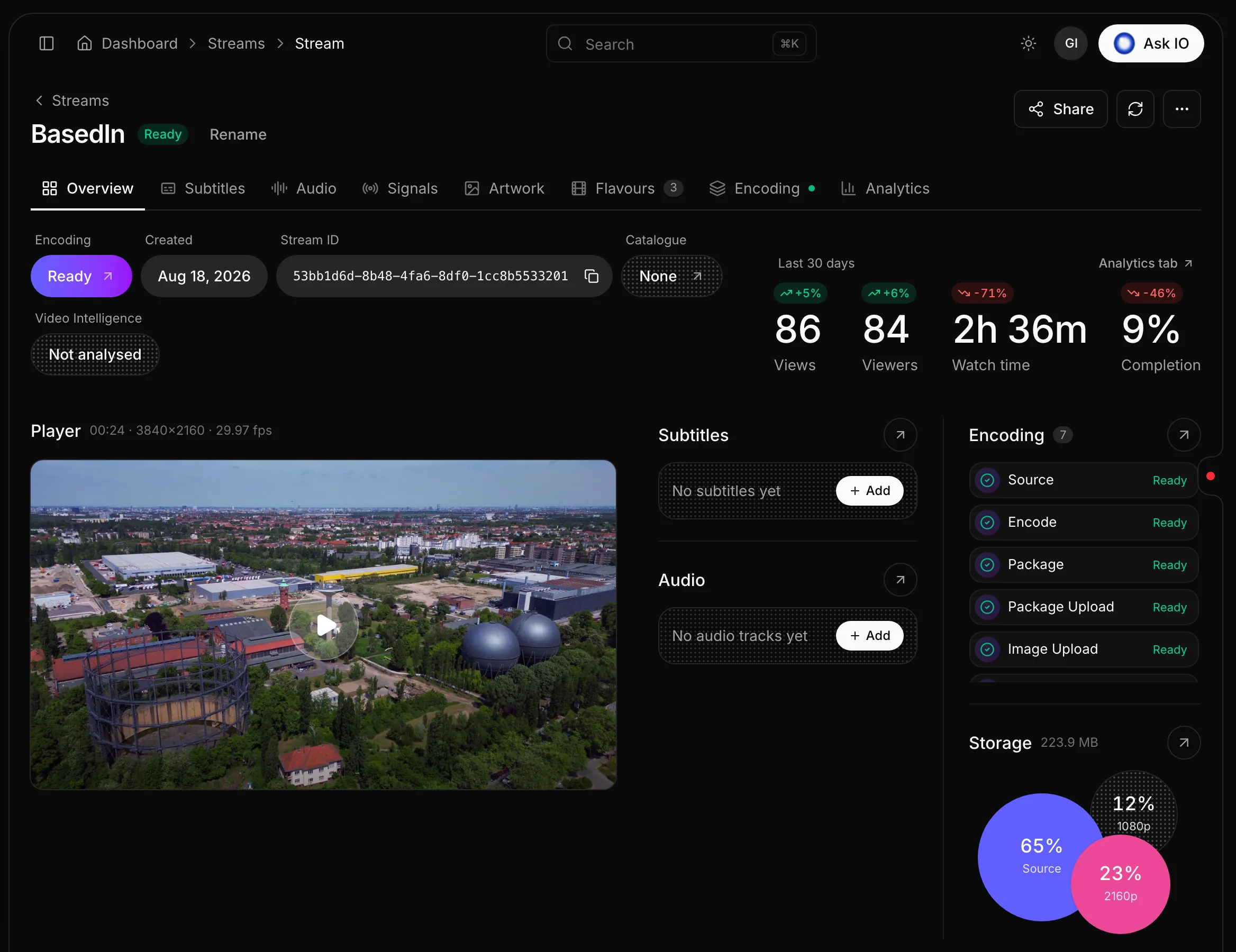
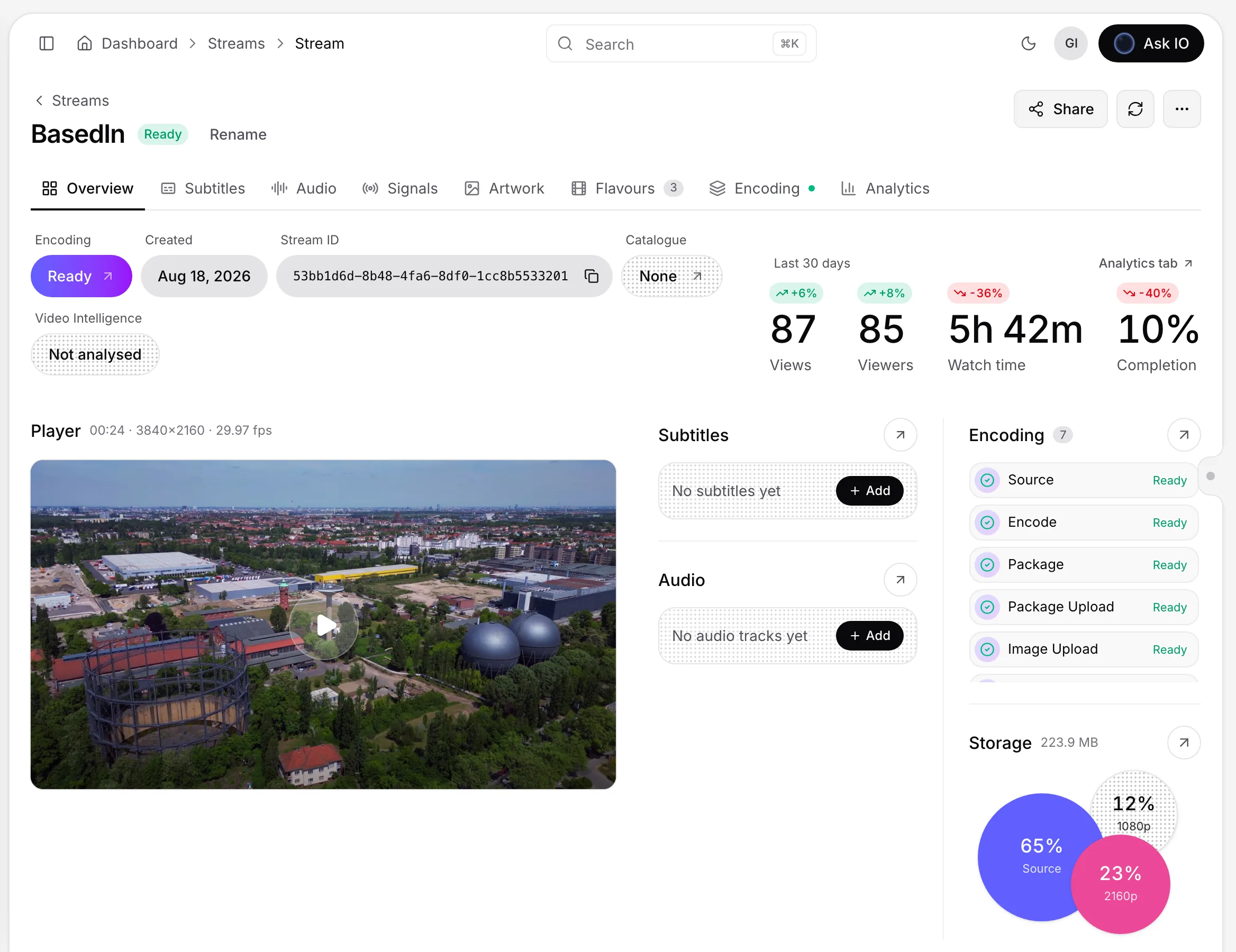
Open a stream
- Open Streams.
- Select a stream by clicking its title or the arrow at the end of its row.
The page header shows the stream title, status, and available actions. A stream can be Ready, Processing, Failed, or Draft.
Find information in the tabs
- Overview — status, audience figures, player, timeline, and an asset summary.
- Subtitles — subtitle and caption tracks.
- Audio — audio tracks.
- Signals — intro, recap, credits, and ad breaks.
- Artwork — the stream's images, or a link to its catalogue's artwork.
- Flavours — encoded video versions, including their sizes and download options.
- Encoding — the source upload, encoding progress, and encoding jobs.
- Analytics — viewing and delivery information.
A number beside a tab shows how many items it contains. The Encoding tab also shows a coloured indicator for the encoding state. The Signals tab is available only to users with permission to view stream signals.
Understand the Overview
The Overview includes:
- Stream status, creation date, stream ID, and catalogue.
- Video Intelligence status when you have access to that feature.
- Views, viewers, watch time, and completion for the last 30 days.
- An Encoding card when the stream has no source, is encoding, or has failed.
- A player for watching the stream and selecting subtitle and audio tracks.
- Encoding and storage summaries.
- A timeline containing scenes after Video Intelligence analysis, signals, and the retention curve.
- Counts for subtitles, audio, signals, artwork, and flavours.
- A views-over-time chart for 90, 30, or 7 days.
Select the analytics option beside the audience figures to open the full Analytics tab.
Rename a stream
- Open the stream and select Rename next to its status.
- Enter the new title.
- Select Save, or select Cancel to leave the title unchanged.
Renaming requires Edit Streams permission. Without that permission, the Rename option is not shown.
Play a stream
A stream must be Ready before it can be played.
- On the Overview, select the picture in the Player.
- From another tab, select Play.
- If the stream has a finished Video Intelligence analysis and you have access to Video Intelligence, the Video Intelligence player opens. Otherwise, the normal player opens.
Use the options beside Play to:
- Open the normal player.
- Copy the DASH manifest address.
- Copy the HLS manifest address.
On the Overview, these options are available from More actions.
Link a stream to a catalogue
You need Edit Streams permission to change a stream's catalogue.
- Open the stream's Overview.
- If no catalogue is linked, select None in the Catalogue field.
- Search for a catalogue in Choose catalogue, then select its title.
- To change an existing catalogue, open More actions and select Change catalogue.
- To unlink the stream, select Remove from catalogue and confirm.
Without the required permission, the catalogue picker and change and removal options are not available.
Retry or stop encoding
You need Edit Streams permission to manage encoding.
- Open the Encoding tab.
- Review Encoding progress to see each step as it runs.
- Review Jobs to see each job's step, service, status, progress, and last update.
- To run encoding again, select Retry encoding and confirm.
- To stop an active encoding process, select Stop encoding and confirm. You can restart it later.
The retry and stop controls remain available until all jobs are complete. They are also available from the Encoding card on the Overview when applicable.
Package a stream for CENC
CENC packaging creates an additional set of DASH and HLS packages using Common Encryption for players that require CENC. Existing packages remain online. When DRM is enabled, packaging also creates keys for Widevine, PlayReady, and FairPlay.
To start packaging:
- Make sure the stream is Ready.
- Open More actions and select CENC packaging.
- Review the packaging information and select Start packaging.
Packaging runs in the background and can take from minutes to hours. You need Edit Streams permission.
Afterward, the action reflects the current state: Already packaged when successful, Retry CENC packaging after a failure, or Re-run CENC packaging if the stream was encoded again after packaging.
Review stream analytics
- Open the Analytics tab.
- Select Edit filters to choose a date range using a preset or custom dates.
- Select Export to download viewing sessions for the selected range as a CSV file.
Analytics can include:
- Total views, unique viewers, total watch time, and completion rate.
- Views over time.
- Devices, top browsers, and countries.
- Technical information such as data transferred, average bitrate, requests, plays, and cache hit rate.
- A geography map.
- A session log of viewing sessions.
Other stream actions
More actions can also provide access to Video Intelligence, clips and frames, and sharing. The available options depend on the stream's state and your permissions.
Looking for a quick answer? Read the FAQ