
DOCSVIDEO INTELLIGENCE
Explore Video Intelligence analyses
Updated 31 October 2026
Video Intelligence turns an analysed video into a searchable view of its chapters, scenes, people, places, objects, events, content safety, ad breaks, artwork candidates and music.
Open an analysis
- Open Video Intelligence from the sidebar.
- Find an analysis by its title, summary or stream ID using Search. Each row shows the analysis title, status, duration and creation date.
- When the analysis is ready, click Play or select its picture to open the player.
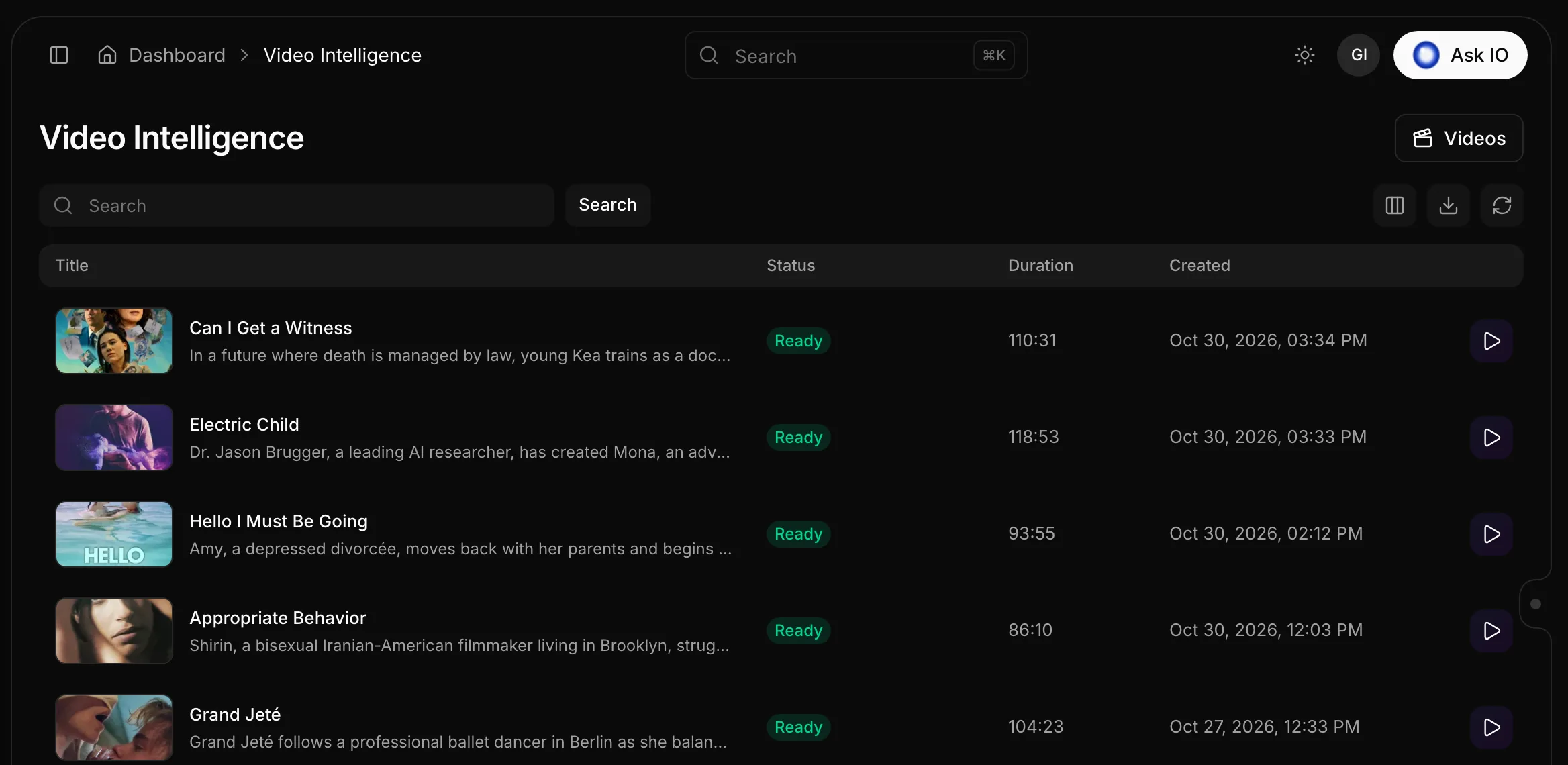
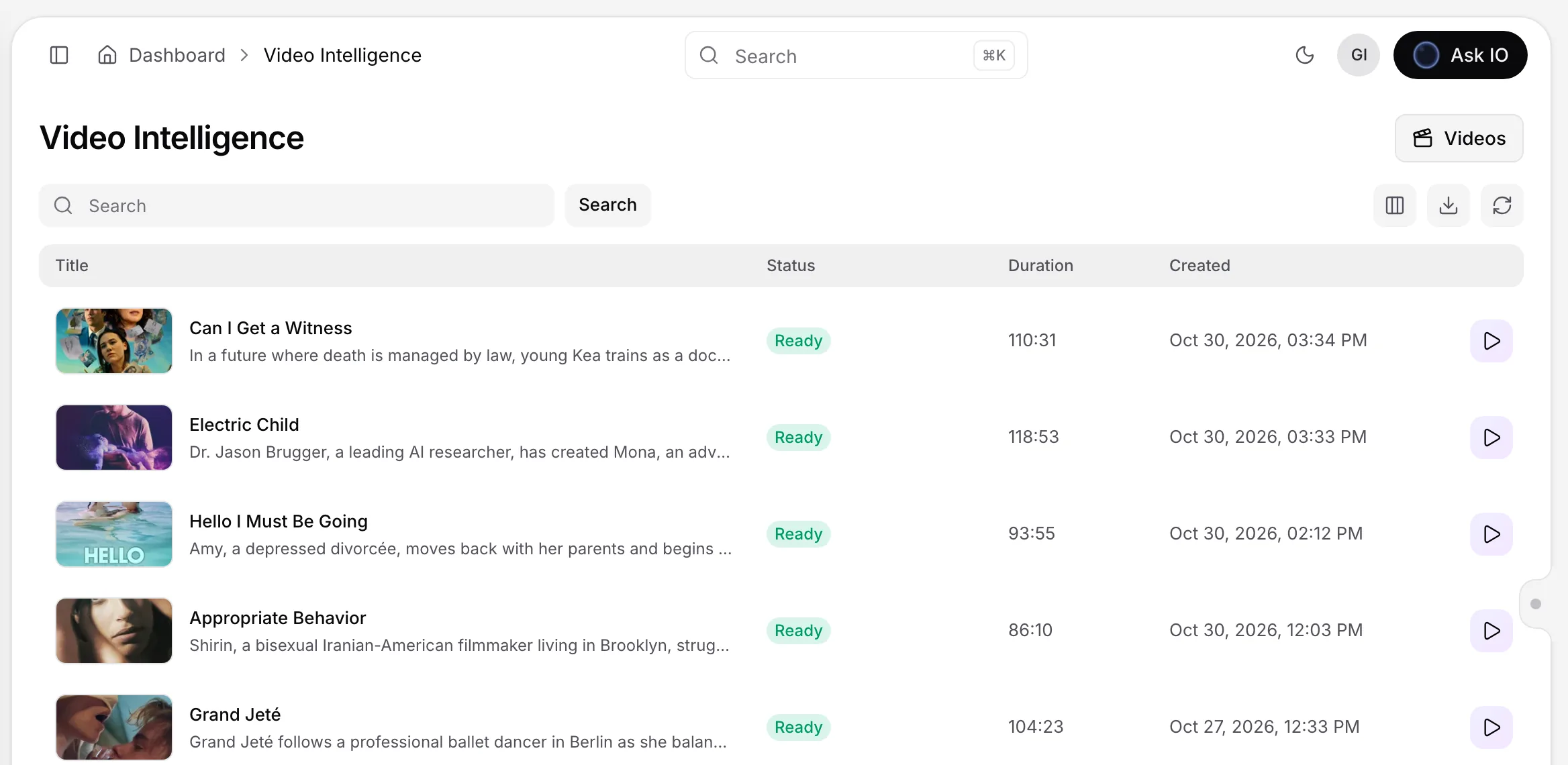
You can also open the player from a stream page by selecting Play on a tab other than Overview, or Video Intelligence player on the Overview tab. To start an analysis on a stream, see How to start Video Intelligence on a stream.
Note
An analysis of a file that is not a stream plays a preview copy of the file.
Navigate the player
The player displays the video, the current scene and any content warnings. Under the video are playback controls, a chapter and scene rail, and an interactive timeline. The Inspector panel provides detailed information about the selected scene and the analysis.
Use the controls to:
- Play and pause, change the volume, enter fullscreen, or move to the previous or next scene.
- Show or hide dialogue captions.
- Show focus regions around the faces and objects followed by the analysis.
- Preview a 9:16 vertical crop.
- Show or hide the Inspector panel.
Use the scene rail to jump to a chapter or scene. The interactive timeline shows tracks for people, objects and places, along with Content safety and Ad breaks lanes. Filter tracks, zoom, fit the timeline to the view, or click the timeline to seek.
Inspect the analysis
The Inspector includes these tabs:
- Scenes shows the selected scene's frame, time, setting, description, sounds, safety and ad-break information, focus subjects and speakers. It also lists chapters and their scenes.
- Entities lists detected characters, locations and objects with descriptions. Select an item to jump to its first scene.
- Events lists key events, their importance and their time.
- Ads shows brand safety, ad suitability categories and ad-break scoring. Each candidate break includes its time, context and whether it is Safe or Don't insert.
- Artwork contains frames selected as artwork candidates.
- Music contains detected music in the film.
- Insights summarizes the analysis, including runtime, scene types, counts of chapters, characters and locations, top keywords and a summary.
To find a moment quickly, select the magnifier in the Inspector. Search this video searches scene descriptions, places, detected people and objects, and dialogue. Select a result to jump to it.
Generate artwork
- Open the Artwork tab and select Generate artwork. Generation usually takes a few minutes.
- Choose a format: Hero (16:9), Poster (2:3) or Square (1:1).
- Review the ranked candidates and their scores. Candidates can be flagged for Text in frame, Blurry, Spoiler risk, Violence or Nudity.
- Download a candidate, or select a language under Save for and choose Save as catalogue artwork.
If detected, the Title card section provides the film's title as a transparent PNG.
Generating or regenerating artwork requires Create Video Intelligence. Saving artwork requires access to the stream's catalogue and Create Artworks permission. Saved artwork can then be opened with View catalogue artworks.
Find music
- Open the Music tab and select Find the music. This usually takes about one third of the film's running time.
- Review each music cue's time, scene and whether it plays under dialogue or is sung.
- Play a cue, jump to it in the player or download the clip.
You can also download Whole film without dialogue, which provides the soundtrack without voices. Finding music or running it again requires Create Video Intelligence permission.
Tip
Use Inspector search to locate a scene first, then use the timeline and scene rail to review the surrounding context.
Looking for a quick answer? Read the FAQ