
DOCSBRIDGE FILE EXCHANGE
Getting started with Bridge
Updated 31 October 2026
Bridge is a secure workspace for sharing files with licensors and collaborators. From Bridge, you can receive uploads, inspect files, message the sender, copy files into catalogue media assets, and share files with people outside your organisation.
Note
If Bridge appears locked in the sidebar, your plan does not include the Bridge module.
Open Bridge
Select Bridge in the sidebar. Its pages include:
- Accounts — view licensor and collaborator workspaces.
- Files — see the newest files from all accounts.
- Expiring soon — find files due to expire within the next seven days.
- Messages — view conversations about files.
- Shared files — manage packages shared outside your organisation.
- Upload links — create public links that let partners send you files.
- Share recipients — review people you have shared files with.
The sidebar can also show counts for new files and unread messages.
Set up a workspace
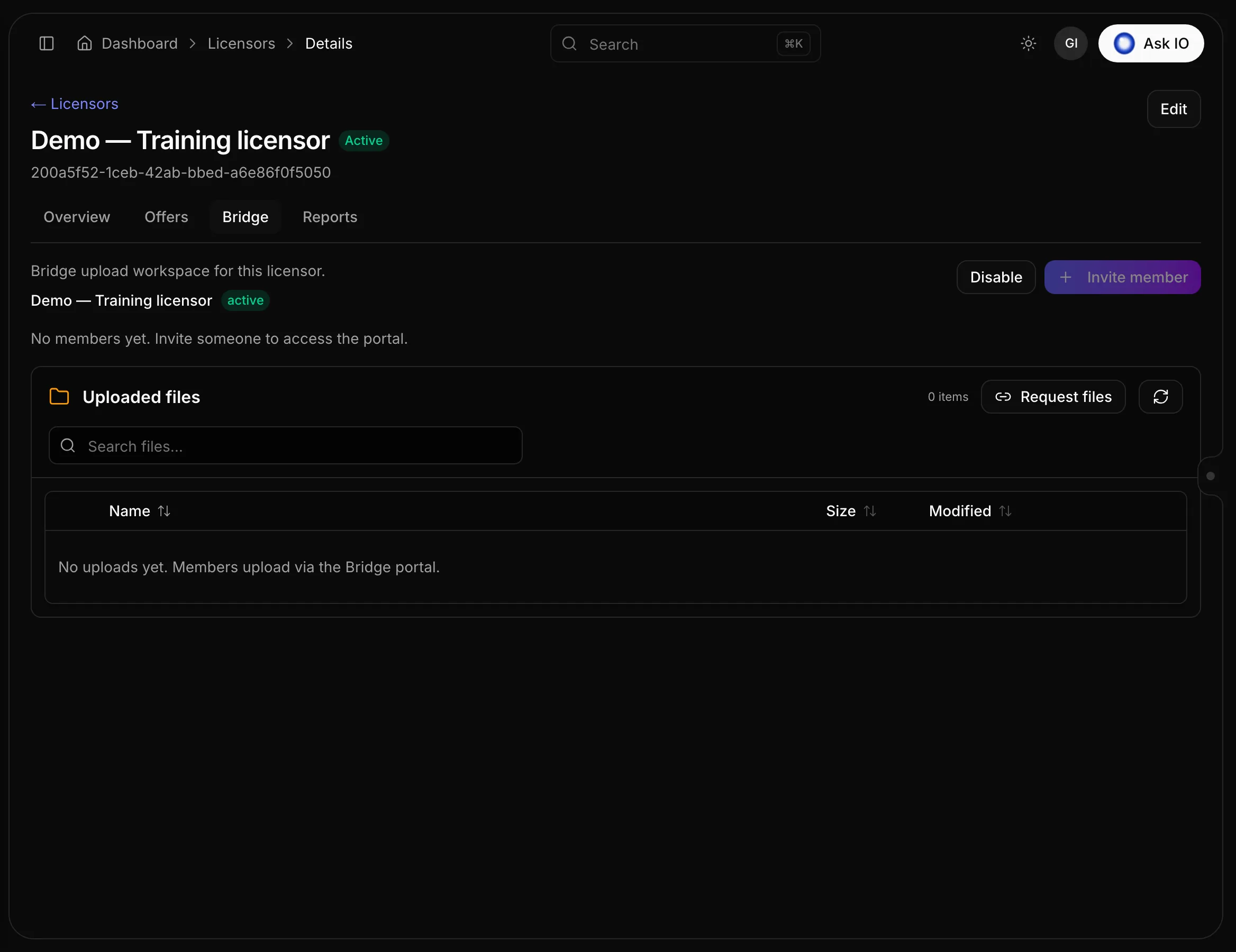
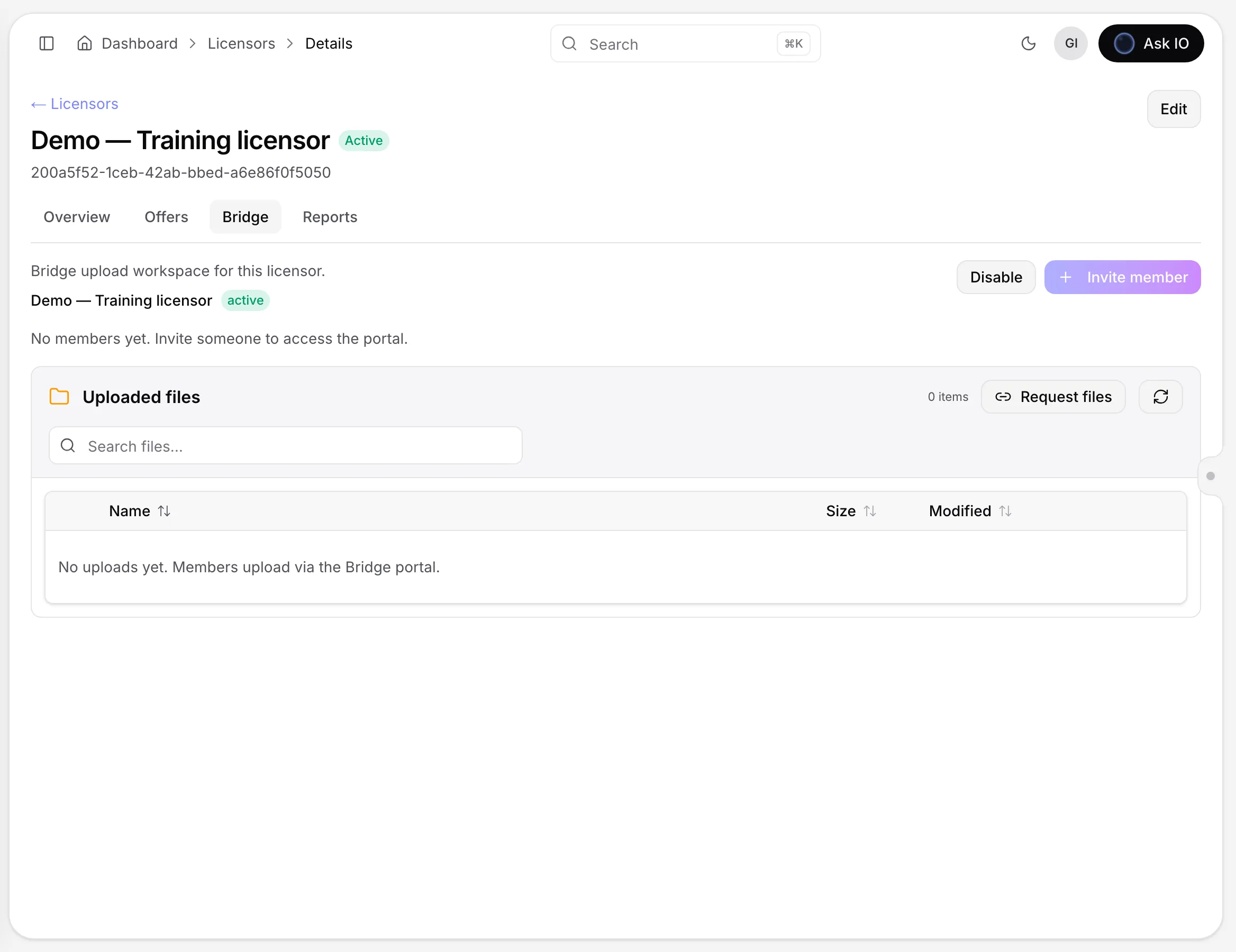
- Open the relevant licensor or collaborator record.
- Open its Bridge tab.
- Select Enable Bridge.
- To give someone access, select Invite member, choose a saved contact email, and send the invitation.
Invitees receive access by email. If they already have a Bridge login, the workspace is added to that login and their existing password remains unchanged. You can resend an invitation while it is pending or remove a member from the workspace.
To stop access for everyone in the workspace, select Disable and confirm. Members then lose access.
Browse and download uploaded files
- Open the workspace's Bridge tab and go to Uploaded files.
- Select a folder, or use the path above the list to return to All files.
- Search within the current folder, and sort by Name, Size, or Modified.
- Select the download icon on a file to download it.
You can also open Bridge files to see the newest files from every account. Unopened files are marked with a dot. Select a file name to see its size, category, status, download information, uploader, upload time, and expiry.
Inspect and adjust files
Bridge inspects uploaded video, audio, image, subtitle, and document files. While inspection is in progress, the file shows a spinning indicator.
Open a file's inspection using the scan icon or by selecting the file on a Bridge tab. The inspection includes a preview and file-specific information, such as video structure and scenes, image format and colour, subtitle language and quality problems, or converted document text.
For video and audio files, you can crop the picture, set in and out points, and choose delivered audio tracks. For subtitle files, you can edit cues, shift timing, find and replace text, and export an SRT or VTT file.
Important
Adjustments are saved on the inspection and do not overwrite the original file. Video and audio adjustments cannot be saved until any delivered-track issues are fixed.
Message a partner
Open a file's conversation with the speech-bubble icon, or open Messages and select a conversation. Write your message and select Send. Your team can edit or delete its own messages.
Copy a file into catalogue media assets
- On an uploaded file, select Save … to Catalogue Assets.
- Choose a catalogue, either one connected to the licensor through an offer or from all catalogues.
- Choose a folder or Top level.
- Check the file name and select Save.
The file is copied into the catalogue; the Bridge file remains in place. You can also start from catalogue media assets by selecting Import from Bridge.
Manage expiring files
Open Expiring soon to find files expiring within seven days. Select Extend retention, enter a period from 1 to 30 days, review the new expiry, and select Extend.
Share files externally
You can share files from catalogue media assets or from a stream:
- Select the share icon for one file, or select multiple files and choose Share N files.
- Under Recipient, choose an earlier recipient or enter a new email address. New recipients require a name.
- Review the package name and optionally add a message.
- Choose an expiry of 3, 7, 14, or 15 days.
- Select Share.
Track packages in Shared files. A package's details show its recipient, message, expiry, and download information. To stop access, use Revoke share on an active package.
You can also revoke a recipient's portal access from Share recipients.
Delete Bridge files
On a file or folder, select the bin icon and confirm. Deleting a folder also deletes everything inside it.
Looking for a quick answer? Read the FAQ