
DOCSACCESSIBILITY AND LANGUAGE PROJECTS
Create and manage closed captions (CC)
Updated 31 October 2026
Closed captions (CC) are caption tracks that include timed sound cues alongside dialogue. In EYZFlow, you create them in subtitle or transcription projects, with one caption track for each selected language.
Add closed captions to a new project
- Open Projects, select Add new, and choose Subtitles or Transcription.
- Add your source and select Continue.
- On the Language settings step, select Closed captions (CC).
- Under CC languages, choose at least one language. You cannot continue until you select a language.
- Complete the wizard and select Start.
Each caption track uses credits separately, so the estimated cost increases as you add CC languages. For the available languages and billing information, see Languages for subtitles, transcription and closed captions and Compute credits and AI tool billing.
Note
HoH Audio and Audio Description projects do not create caption tracks.
Add caption languages to a completed project
You can add languages only after the subtitle project is completed.
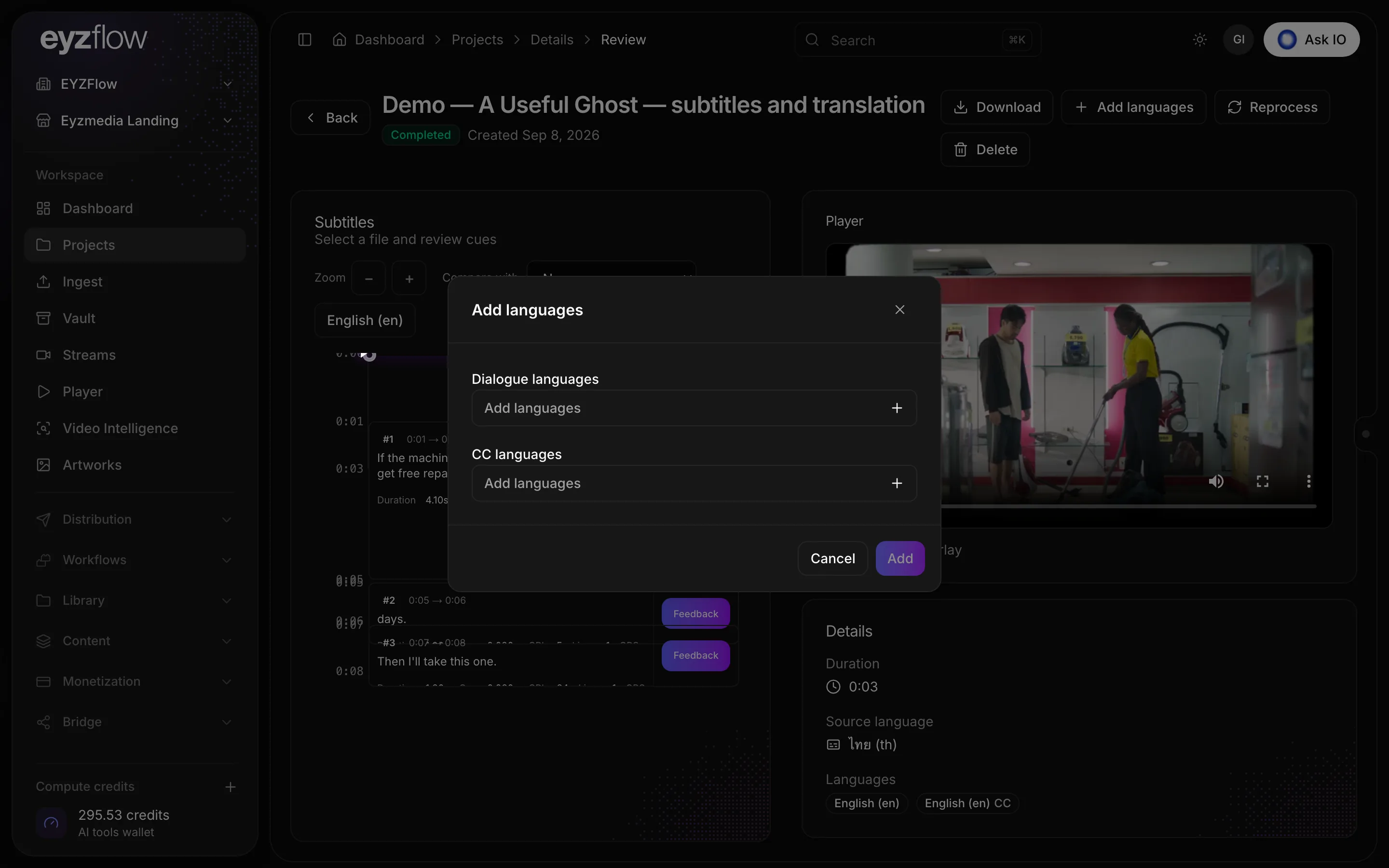
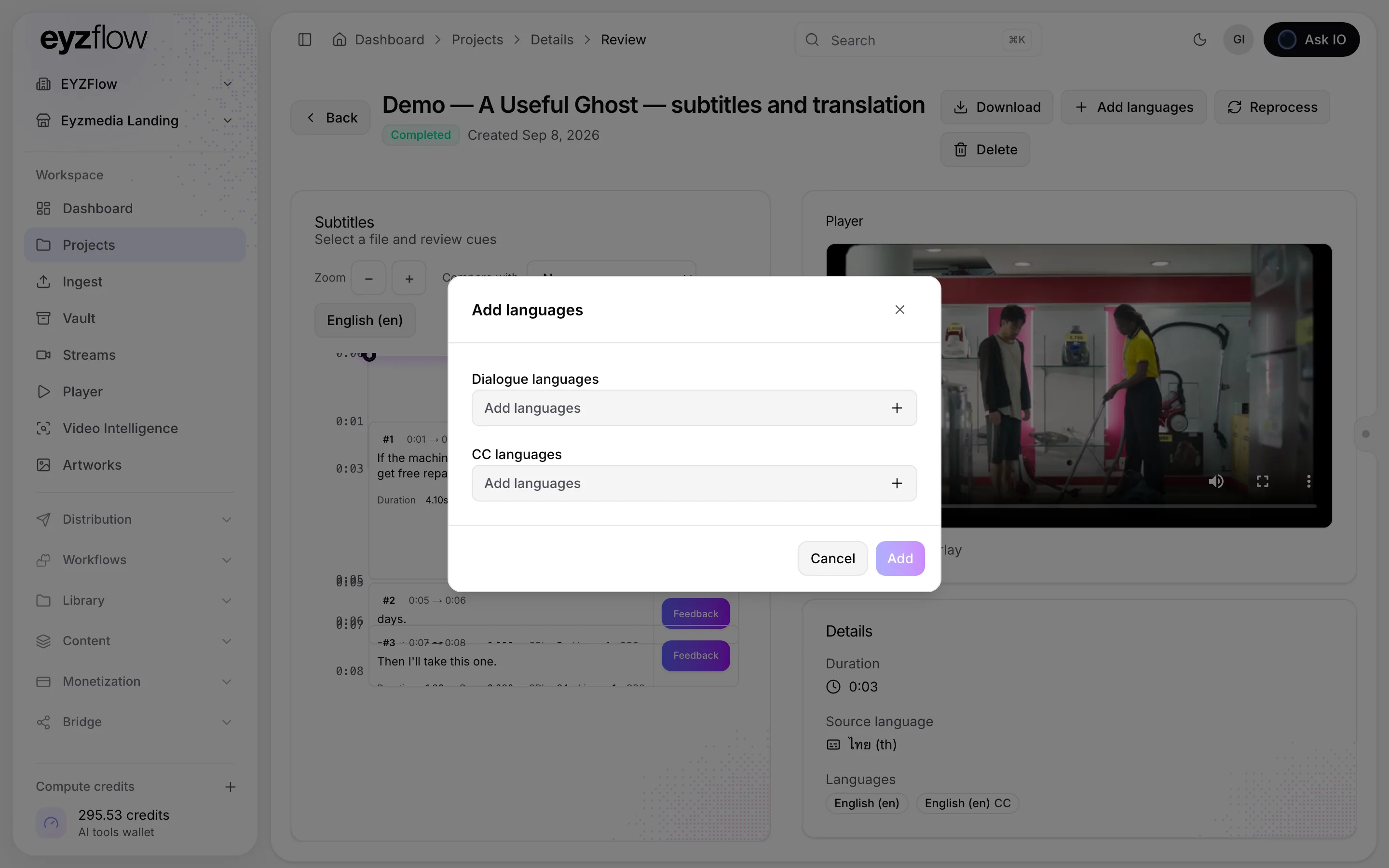
- Open the completed subtitle project from Projects.
- In the subtitle workspace, open the track menu and select Add a language. Alternatively, from the Project review page, select Add languages.
- Select the CC languages to add. Languages that already have a caption track are not offered.
- Select Add.
Adding a language from the workspace requires Edit Subtitles permission. For more about subtitle review and editing, see Reviewing and editing subtitles in a project.
Find and edit a caption track
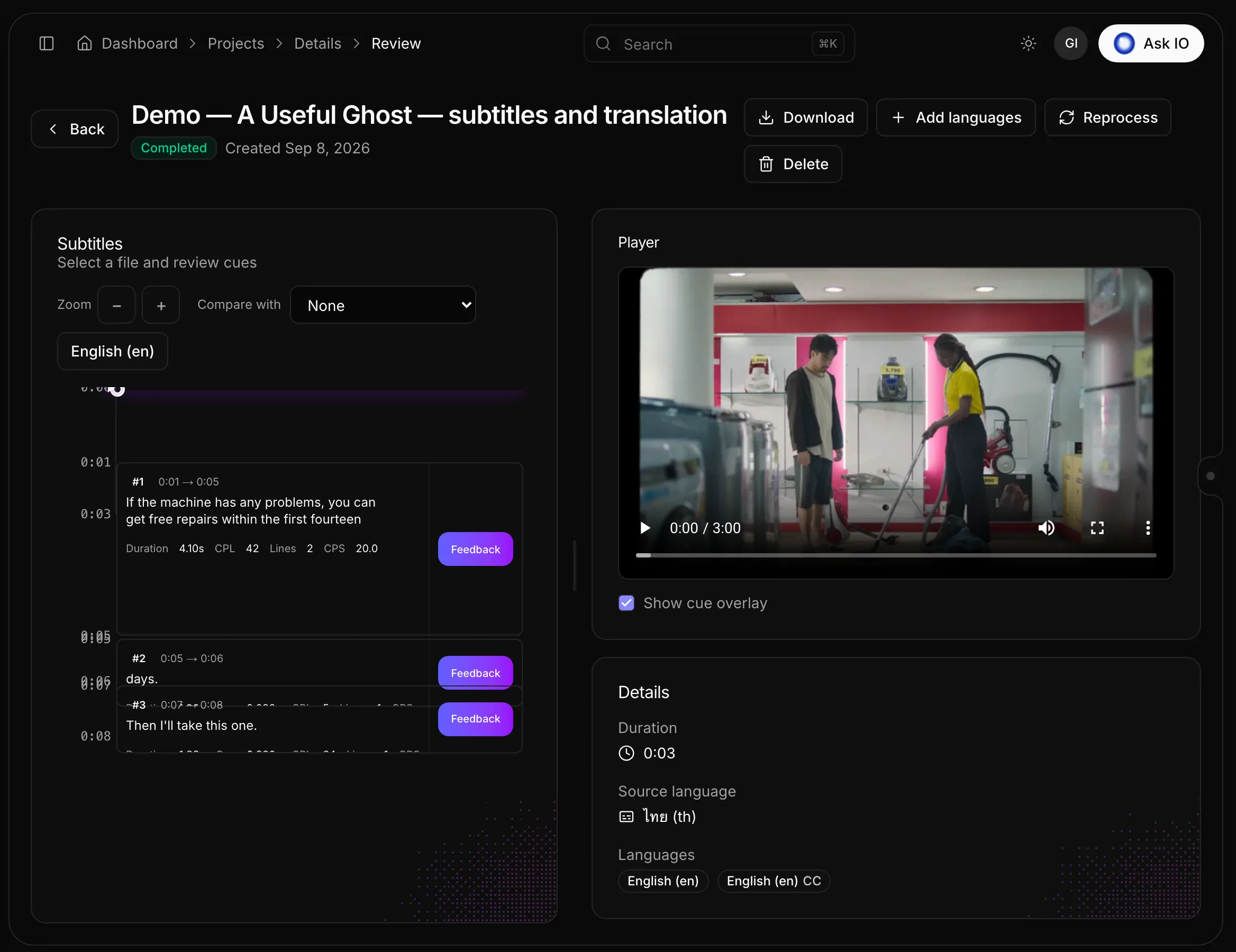
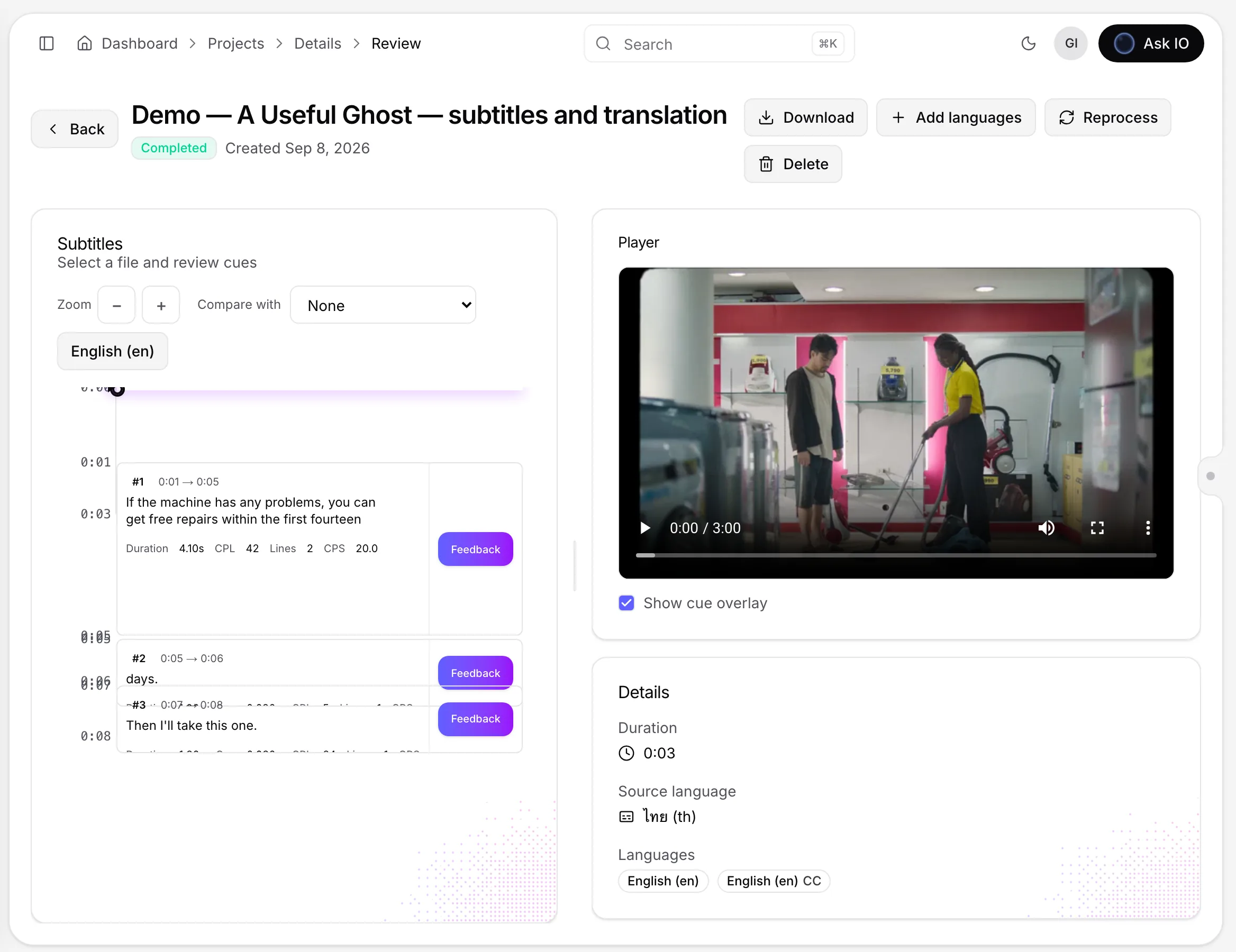
In a subtitle project's workspace, caption tracks appear with the subtitle tracks in the track menu and are marked CC. When you open one, the cue list heading shows CLOSED CAPTIONS · followed by the track language.
You can edit, retime, approve, and flag caption cues in the same way as subtitle cues. Caption cues are checked against the same subtitle rule set. If the project has a completed Video Intelligence analysis, the context panel can identify a sound in the mix at the selected cue, which can help you check sound cues.
For the general caption-editing workflow, see Subtitle review and approval workflow.
Download caption files
Caption tracks download as SRT files:
- On the Project review page, use the Export card. Each caption track is labelled with its language and CC.
- In the subtitle workspace, select Export SRT to download the open caption track as it appears in the editor. The filename includes
.cc, such asMy_film.en.cc.srt.
For additional download options, see Subtitle and transcription projects in detail.
Looking for a quick answer? Read the FAQ