
DOCSVAULT AND FILE STORAGE
Vault: store and manage your organisation’s master files
Updated 31 October 2026
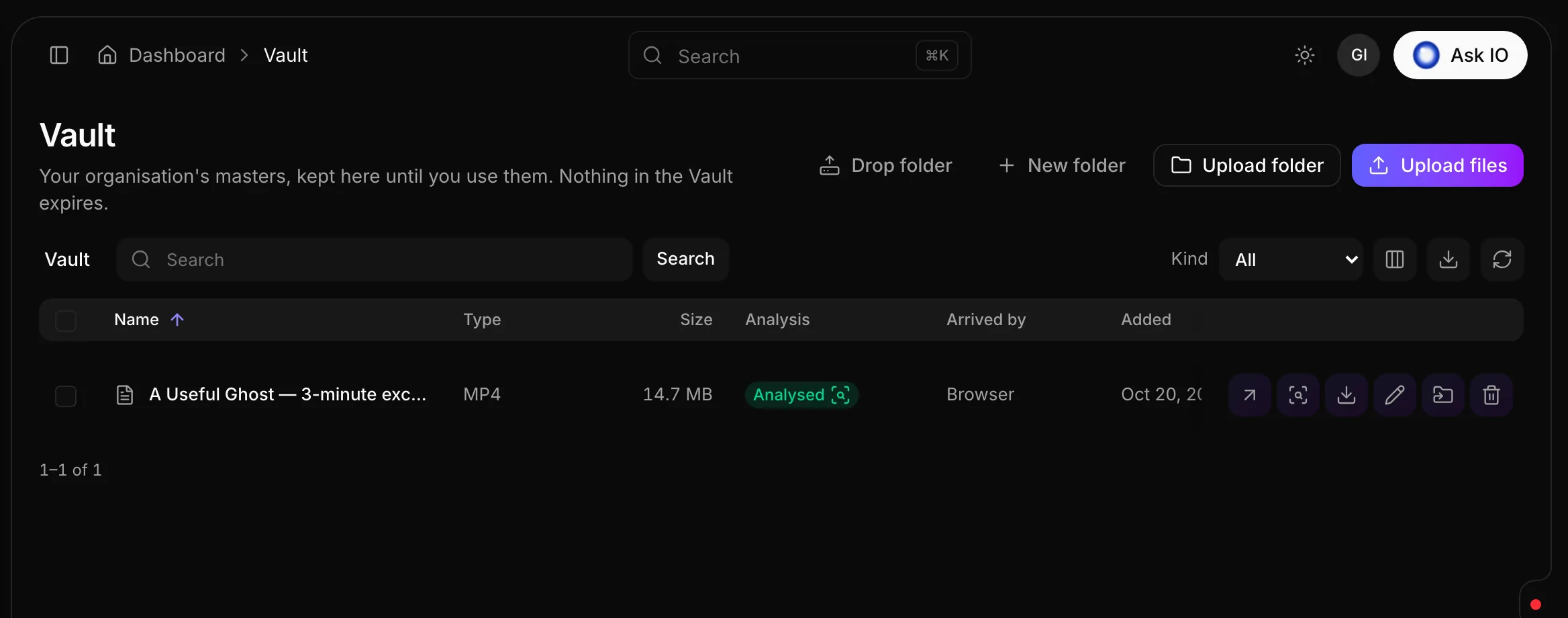
The Vault is your organisation’s central library for master video, audio, image, subtitle and document files. Files are not tied to a catalogue title, stream or partner, and they do not expire. Store a file in the Vault until you need to use it elsewhere in EYZFlow.
Before you start
You need the appropriate Vault permission for the task:
- View Vault: view and search files, download files, view analysis, open the drop folder and choose Vault files in other features.
- Upload to Vault: upload files and folders, create folders and retry failed analysis.
- Manage Vault: rename, move and delete files and folders, and manage drop-folder keys and rescans.
If Vault is missing from your sidebar, ask an administrator for View Vault permission.
Upload files
- Open Vault and open the destination folder.
- Select Upload files, then choose one or more files.
- Monitor the Uploads panel to see progress and completed files.
You can also drag files onto the Vault page. They are uploaded into the folder currently open.
Uploads continue while you browse other folders or dashboard pages. Closing or reloading the browser tab stops uploads after confirmation. For hundreds of titles or very large deliveries, use the Vault drop folder.
Upload a folder
- Open the destination folder in Vault.
- Select Upload folder and choose a folder, or drag a folder onto the page.
- The folder is added with its subfolders in the same structure.
Create a folder
- Open the parent folder.
- Select New folder.
- Enter a name and select Create folder.
Folder names must be unique within their location. If the name is already in use, choose another one.
Manage uploads
The Uploads panel lists each upload and its progress.
- Select Cancel upload to stop one upload, or Cancel all to stop every running upload.
- Select Retry for a failed or cancelled upload.
- If an upload stopped because the page closed, select Resume and choose the same file. The upload continues from where it stopped.
- If you choose a different file, it cannot be used to resume the original upload.
- Uploads resume automatically when the connection returns after going offline.
- Use Remove to forget a failed or stopped upload, or Clear finished to tidy the list.
Find files
- Open Vault and select a folder. Use the path above the file list to move back to a parent folder.
- To search across every folder, enter a term in the search box and select Search or press Enter. Select Clear search to return to the current folder.
- Use Kind to filter by Video, Audio, Images, Subtitles or Documents.
You can sort the list from the grid’s sort menu. Each row shows the file name, type, size, analysis status, arrival method and added date.
Review file analysis
EYZFlow analyses files after they arrive. The Analysis column can show Analysing, Analysed, Analysis failed or Not analysed.
For an analysed file, select its analysis badge or View analysis. The read-only analysis includes a preview and information found about the file, depending on its type.
If analysis fails, select Run again next to the status. You need Upload to Vault permission.
Download a file
- Find the file in Vault.
- Select Download on its row.
Download is available after the file finishes uploading. You need View Vault permission.
Rename or move files and folders
- Find the item in Vault.
- To rename it, select Rename, enter the new name and select Save.
- To move it, select Move, choose the destination folder and select Move here.
A folder cannot be moved inside itself. You need Manage Vault permission.
Delete files and folders
- Find the item in Vault.
- Select Delete, then confirm.
Deletion is permanent. A deleted file cannot be restored, and deleting a folder deletes everything inside it. You need Manage Vault permission. To identify files using the most storage, open Storage.
Use a Vault file elsewhere
Select Use… on a Vault file to start another task with that file already selected, such as a stream, subtitles project or ingest. For more information, see Use Vault files in other features.
Troubleshoot common errors
- Could not load the Vault: reload after a moment.
- Upload failed: retry the upload from the Uploads panel.
- Could not start the download: select Download again.
- Could not delete it: try again and confirm that you have Manage Vault permission.
Looking for a quick answer? Read the FAQ