
DOCSVIDEO INTELLIGENCE
Ask IO about a video with Video Intelligence
Updated 31 October 2026
IO, the EYZFlow assistant, can answer questions about a video after Video Intelligence has finished analysing it. It can find moments, play them, show scenes and player panels, and create a new video from moments found in an answer.
Note
There is no separate Video Intelligence chat. Ask IO with the video in context.
Before you start
The stream must have a finished Video Intelligence analysis. You also need the Use the Assistant and Ask Video Intelligence permissions. To create a video from moments, you additionally need Edit Video Compositions.
For information about starting an analysis, see How to start Video Intelligence on a stream.
Ask IO from a stream
- Open the stream's page from Streams.
- Open More actions, then select Ask IO about this video.
- When the chat opens, check that the video title appears above the message box as In context. Enter your question in the Ask about this video… field.
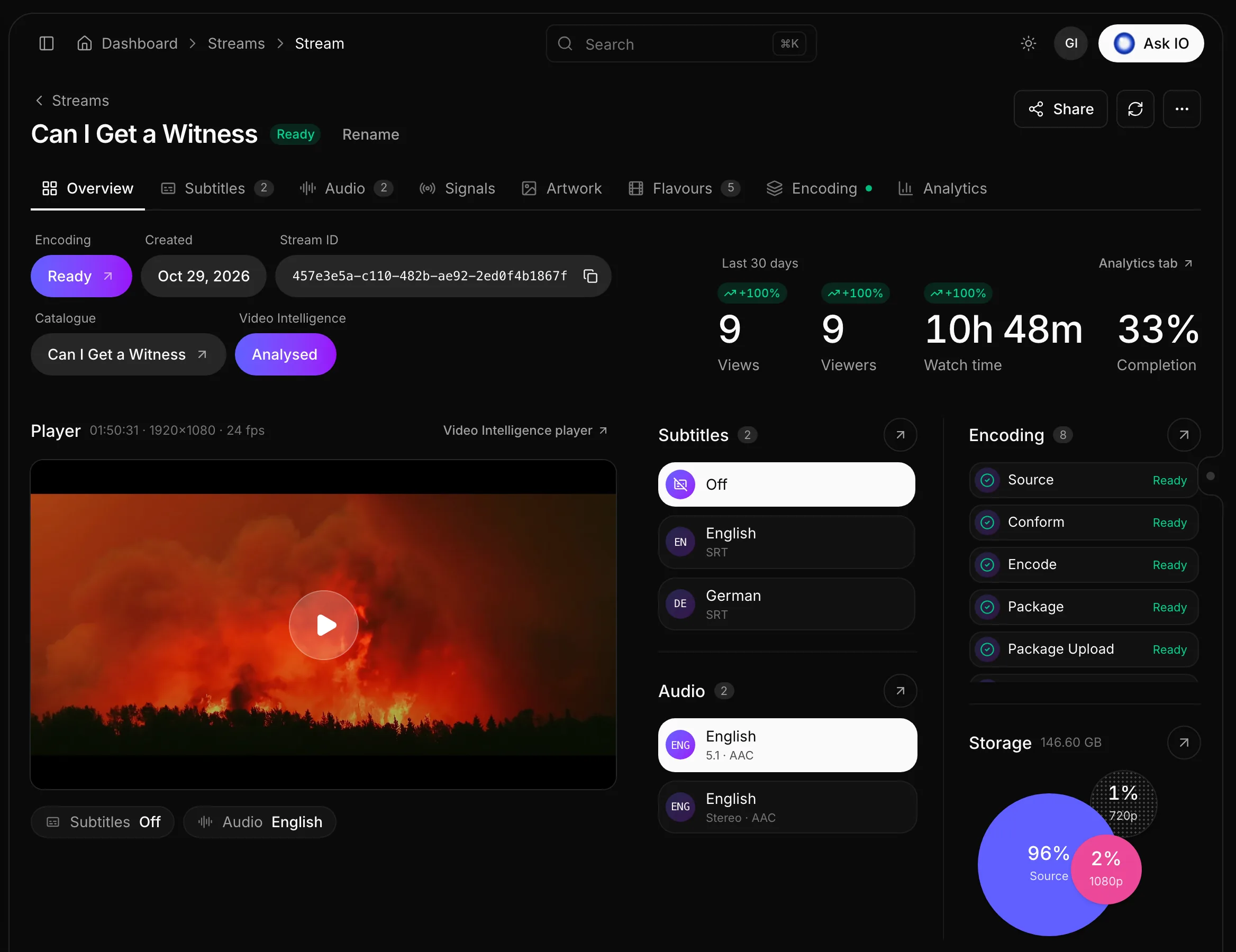
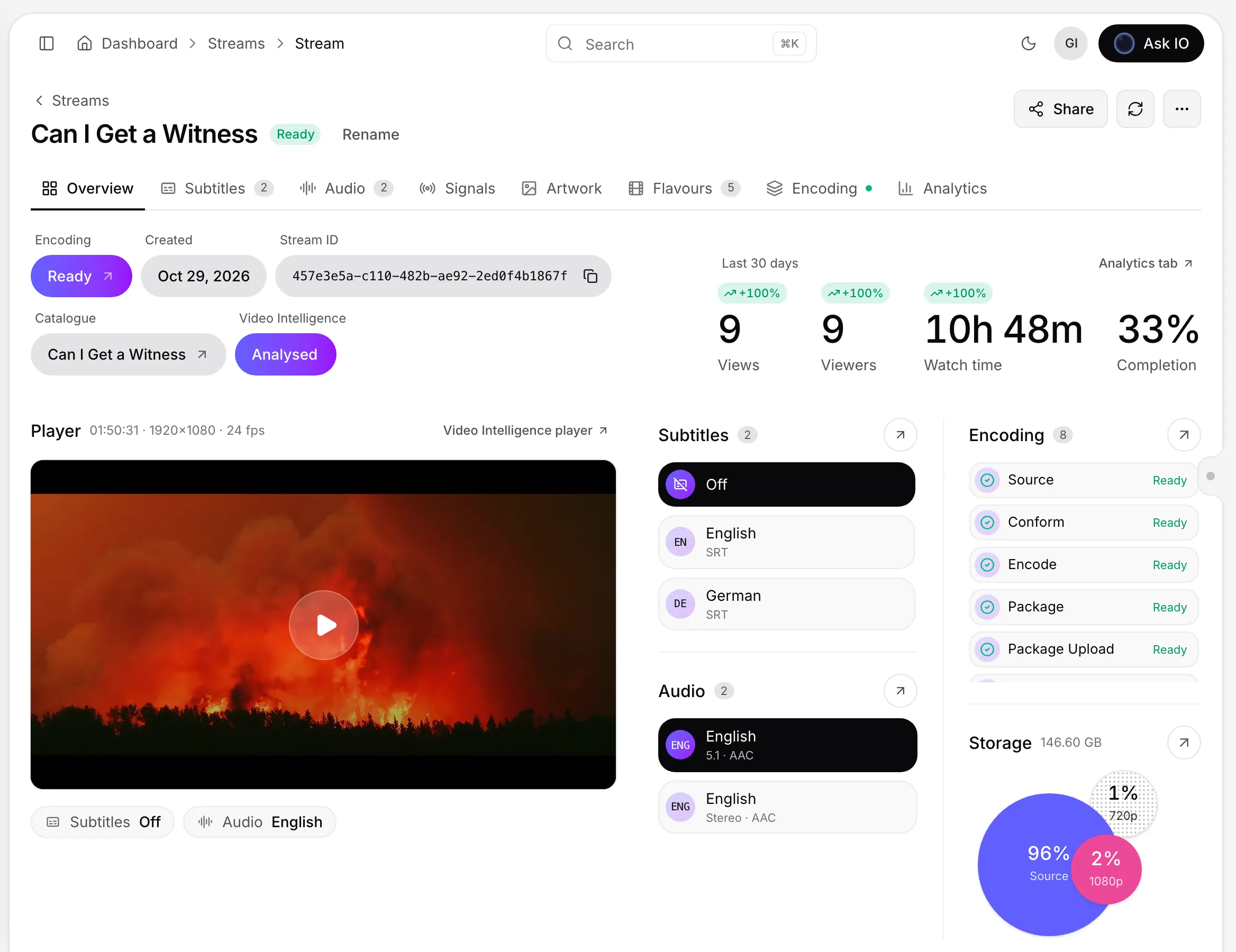
The Ask IO about this video option appears after the analysis is finished.
Ask IO from the Video Intelligence player
- Open the player from the Video Intelligence page or from the stream's Video Intelligence player.
- Select Ask IO at the top of the player. IO opens beside the video with the video in context.
- Select Close IO when you are finished.
You can also select Ask IO in a composition's video editor. In that case, the source video is added as context. Learn more in Make a video from moments.
Manage the video in context
- Select Add media in IO's message box to attach a stream or an uploaded Bridge video to your next message. You can also attach Vault files if you have View Vault permission.
- Select the cross on In context: title to remove the video from the conversation context.
What IO can do
When a video is available to IO, it can:
- Find and list relevant moments, with Play this moment and Show more for additional results.
- Play a moment in the player, stop at its end, pause, jump to a time, or change the sound.
- Show a scene in the Inspector's Scenes tab.
- Open the Scenes, Entities, Events, Ads, Artwork, or Insights tab.
- Turn captions, focus regions, the 9:16 crop preview, or the Inspector panel on or off.
If no player is open for the video, IO opens the video's page and the player at the relevant moment. For an uploaded file, it opens the Video Intelligence page; for a stream, it opens the stream's page.
Create a video from moments
- In an IO answer that cites moments, select Create video.
- The new video opens in the editor with those moments as its scenes.
You can also ask IO to create the video. For more about editing the resulting composition, see Make a video from moments.
If IO cannot inspect the video
IO explains the reason in the chat. Common messages include:
- You don't have access to its analysis — you need Ask Video Intelligence permission.
- Your plan doesn't include Video Intelligence — the plan does not include the Video Intelligence module.
- It hasn't been analysed yet — start Video Intelligence on the stream.
- It is still being analysed — wait for the analysis to finish.
- Its analysis failed — retry the analysis from the stream's More actions menu.
Looking for a quick answer? Read the FAQ