
DOCSVAULT AND FILE STORAGE
Send large deliveries to Vault with a drop folder
Updated 31 October 2026
Use the Vault drop folder to send large deliveries—such as hundreds of titles or a complete post-production package—using an S3-compatible tool instead of a browser. Supported tools are AWS CLI, rclone and Cyberduck.
Files appear in the sender’s own folders as they arrive in the Vault, with Drop folder shown in the Arrived by column.
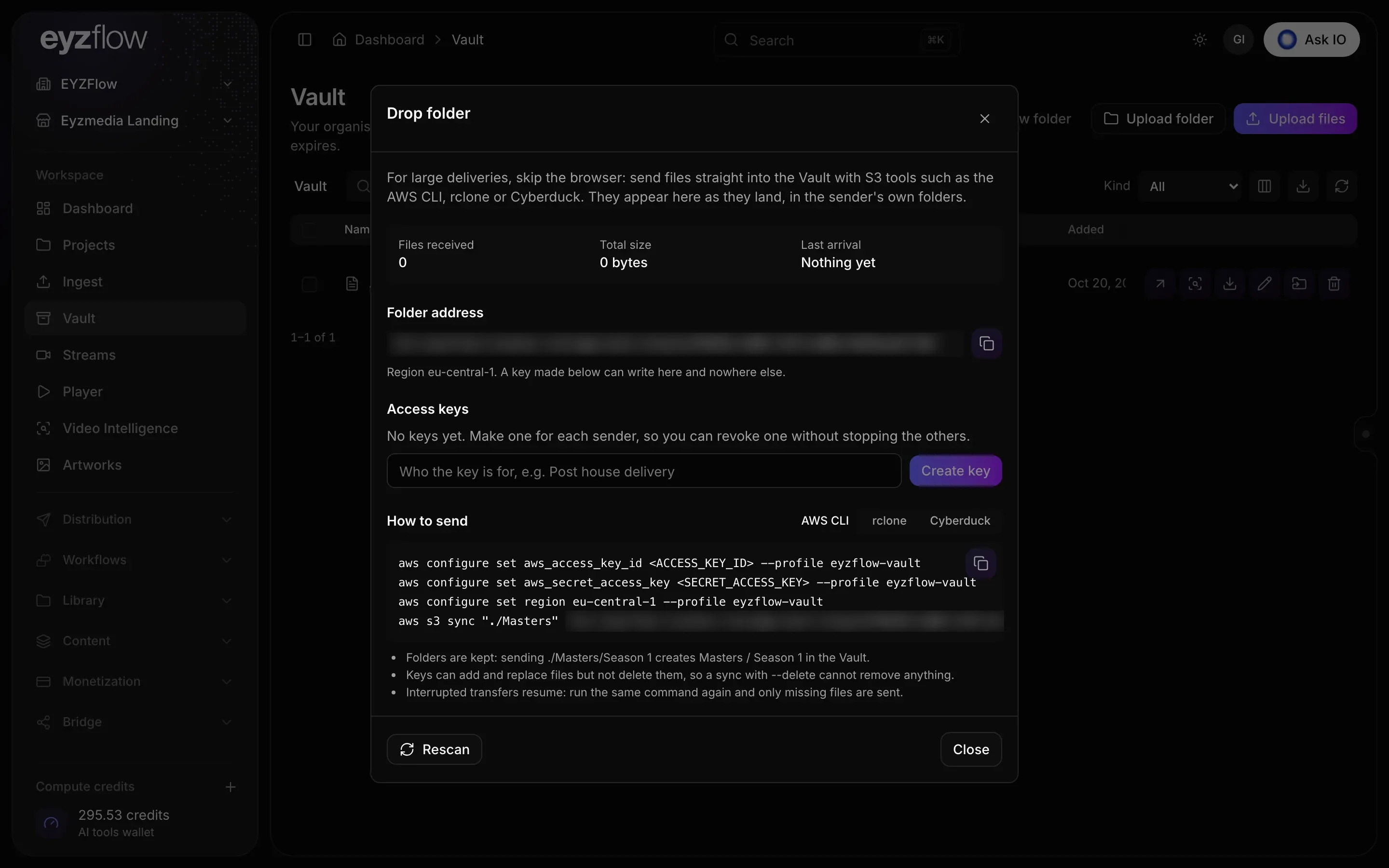
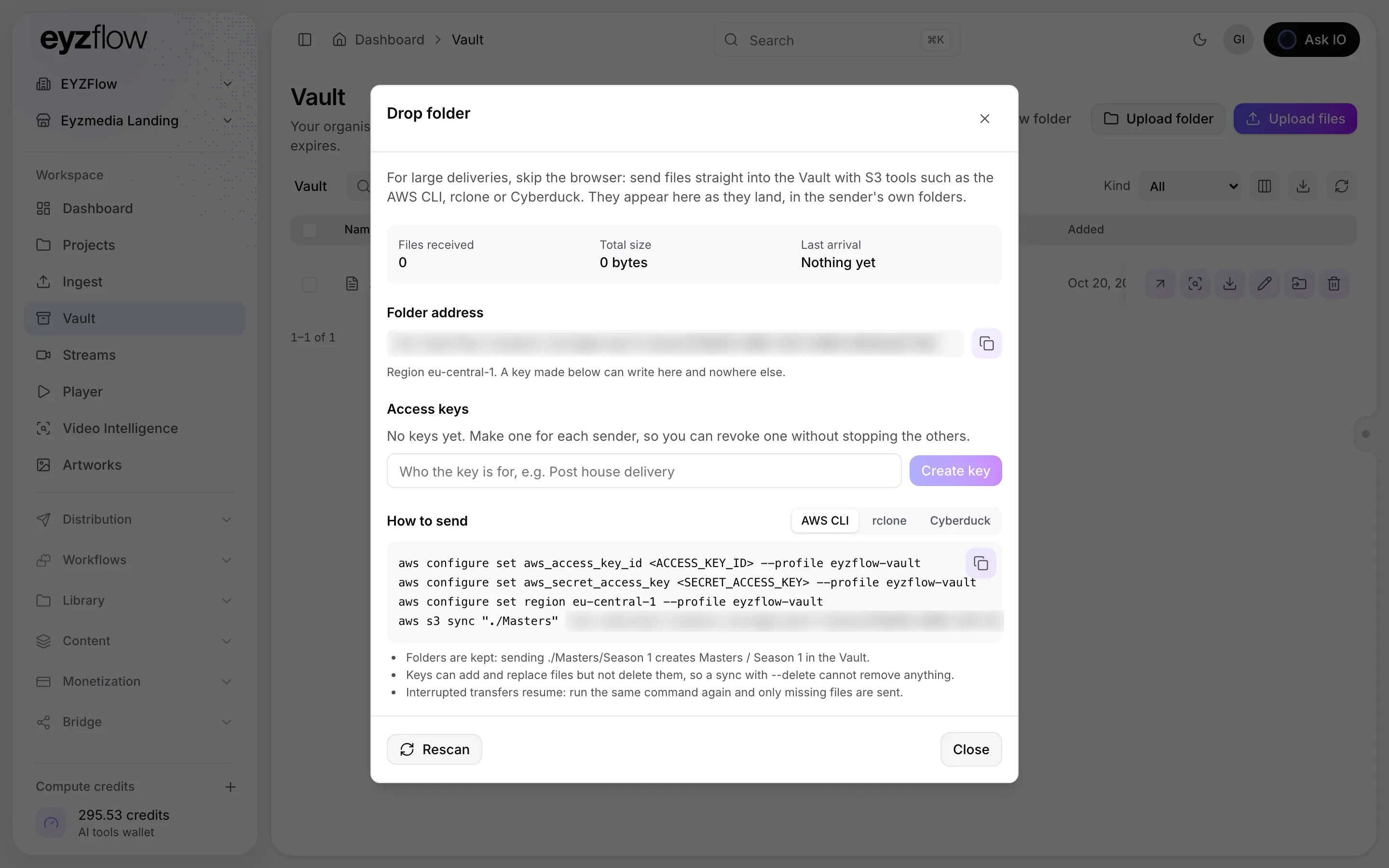
Open the drop folder
- Open Vault from the sidebar.
- Select Drop folder at the top of the page.
The dialog shows:
- Files received
- Total size
- Last arrival
- The folder address and region
- Instructions for AWS CLI, rclone and Cyberduck
- Access keys, if you have permission to manage the Vault
Anyone with View Vault permission can open the drop-folder dialog. Only people with Manage Vault permission can view and manage access keys. If you do not have that permission, ask someone who manages the Vault for a drop-folder key.
Create a drop-folder key
You need Manage Vault permission to create and revoke keys.
- Open Vault, then select Drop folder.
- Under Access keys, enter who the key is for—for example, “Post house delivery”.
- Select Create key.
- Copy the Access key ID and Secret access key, then send them to the sender securely.
Important
The secret access key is shown only once. If it is lost, revoke the key and create a new one.
Create one key per sender so that you can revoke access for one sender without affecting others. The drop folder supports two keys at a time. If both key slots are in use, revoke one before creating another.
A drop-folder key can write to the drop folder only. It can add and replace files, but cannot delete them. A new key can take up to a minute to start working. If key creation fails, try again or check that the drop folder is set up for your workspace.
Send files
- Open Vault, then select Drop folder.
- Under How to send, select AWS CLI, rclone or Cyberduck.
- For AWS CLI or rclone, copy the displayed commands. They configure a profile with the key and copy a local
./Mastersfolder; change that folder to the one you want to send. Commands displayed immediately after key creation already contain the key details. - For Cyberduck, create a new Amazon S3 connection and enter the Server, Access key ID, Secret access key and, under More Options, the displayed Path.
Folder structure and transfers
- Folders are preserved: sending
./Masters/Season 1createsMasters / Season 1in the Vault. - Interrupted transfers can resume: run the same command again; only missing files are sent.
- Files are not deleted: keys cannot delete files, so a sync using
--deletecannot remove files from the Vault. - Files with the same name are replaced: sending a file again to the same folder under the same name replaces the Vault copy. The replacement is analysed again, and the earlier version is not kept.
Revoke a key
- Open Vault, then select Drop folder.
- Under Access keys, select Revoke beside the key and confirm.
Transfers using the key stop immediately. Files already delivered remain in the Vault. Each key shows when it was last used, or Not used yet.
Find files that are missing from the Vault
If a sender has delivered files that do not appear in the Vault:
- Open Vault, then select Drop folder.
- Select Rescan at the bottom of the dialog.
The rescan checks the whole drop folder and adds files that were missed. It reports how many files it checked and how many are new. If the rescan stops, shown as Rescan stopped, select Rescan again to continue where possible. You need Manage Vault permission to rescan.
Looking for a quick answer? Read the FAQ