
DOCSACCESSIBILITY AND LANGUAGE PROJECTS
Import and export subtitle files
Updated 31 October 2026
Use supported subtitle formats to bring existing captions into a stream or download subtitles from a project or stream.
Import subtitles to a stream
You can import SRT, WebVTT, TTML, iTT, or DFXP files. When you create a subtitle project from a stream and include its imported subtitles, the system can reuse or translate them instead of starting from scratch.
- Open the stream's page.
- Select the Subtitles tab.
- Select Upload subtitle.
- Enter the subtitle Title, Language, and Type.
- Choose the subtitle File.
- Select Upload.
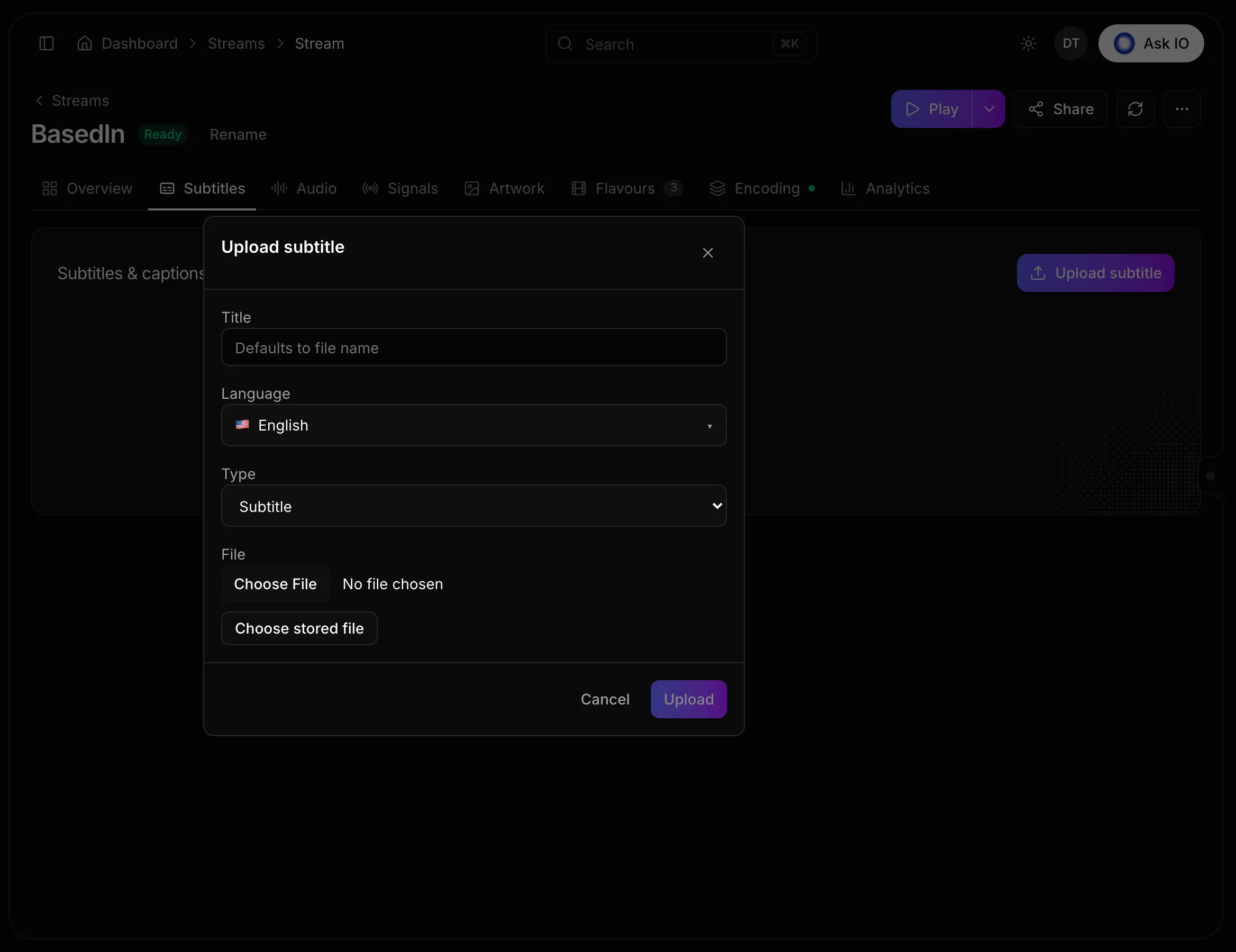
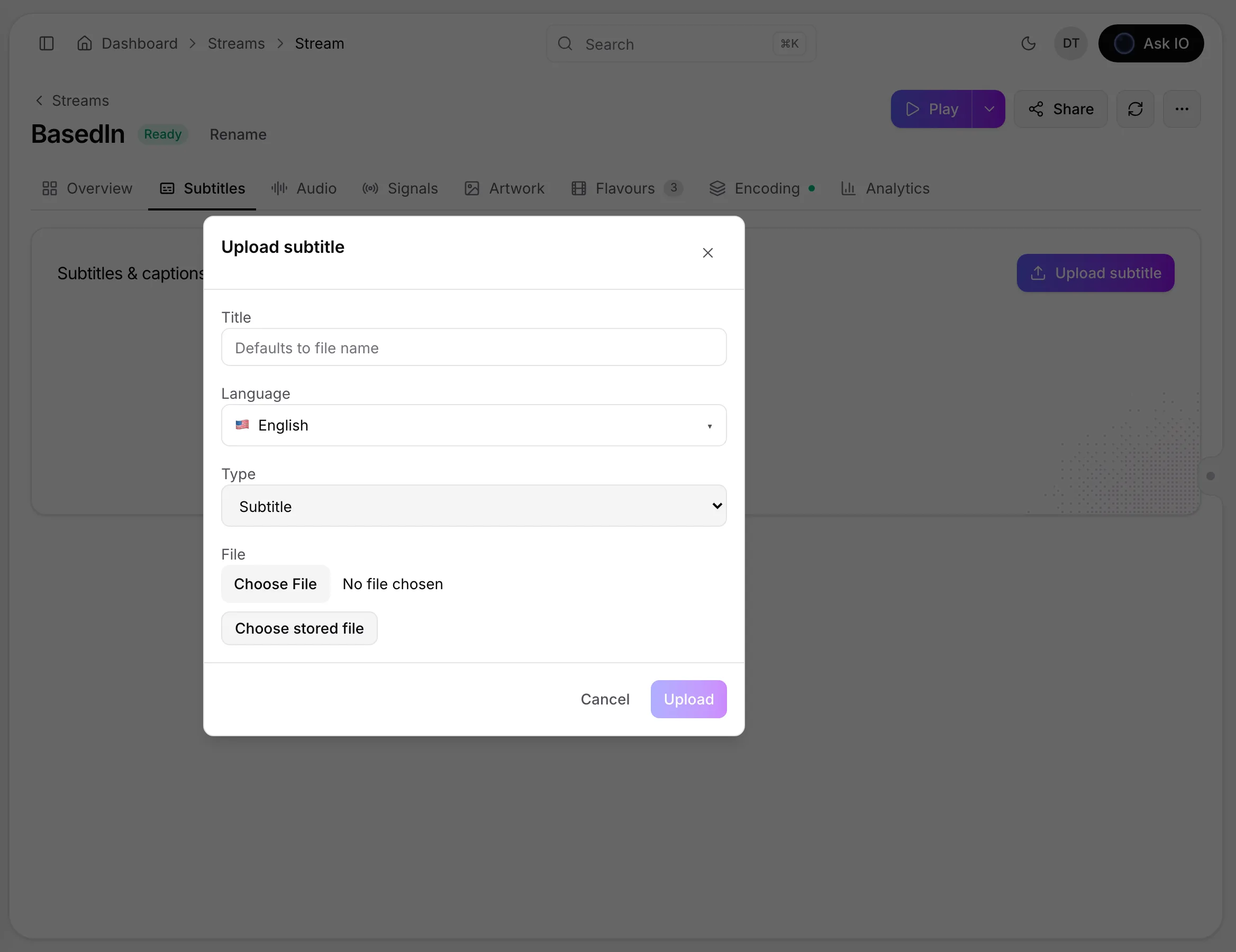
Uploading subtitles requires the Edit Streams permission.
Export subtitles
From a subtitle project
Subtitle projects export SRT files. On the Project review page, use the Export card, or select Export SRT in the subtitle workspace.
For more information about project review and export, see Subtitle and transcription projects in detail.
From a stream
To download subtitles from a stream, open its Subtitles tab and select Download for the track you need. Stream subtitle tracks can be downloaded as SRT or VTT.
For more information about stream captions and media, see Stream media: flavours, audio tracks and captions.
Looking for a quick answer? Read the FAQ