
DOCSACCESSIBILITY AND LANGUAGE PROJECTS
Create and use an HoH Audio project
Updated 31 October 2026
An HoH Audio project creates a clearer-dialogue mix of a video's soundtrack for hard-of-hearing audiences. EYZFlow separates voices from the rest of the sound and remixes them to make the dialogue easier to follow. You can compare the mix with the original, download the result as an audio file, or add it to the stream it came from.
HoH Audio projects appear in Projects alongside subtitle and audio description projects.
Before you start
You need Create SDH/HOH Content permission to create an HoH Audio project. You need View SDH/HOH Tool permission to see HoH projects, project pages, and cost estimates.
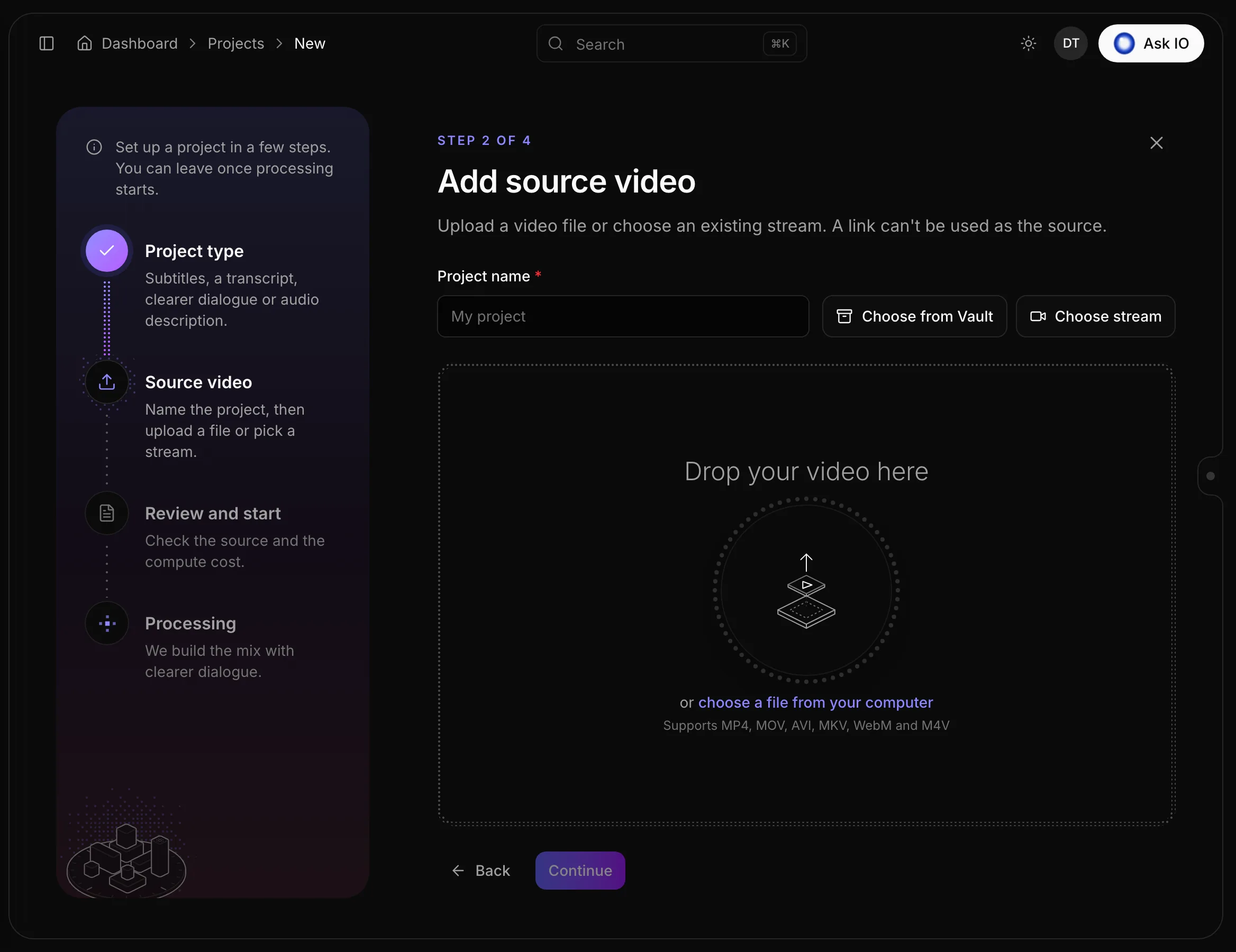
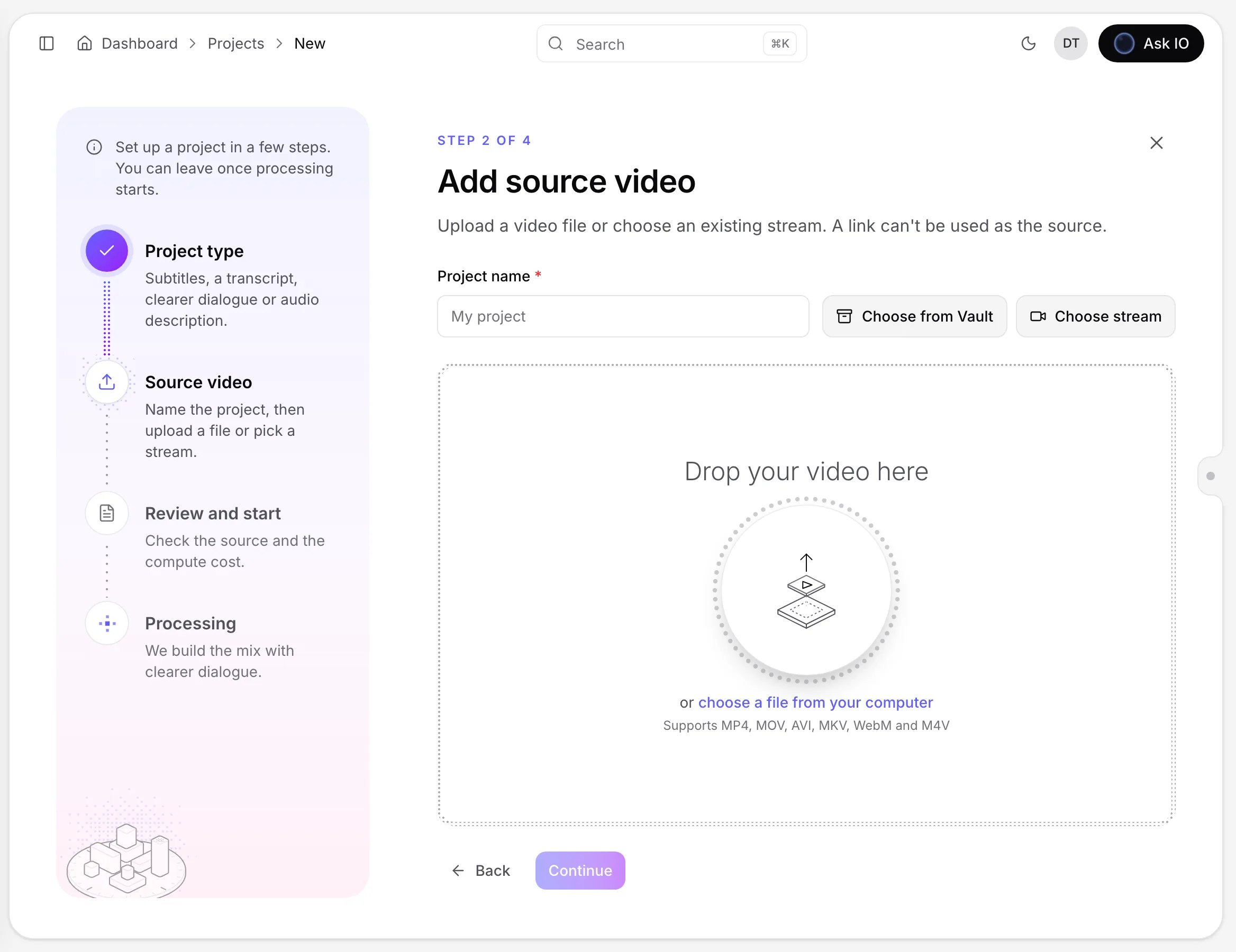
You can provide the source video by:
- Dropping a file onto the page
- Choosing a stream
- Choosing a file from Vault, if you have View Vault permission
Links are not supported as a source for HoH Audio. HoH Audio has no language or context step. The project uses compute credits per minute of video, and the wizard displays an estimate. For more information, see Compute credits and AI tool billing.
Create an HoH Audio project
- Open Projects and click Add new.
- Select HoH Audio.
- Enter a Project name and add the source video.
- If the video contains multiple audio tracks, select the track under Audio to work on. The HoH mix is made from this track.
- Click Continue.
- On Review and start, check the Runtime, Estimated cost, and Your balance.
- Click Start.
Follow processing progress
After you click Start, the wizard displays these processing steps:
- Job submitted
- Audio analysis
- Vocal separation
- Hard of Hearing
You can leave the page while processing continues. Open the project from Projects at any time to view the same progress. When processing finishes, the wizard opens the project page. If processing fails, the project page displays the error.
Compare the HoH mix with the original
When the mix is ready—and, for an uploaded file, after its preview is prepared—open the HoH project page:
- Click play on the video.
- Under Audio, choose Hard of Hearing or the original sound. The original option is labelled Stream audio or Original audio, depending on the source.
The player keeps both audio options synchronized, so you can switch between them during playback. If the HoH audio cannot be loaded, the player falls back to the original sound and indicates that it has done so.
Download the HoH audio
When the mix is ready, click Download HoH audio on the project page. The clearer-dialogue mix downloads as the audio file hard-of-hearing.m4a.
Add the HoH audio to a stream
You can add the mix to the stream only when the HoH project was created from a stream and processing is complete:
- Open the project page from Projects.
- Click Add HoH to stream.
- Wait for the button to change to Added to stream.
The Add HoH to stream option is not available for projects created from an uploaded or Vault file. For those projects, download the HoH audio instead. Adding the mix to a stream requires Create SDH/HOH Content permission.
Looking for a quick answer? Read the FAQ