
DOCSBILLING AND SUBSCRIPTIONS
Manage plans, add-ons, VOD, and Sign credits
Updated 31 October 2026
Your organisation’s plan determines which EYZFlow features are available and how much storage and encoding it includes. Add-ons extend the plan with capabilities such as Live channels. Use the Subscription page to choose a plan and estimate VOD or Sign usage, Premium Addons to buy add-ons, and Billing to review usage, payment methods, and invoices.
Choose or change your plan
- Open the account menu and select Subscription. If your organisation has no plan, this option is labelled Get Subscription; during a trial, it is labelled Upgrade To Pro.
- On the Plans tab, compare the available plans, including price, trial offer, storage, encoding, catalogues, and quality. Use Monthly or Yearly to change how prices are displayed.
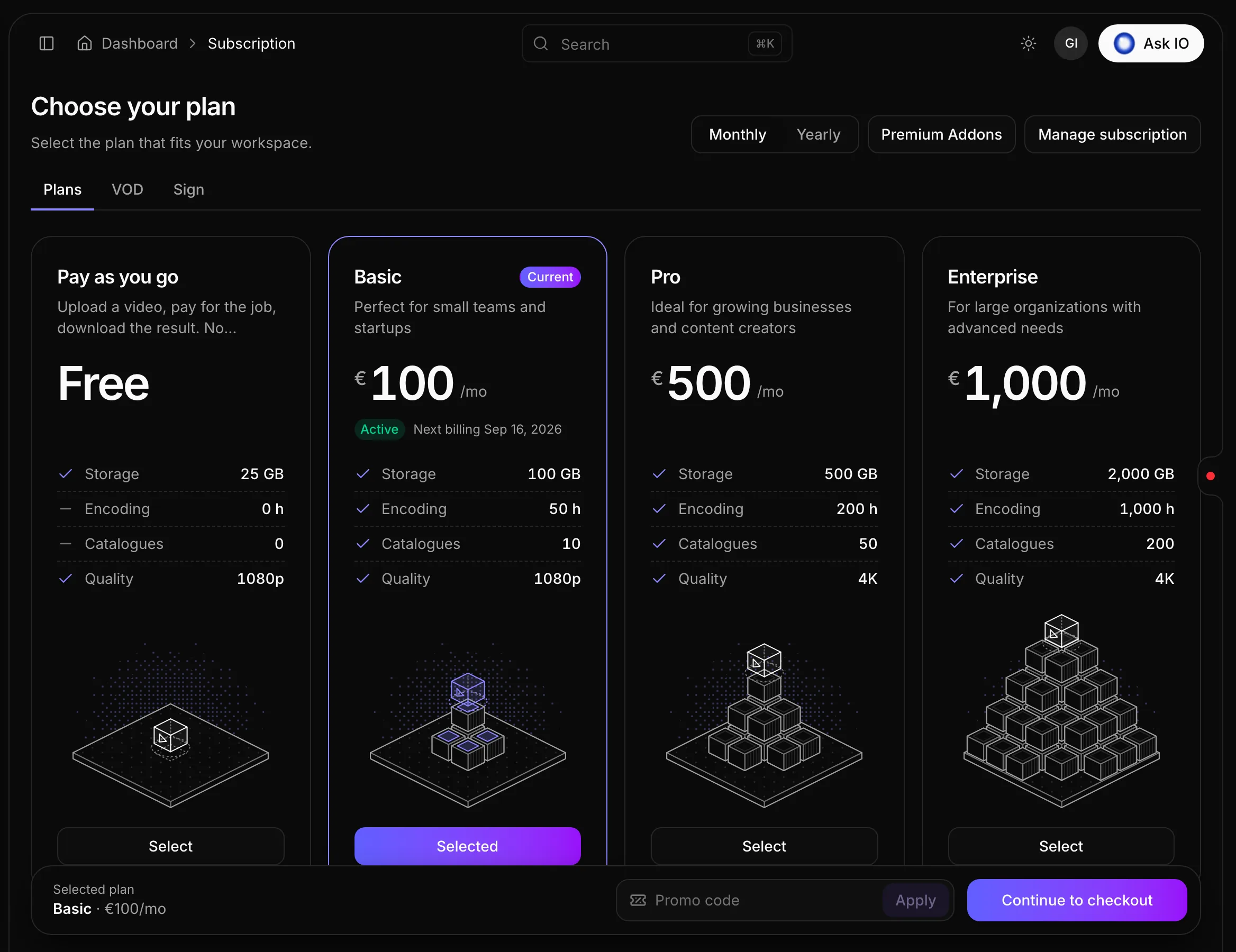
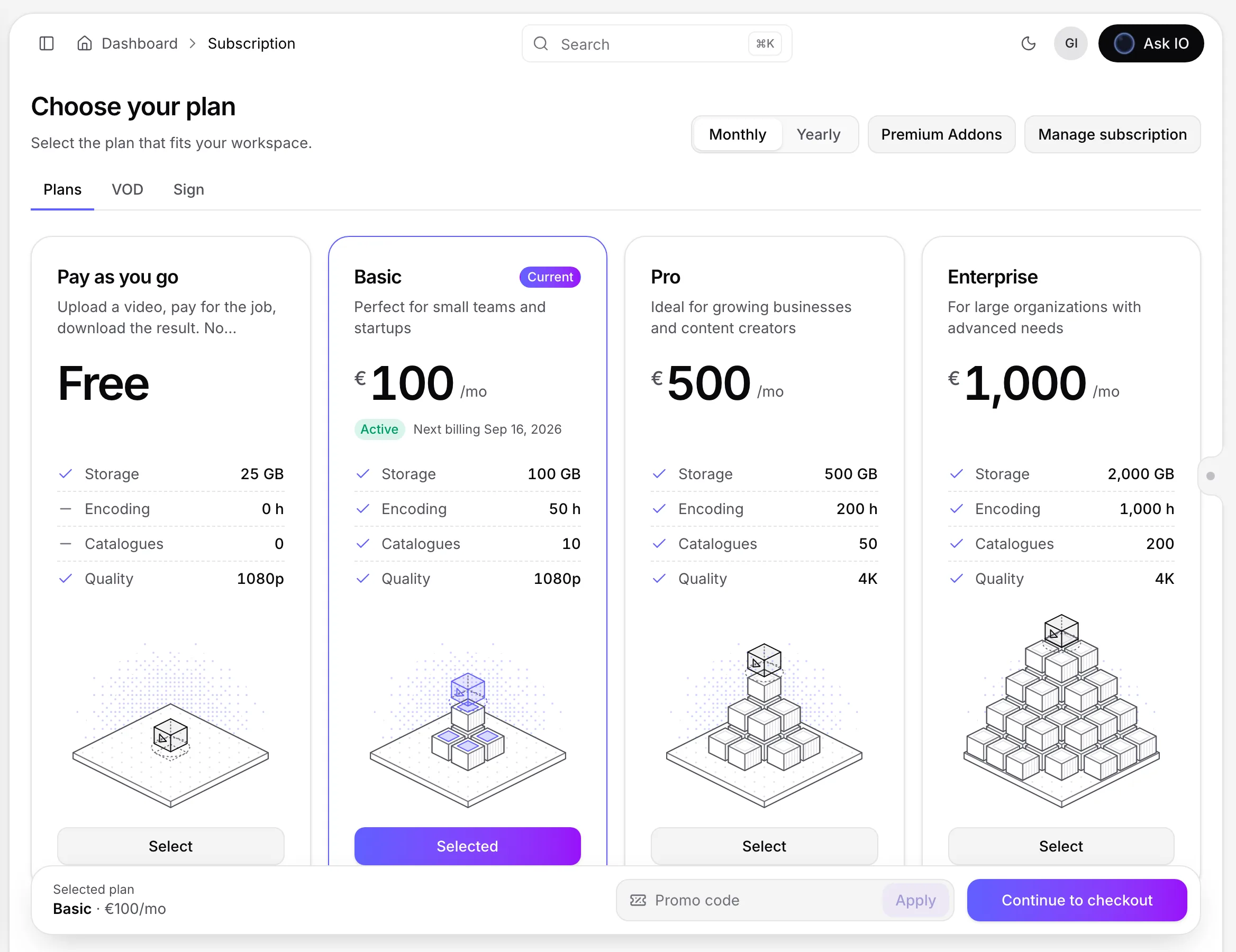
- Select a plan. The selected plan appears in the bar at the bottom of the page.
- If you have a promo code, enter it under Promo code and select Apply.
- Select Continue to checkout and complete payment in Stripe.
After checkout, EYZFlow finalises the subscription and returns you to the dashboard. If you leave Stripe without paying, checkout is cancelled.
Your current plan is marked with a Current badge and shows its status and next billing date. To manage a paid subscription, select Manage subscription on the Subscription page to open Stripe’s billing portal.
Estimate a VOD storefront
The VOD calculator helps you estimate the monthly cost of a film catalogue and choose a VOD plan.
- Open Subscription and select the VOD tab.
- Set the number of films using the slider or the number field. The slider supports 1–500 films; the field supports up to 10,000. Presets are available for 25, 50, 100, 250, and 500 films.
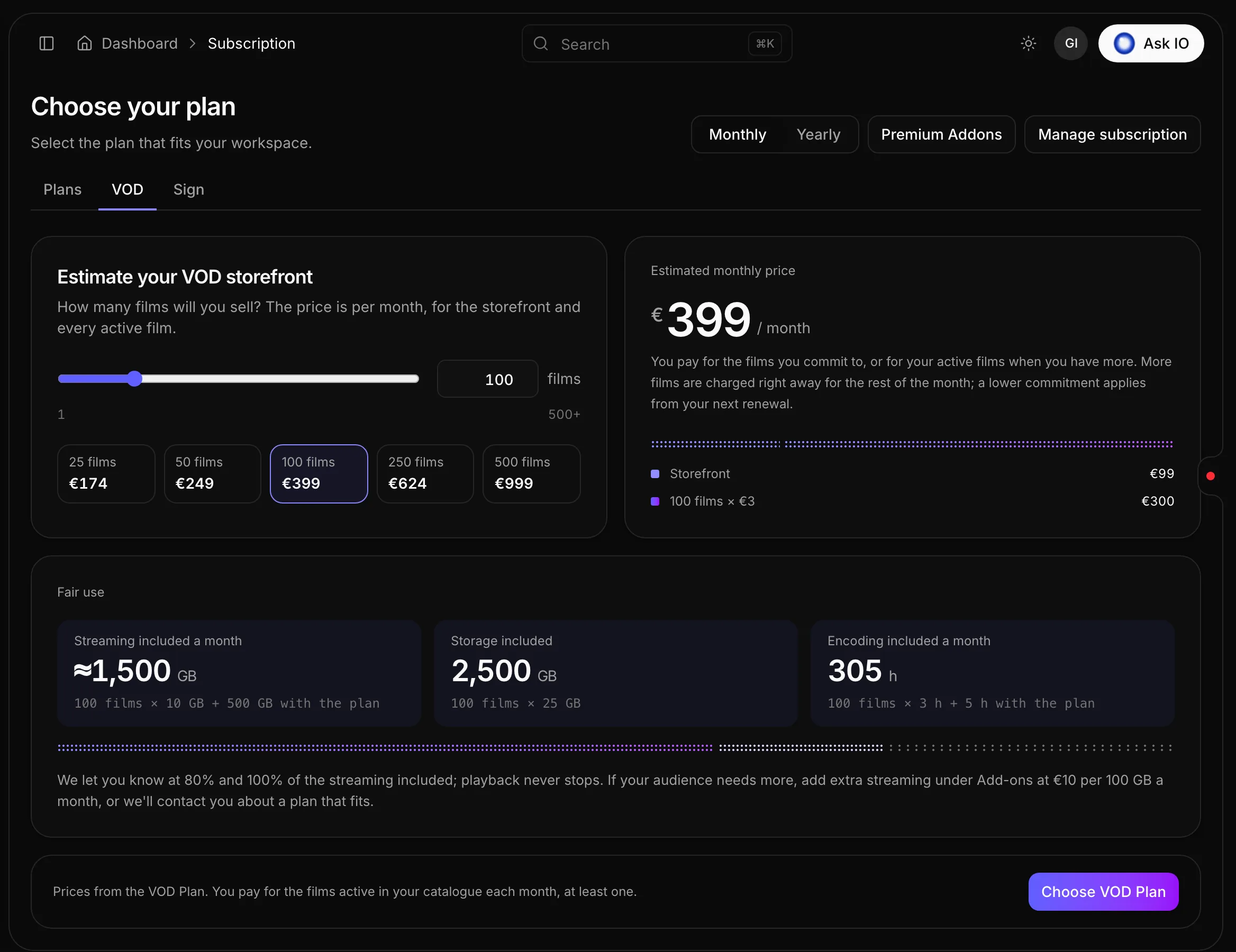
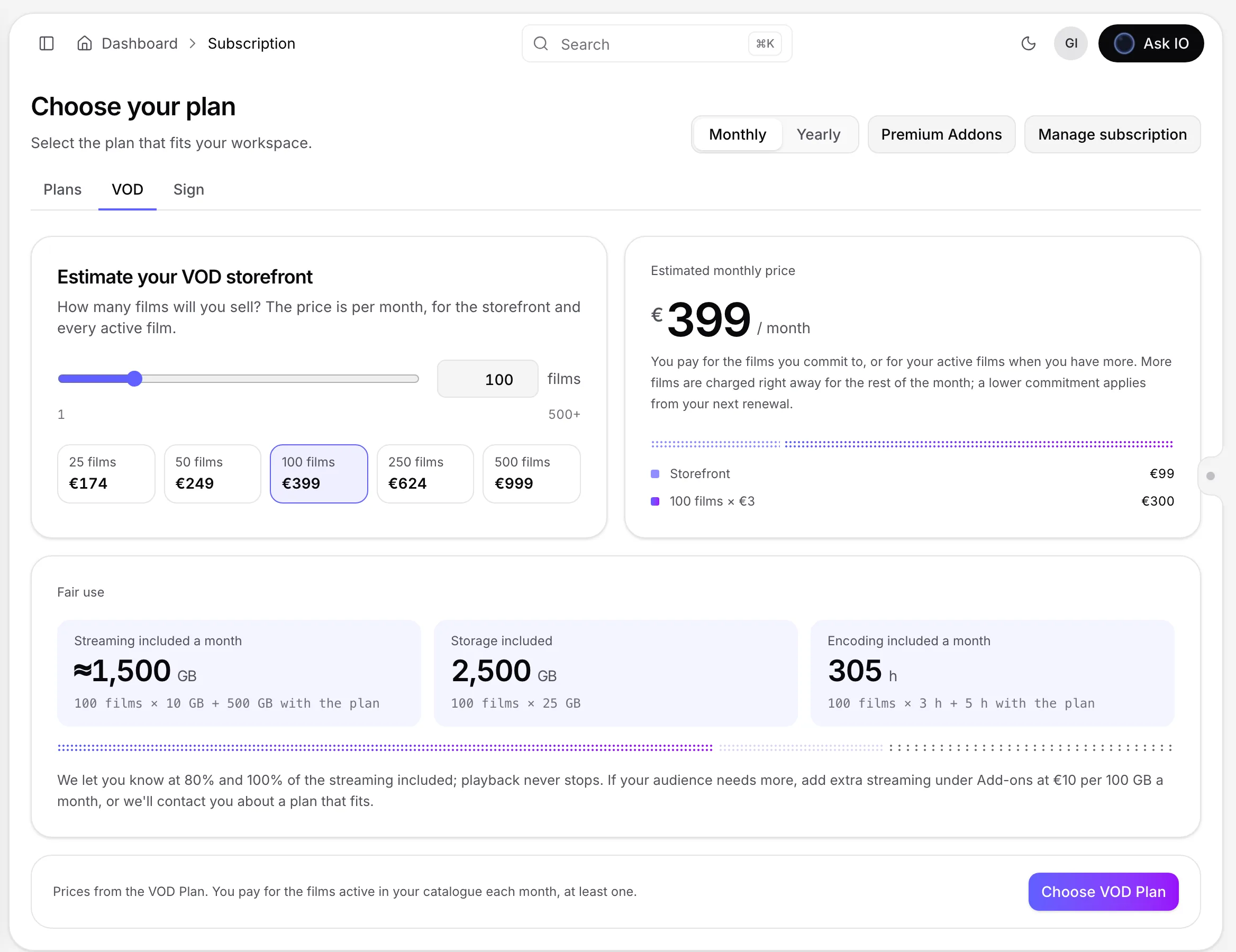
- Review the Estimated monthly price, including the storefront fee and the per-film pricing shown for the VOD plan.
- Under Fair use, review the included monthly streaming, storage, and encoding. EYZFlow warns you at 80% and 100% of included streaming; playback does not stop when the included amount is reached. Additional streaming can be bought in add-on packs.
- Select Choose VOD Plan, review the selected film count and monthly price, then select Continue to checkout.
Checkout commits you to the selected number of films. If no VOD plan is available for your workspace, the VOD tab provides an option to contact the VOD team.
Change your VOD film commitment
When your organisation already has a VOD plan:
- Open Subscription and select VOD.
- Set the new number of films with the slider or number field.
- Select Commit to … films.
Increasing the commitment is charged immediately for the rest of the current month. Decreasing it takes effect at the next renewal, and the page shows the future commitment until then.
Estimate Sign work in credits
EYZFlow Sign provides subtitles, captions, hard-of-hearing audio, and audio description. Sign usage is paid for in credits, where one credit represents one Sign minute.
- Open Subscription and select the Sign tab.
- Enter the number of Films a month, Minutes per film, and Languages. Up to 29 languages can be selected, and each film is counted in whole minutes.
- Select at least one service: Subtitles, Captions (with subtitles), Clearer dialogue (HoH audio), or Audio description.
- Review Credits a month and the per-service breakdown. Subtitles, captions, and audio description also add video analysis once per film.
- Review Credit packs that cover a month to see the cheapest pack and how often it must be bought.
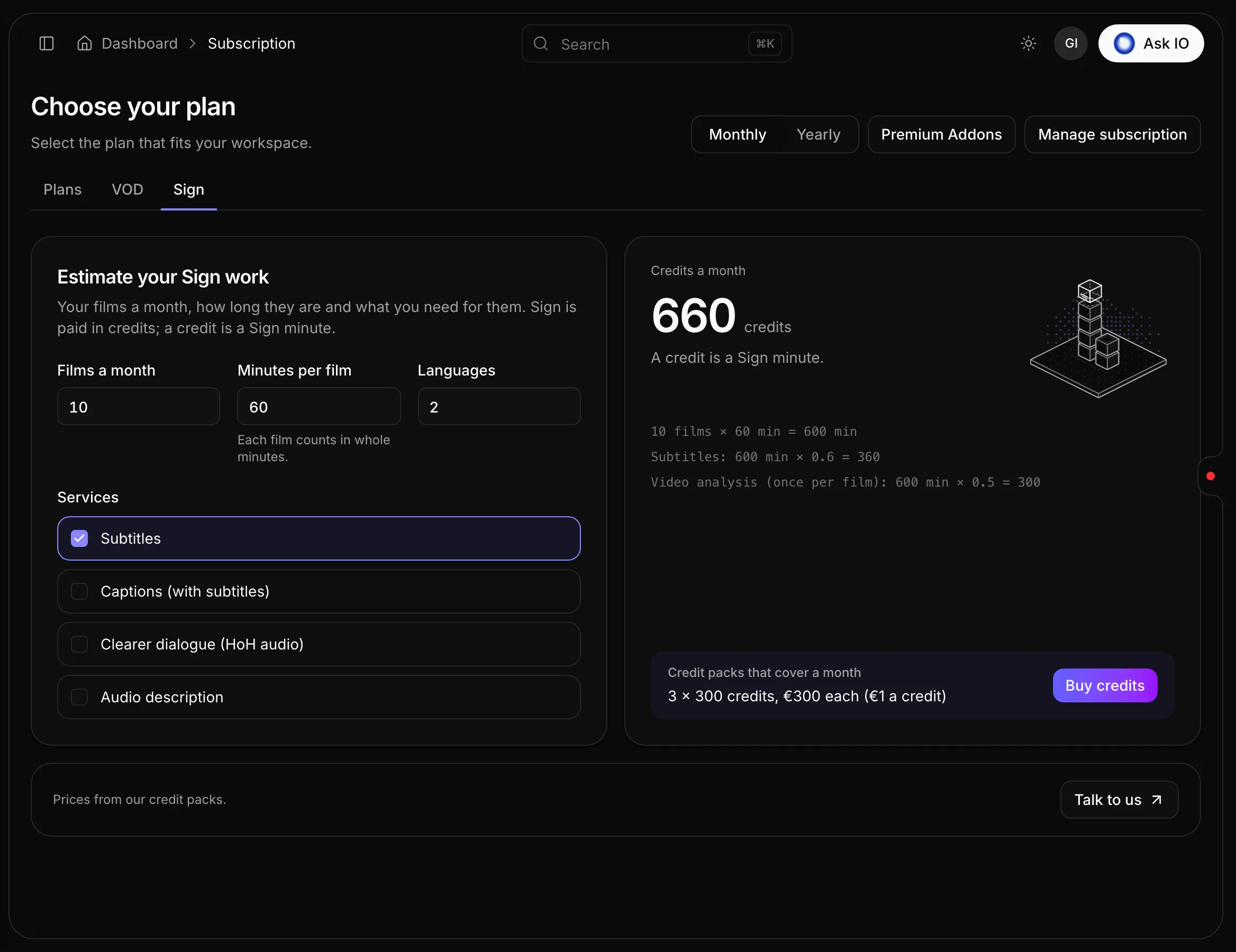
- Select Buy credits to open the credit purchase screen and buy a package. If your needs exceed the available packs, use the contact option on the Sign tab.
Buy and manage add-ons
- Open Premium Addons from the account menu, or open it from the Subscription page.
- Review each add-on’s price and what it includes. Pricing may be monthly, one-time, per unit, or usage-based.
- Select an add-on, then select Continue to checkout and pay in Stripe.
- For an add-on sold per unit, such as Live channels, set the number of extra units with the stepper before checkout.
After payment, the add-on is shown as active immediately or activates shortly afterward. An add-on you already have shows Active or Payment overdue and cannot be purchased again.
To change extra Live channels, open Premium Addons, adjust Extra channels, and select Update. Stripe prorates the change on your next invoice. Use Manage billing to change the payment card or view add-on invoices.
Review usage, payment details, and invoices
- Open Billing from the account menu.
- Review your current plan, status, renewal or end date, price, storage and encoding usage for the billing period, and organisation member count.
- Select Open billing portal to update cards, download invoices, or manage renewal in Stripe. You can also select View & download in Billing history.
- Select Compare or upgrade plans to return to the Subscription page.
If your organisation has not paid through Stripe, Billing shows an option to get a subscription instead of opening the billing portal.
Unlock features or resolve plan limits
Features not included in your plan appear under More on Platform with a lock.
- Select the locked feature to see whether it requires a different plan or is available as an add-on.
- Select Compare plans to choose a plan that includes the feature, or select Buy the add-on when the feature is available as an add-on.
Upgrading keeps your organisation’s existing content in place. When you reach a plan or add-on limit, EYZFlow offers the relevant next step, such as upgrading the plan, adding channels, or buying credits.
Payment issues and trial expiry
A dashboard banner explains the next action when payment needs attention or a trial is ending:
- For a subscription payment issue, select Update payment to fix the card in Stripe’s billing portal. If no payment method is available, select View plans instead.
- During the final seven days of a trial, select View plans in the trial-expiry banner to choose a plan.
Without an active subscription, pages that require one redirect you to Subscription so you can choose a plan.
Looking for a quick answer? Read the FAQ