
DOCSWORKSPACE ADMINISTRATION
Set up API keys and webhooks
Updated 31 October 2026
Use API keys to let your systems call the EYZFlow API for your organisation. Use webhooks to send workspace events to an HTTPS endpoint as they happen. Both features are available in Settings.
Create an API key
- Open Settings and select the API keys tab.
- Select Create key.
- Enter a required Name and choose an Environment: Live or Test.
- Optionally enter Scopes as comma- or newline-separated values, and set an Expiry date and time using your local time.
- Select Save.
- When the API key secret appears, copy it and store it outside your browser. The secret is shown only once. Select Done when you have saved it.
The API key list shows each key's name, prefix, environment and active status.
Important
If you lose an API key secret, create a new key and revoke the old one. The original secret cannot be displayed again.
Change, disable or revoke an API key
- Open Settings and select API keys.
- To edit a key, select Edit on its row. You can change its name, environment, scopes and expiry. Clear Active to stop the key from working without deleting it, then select Save.
- To permanently remove a key, select Revoke on its row and confirm.
Add a webhook listener
A webhook listener sends selected workspace events to your HTTPS endpoint.
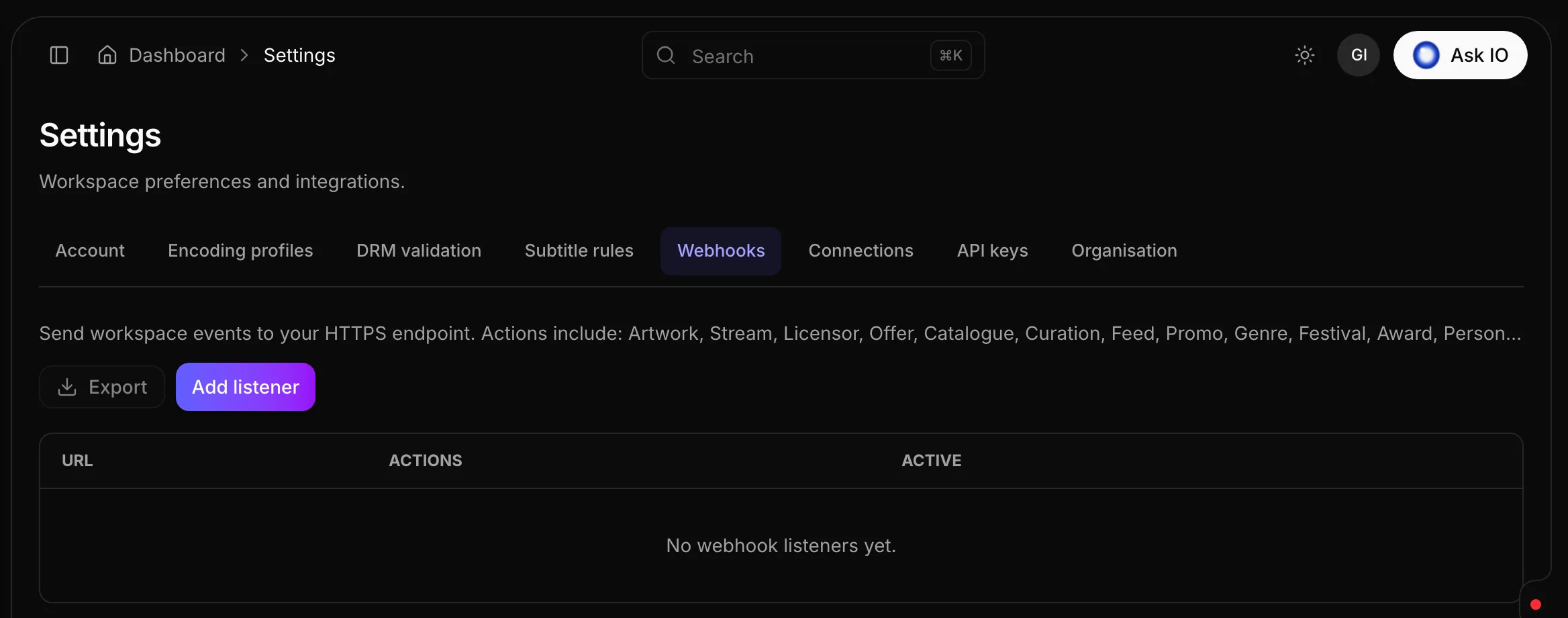
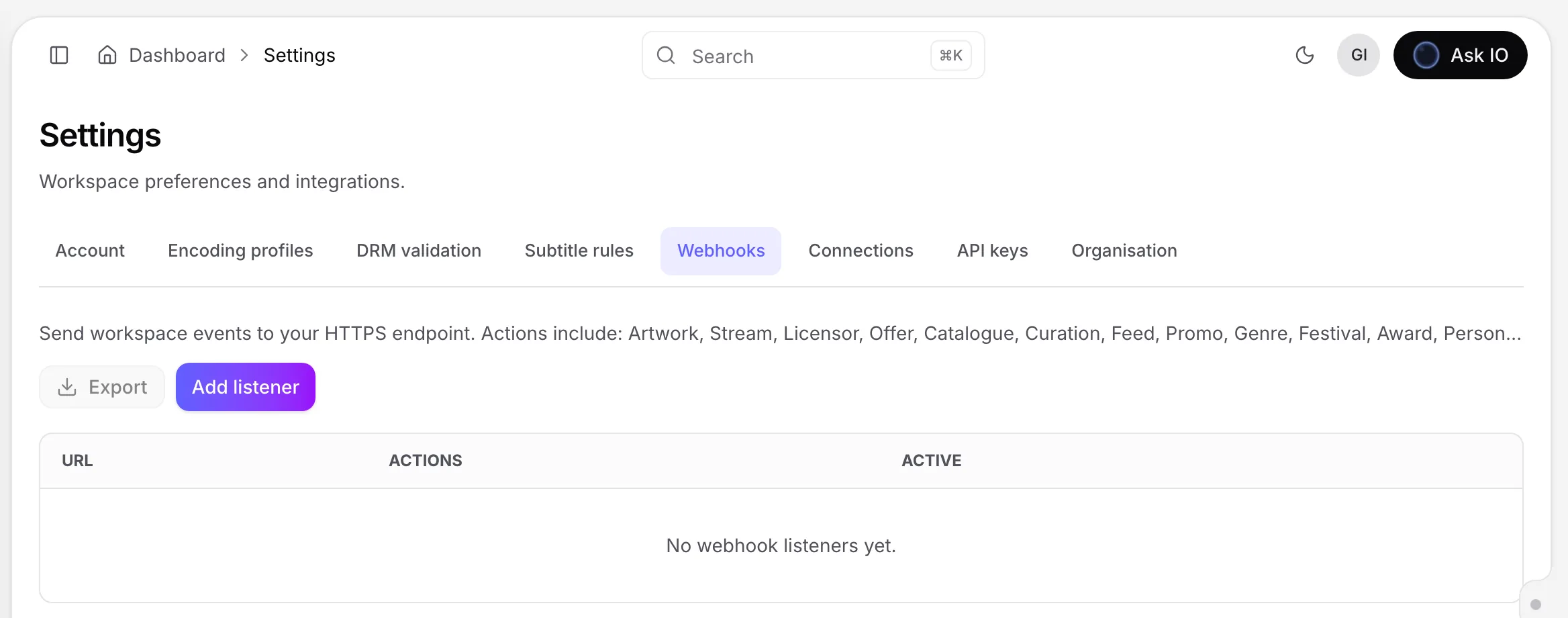
- Open Settings and select the Webhooks tab.
- Select Add listener.
- Enter the URL of your HTTPS endpoint.
- In Actions, enter the events to send, one per line or separated by commas. At least one action is required.
- Optionally add an Optional secret and Optional headers, using one
Key: valuepair per line. - Leave Active selected so the listener receives events, then select Save.
The listener list shows each URL, its number of actions and its active status.
Choose webhook events
Enter an action in full, such as Stream.create or Workflow.run.failed. You can also enter an entity name on its own to receive every action for that entity. For example, Artwork receives all Artwork.… events, and Workflow.run receives all workflow-run events. The Webhooks tab displays some of the available actions.
Supported event groups include:
- Entities: Artwork, Stream, Licensor, Catalogue, Curation, Feed, Promo, Genre, Festival, Award, Person, Rating, ContentForm, Audio, Caption, Flavor, Job, JobSet, Offer, Platform, Product, StreamPackage, Workflow and Ingest.
- Streams: create, update, delete, upload URL requests, completed multipart uploads, upload- and URL-triggered jobs, and archive jobs.
- Library: create, update, delete and localisation events for supported library entities, plus Feed, Promo, Festival and Award updates.
- Artworks: create, update, delete, upload-from-URL, CMS-link, upload-request, artwork-linking, variation and file-processing events.
- Forms: create, update, delete and submission events.
- Workflow runs: queued, started, waiting, resumed, completed, failed, cancelled, compensating, rolled back, timed out and retried.
- Workflow steps and reviews: step lifecycle events, review and approval requests and decisions, and administrative workflow actions.
- Ingest: session lifecycle events, analysis completion, catalogue approval, stream status, track publication and note creation.
Change, pause or delete a webhook listener
- Open Settings and select Webhooks.
- To edit a listener, select Edit on its row. You can change the URL, actions, secret or headers. Clear Active to pause delivery, then select Save.
- To remove a listener, select Delete on its row and confirm.
Looking for a quick answer? Read the FAQ