
DOCSACCESSIBILITY AND LANGUAGE PROJECTS
Create a subtitles, transcription, HoH Audio, or Audio Description project
Updated 31 October 2026
EYZFlow’s Projects area lets you create one of four project types from a single video: subtitles, a full transcription, a hard-of-hearing (HoH) audio mix, or an audio description narration. The create-project wizard guides you through the required steps.
Before you begin
Your organisation needs the Projects module on its plan. You also need permission for the project type you want to create. If the Projects area is locked, or a project type is not shown, ask an administrator to check your plan and permissions.
1. Choose a project type
Open Projects, select Add new, and choose one of these options:
- Subtitles: create context-aware subtitles.
- Transcription: create a full transcript.
- HoH Audio: create clearer dialogue audio for hard-of-hearing audiences.
- Audio Description: create narration describing what is on screen for blind and low-vision viewers.
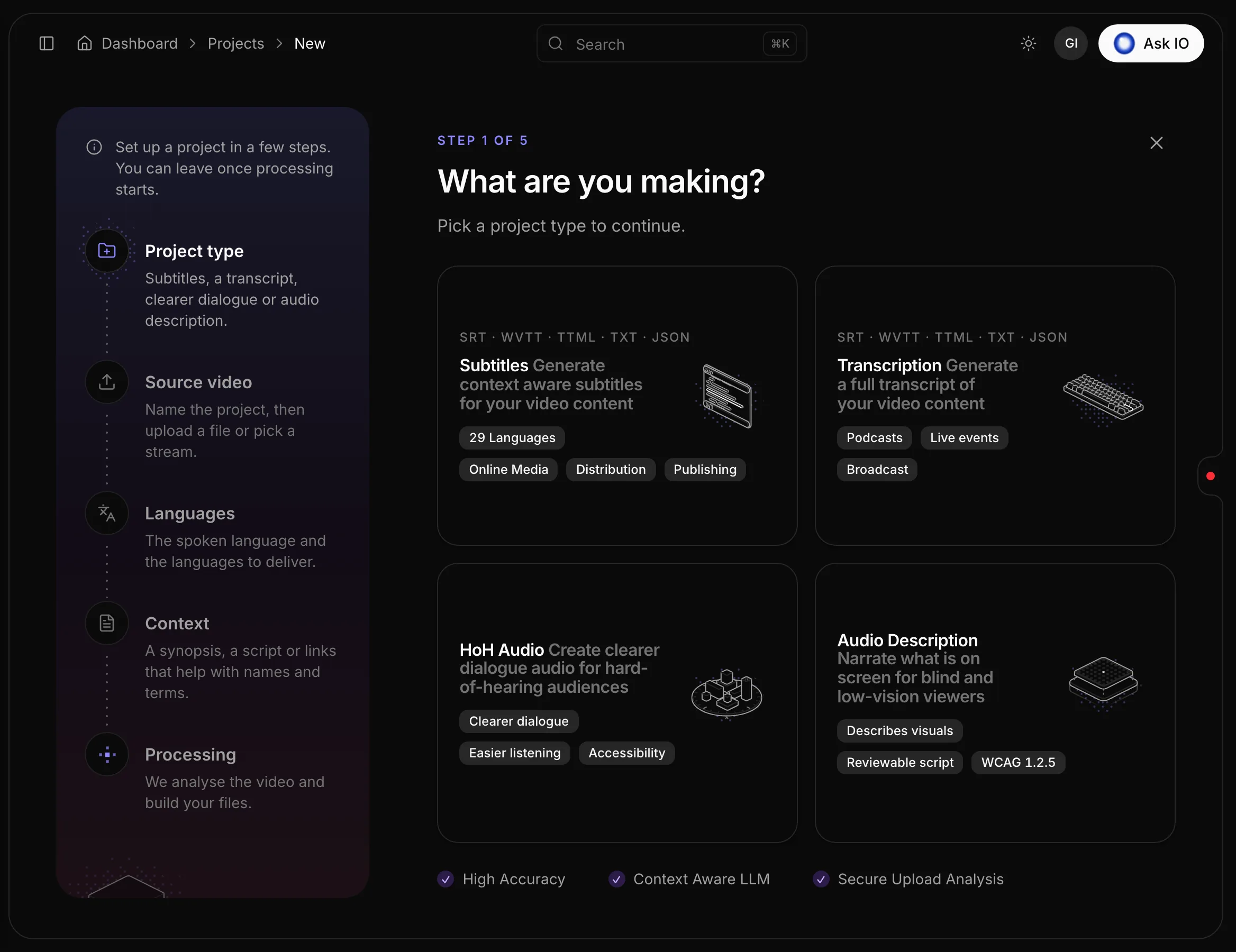
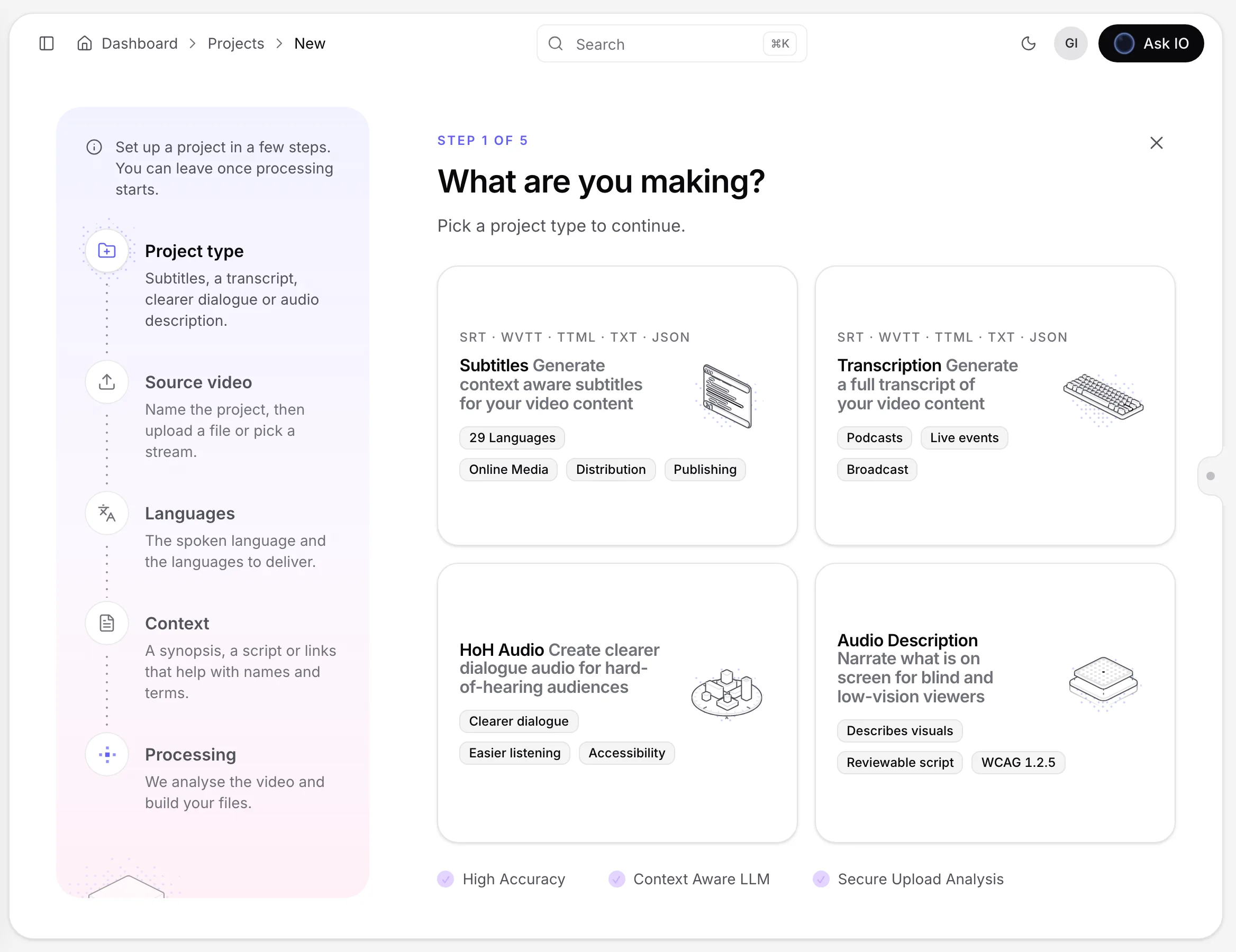
Subtitles and Transcription use these steps: Project type, Source video, Languages, Context, and Processing. HoH Audio and Audio Description use Project type, Source video, Review and start, and Processing.
2. Add one source video
Enter a required Project name, then add exactly one source using one of these methods:
- Upload a file: drop a video onto the page or choose one from your computer. Supported examples include MP4, MOV, AVI, MKV, WebM, and M4V. The upload begins once the project has both a name and a file. After uploading, the name is saved and can be changed only after you remove the video.
- Choose stream: select one of your streams. For Subtitles and Transcription, you can include existing caption tracks and choose which languages to include.
- Choose from Vault: select a video already in the Vault. The video is processed where it is; it is not uploaded again.
Click Continue. Remove any extra source if the wizard reports that more than one source has been selected. Links and Bridge files cannot be used as the source in this wizard.
If the video has multiple audio tracks, choose the track to use. The first track is selected initially. For Subtitles and Transcription, choose the original-language track unless you are creating captions for a dubbed track. For HoH Audio and Audio Description, choose the track that the audio work should use.
3. Set languages and subtitle options
This step applies to Subtitles and Transcription projects.
- Check or change Source, the language spoken in the video.
- Select one or more Target languages. A target matching the audio language produces a transcript rather than a translation.
- Optionally enable Closed captions (CC) and select at least one CC language.
- If you included captions from a stream, optionally keep source cue timing and formatting such as dialogue dashes, italics, and speaker IDs. This option is enabled by default.
- Check the selected Subtitle rules.
- Compare the Estimated cost with Your balance, then continue.
A source language and at least one target language are required. If CC is enabled, at least one CC language is also required.
4. Add context and start
For Subtitles and Transcription, the Add context step is optional. Context can help with names and terms. You can:
- Enter supporting text, such as a synopsis or script.
- Attach files including PDF, TXT, DOC, DOCX, MD, RTF, ODT, SRT, VTT, CSV, HTML, EPUB, PNG, or JPG.
- Add a supporting web page.
- Optionally enter an IMDb title ID or address.
Review the runtime, estimated cost, and balance, then select Start. Attached files are uploaded when you start.
For HoH Audio and Audio Description, review the runtime, estimated cost, and balance on Review and start, then select Start. These project types do not have language or context steps.
If you do not have enough credits
Every project type uses compute credits. If your balance is below the estimate, Start remains unavailable. You can either pay for the missing credits for that job at checkout or open the credit packages and buy credits.
5. Monitor processing
After you start, the wizard displays progress. Subtitles and Transcription show Video Intelligence progress. HoH Audio shows job submission, audio analysis, vocal separation, and the hard-of-hearing stage. Audio Description shows job submission, video analysis, and narration-script progress.
You can leave the processing screen and return later. When processing finishes, the project opens in the relevant workspace or page, and you can also find it in Projects. If processing fails, open the project for details.
Start from a Vault file
You can also begin from the Vault:
- Open the Vault and find the video.
- Open its Use… menu.
- Under New project, choose Subtitles, Transcription, Hard of hearing, or Audio description.
- Continue in the wizard. The Vault file is already selected and the project name is filled from the file name.
You need permission to view the Vault and permission to create the selected project type.
Note
Leaving the wizard after the first step and before processing asks you to confirm, because the source and settings would be lost.
Looking for a quick answer? Read the FAQ