
DOCSACCESSIBILITY AND LANGUAGE PROJECTS
Subtitle rule sets: create, choose, and manage subtitle limits
Updated 31 October 2026
Subtitle rule sets define the limits used to create and review subtitles, including line length, number of lines, reading speed, on-screen duration, gaps between subtitles, and frame rate. Each new subtitle or transcription project uses your organisation’s default rule set unless you choose another one during project setup. The project keeps a copy of the selected rules, so later changes do not affect projects that already exist.
Open subtitle rules
- Open the account menu and select Settings.
- Open the Subtitle rules tab.
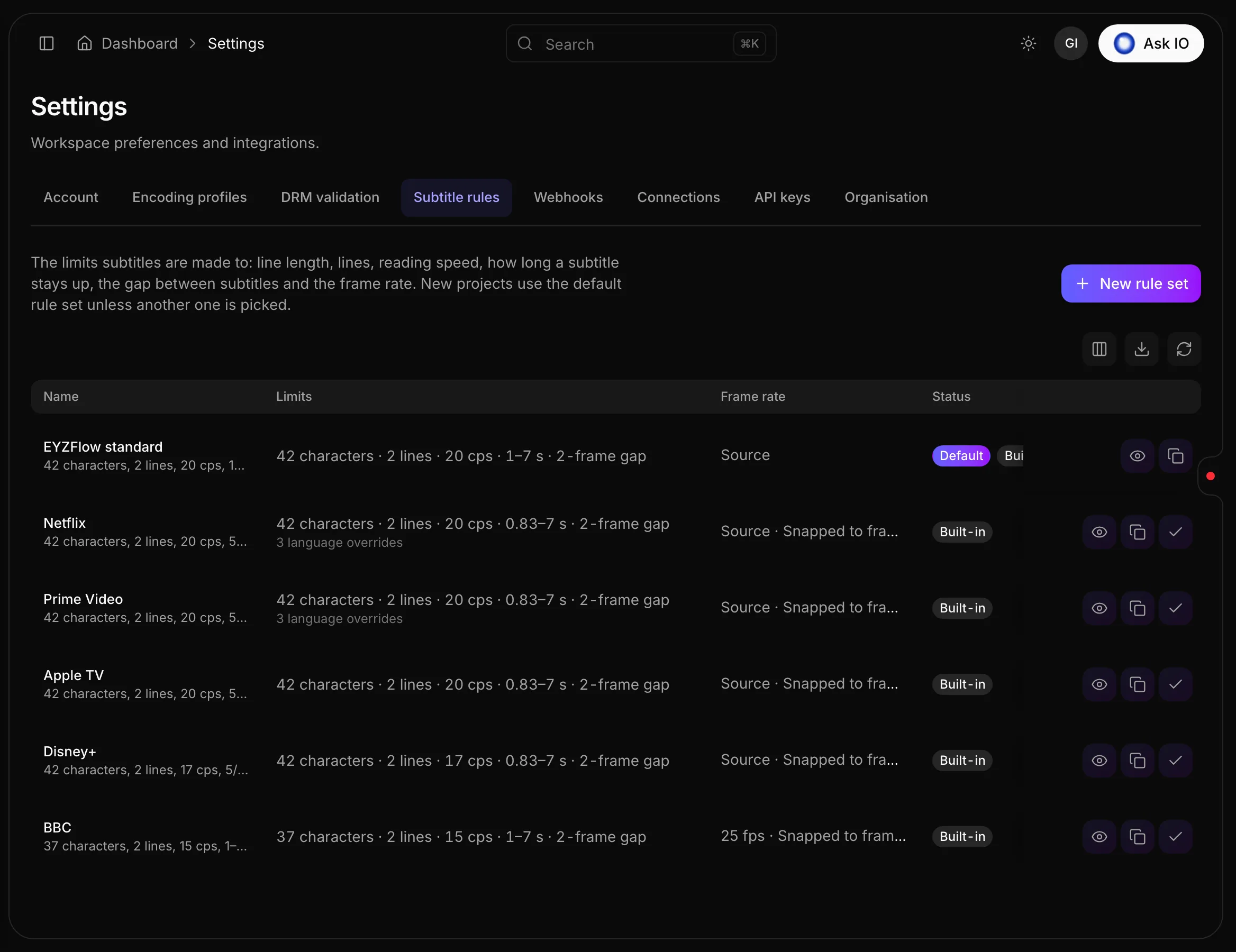
The list shows each rule set’s name, limits, language overrides, frame rate, and status. You need View Subtitle Projects to open this tab. To create or change rule sets, you need Manage Subtitle Rules. Without that permission, rule sets open in read-only mode.
Use a built-in rule set
EYZFlow includes built-in rule sets such as EYZFlow standard, Netflix, Prime Video, Apple TV, Disney+ and BBC. Built-in rule sets cannot be edited, but you can open one to review its limits, make it the default, or duplicate it to create a custom rule set.
Understand the rules
Text limits
- Characters per line: 8–80 characters.
- Lines: 1–3 lines per subtitle.
- Reading speed: 3–40 characters per second (cps).
Timing limits
- Shortest subtitle: 0.2–20 seconds.
- Longest subtitle: 0.5–20 seconds. It must be longer than the shortest subtitle.
- Gap between subtitles: 0–12 frames.
- Frame rate: Use the video’s own frame rate or a fixed rate of 23.976, 24, 25, 29.97, 30, 50, 59.94, or 60 fps.
- Snap to shot changes: Pull an out time onto a nearby cut, within 0–50 frames. If left empty, the setting uses half a second.
- Snap in and out times to frames: Align every subtitle start and end time to a frame.
Gaps and snapping use the rule set’s selected frame rate.
Language overrides
You can set different limits for specific languages, such as Japanese or Chinese. Add a language code and set alternative values for characters per line, lines, reading speed, and shortest subtitle. Leave a value empty to keep the rule set’s main value.
Create a custom rule set
- In Settings → Subtitle rules, select New rule set, or select Duplicate on an existing rule set.
- Enter a required Name and, optionally, a Description.
- For a new rule set, select a built-in rule set in Start from to prefill the limits.
- Set the text and timing limits.
- To add language-specific limits, select Add language, enter the language code, and fill in the values to override.
- Select Save rule set.
If a value is outside its allowed range, the form displays a validation message. Creating and saving a rule set requires Manage Subtitle Rules.
Edit or delete a rule set
In Settings → Subtitle rules, you can edit or delete your organisation’s custom rule sets:
- Select Edit, change the values, and select Save rule set. Existing projects keep the rules they were created with.
- Select Delete and confirm. The default rule set and built-in rule sets cannot be deleted.
Both actions require Manage Subtitle Rules.
Choose the default rule set
In Settings → Subtitle rules, select Make default on the rule set that new projects should use. Both built-in and custom rule sets can be the default. This action requires Manage Subtitle Rules.
Choose rules for a new project
During the Language settings step of project creation, the Subtitle rules selector starts with the default rule set. Choose another set if the project needs different limits. The selector shows the chosen set’s limits and frame rate.
HoH Audio and Audio Description projects do not use subtitle rule sets.
Review subtitles against the rules
In a subtitle project workspace, the cue list identifies the track’s rule set. Reading speed is shown in red when it is too high, and notes identify other rule violations, such as exceeding the character limit or overlapping the next subtitle. Language overrides apply to tracks in that language.
Saving does not block cues that break the rules. After saving, the workspace reports how many cues still have violations.
For the next step, see Reviewing and editing subtitles in a project.
Looking for a quick answer? Read the FAQ