
DOCSSTOREFRONTS AND VIEWER SUPPORT
Create and use player configurations
Updated 31 October 2026
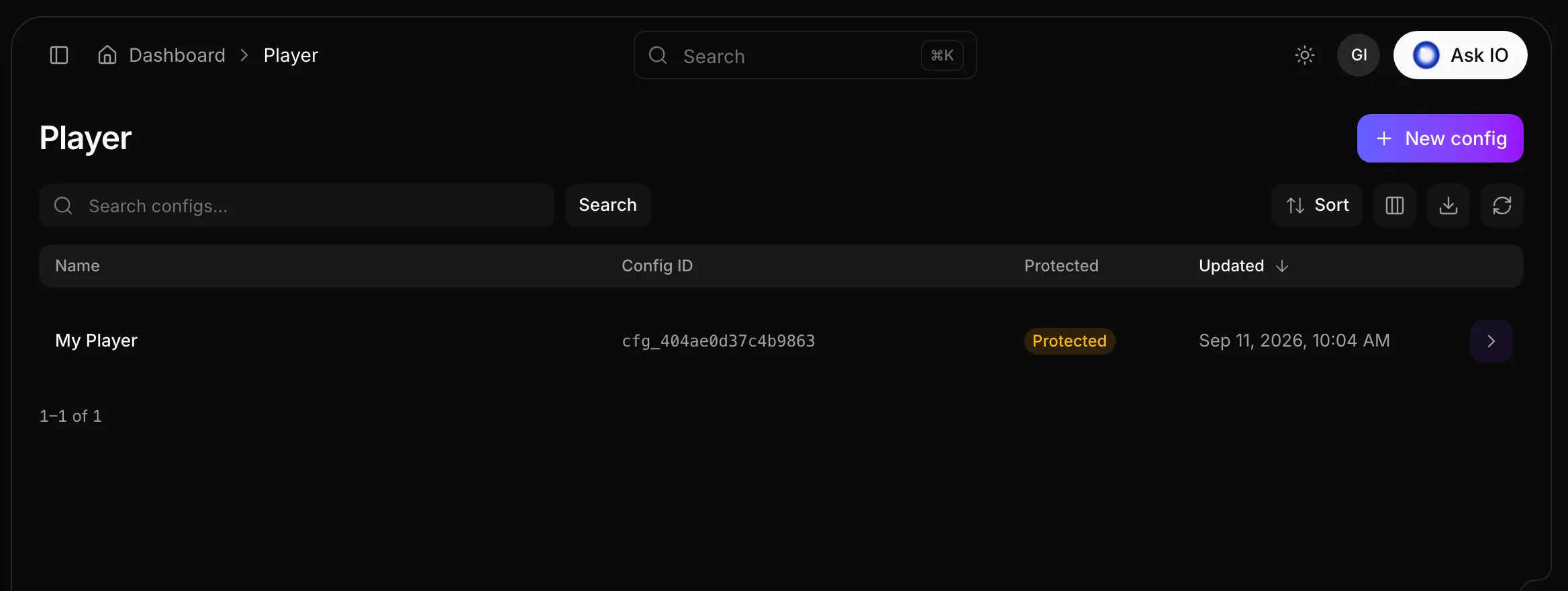
A player configuration controls how the EYZFlow player looks and behaves, including its colours, controls, playback features, casting and ads. Configurations are managed from Player, and you can select one for a stream’s share link.
Note
The Player page requires the Player plan module.
View your configurations
- Open Player.
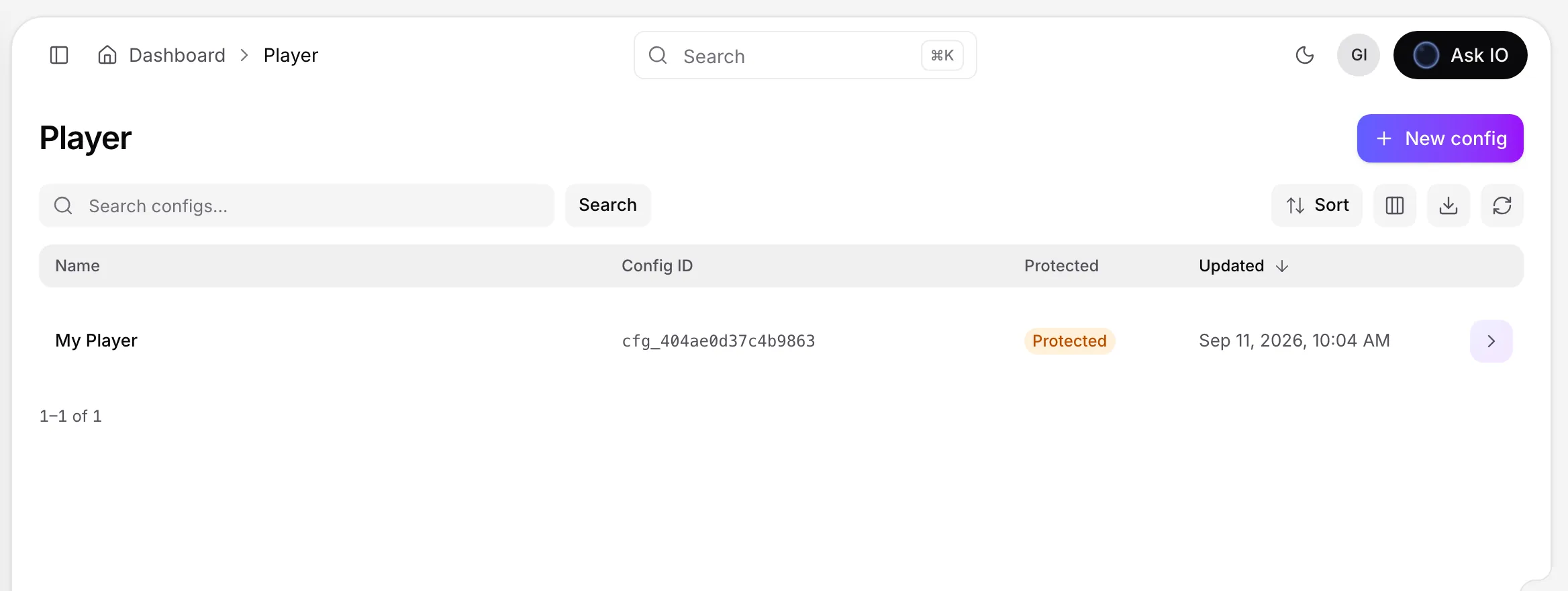
- Review each configuration’s Name, Config ID, protection status (Protected or Open) and Updated date.
- Use Search to find a configuration by name.
- Select a row to edit it.
Create a configuration
- Open Player and select New config.
- In General, enter a Name. You can also set a Config ID, which must start with
cfg_and contain only letters, numbers, underscores or hyphens. If you leave it blank, EYZFlow creates one. - Select Protected (DRM) if the configuration will play DRM-protected streams.
- In Theme, set the Accent, Background, Controls bar and Text colours, then choose the Border radius.
- In Features, choose the options the player should offer:
- Controls
- Autoplay
- Muted playback
- Loop
- Chromecast
- AirPlay
- Quality selector
- Captions
- Picture in picture
- Ads
- Auto-hide controls
- In Cast, enter the Receiver app ID, optionally select Android receiver compatible, and choose an Auto-join policy:
- Tab and origin scoped
- Origin scoped
- Page scoped
- In Ads, enter the Ad tag URL.
- Select Create. The configuration’s edit page opens.
Preview a configuration
- Open a configuration and select Pick stream in Live preview.
- Choose a stream. The preview plays the stream using the configuration’s current settings before you save them.
- Select Change stream to preview a different stream.
Edit or delete a configuration
- Open Player and select the configuration.
- Make your changes and select Save. Select Cancel to return to the list. If you leave with unsaved changes, EYZFlow asks you to confirm first.
- To remove a configuration, select Delete and confirm. Deletion cannot be undone.
Apply a configuration to a stream share link
- Open the stream’s page and select Share.
- Under Player config, select a configuration or Default.
- Save the share link.
Looking for a quick answer? Read the FAQ