
DOCSCMS AND CATALOGUES
Catalogues: create, manage, and publish titles
Updated 31 October 2026
Catalogues are the foundation for managing films, series, seasons, and episodes. A catalogue can include metadata, people, artwork, translations, and age ratings. Storefronts, feeds, offers, and deliveries all start from catalogue titles.
Before you start
You need the catalogues module in your plan. Creating a catalogue requires the Create Catalogues permission. Some actions, such as managing artwork, media assets, offers, feeds, and deliveries, require additional permissions and modules.
Find a title
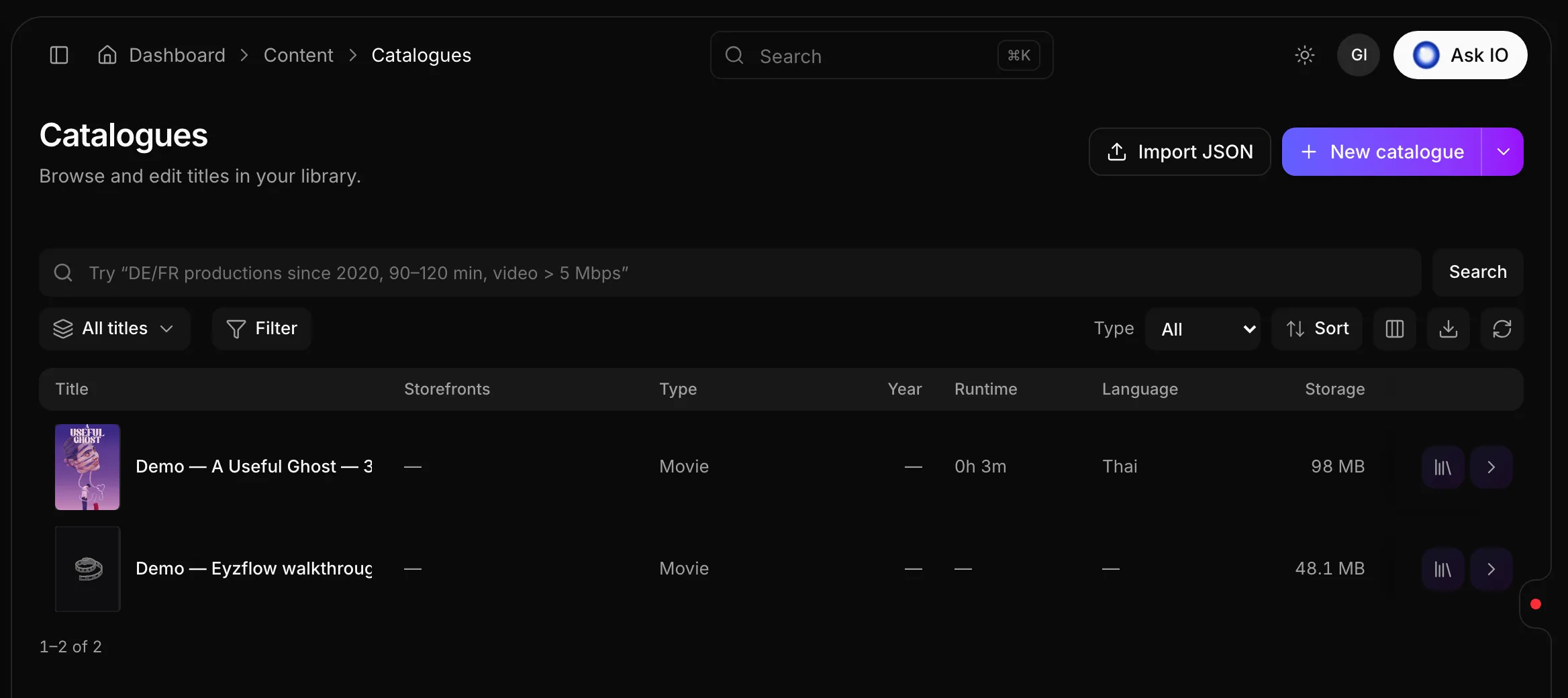
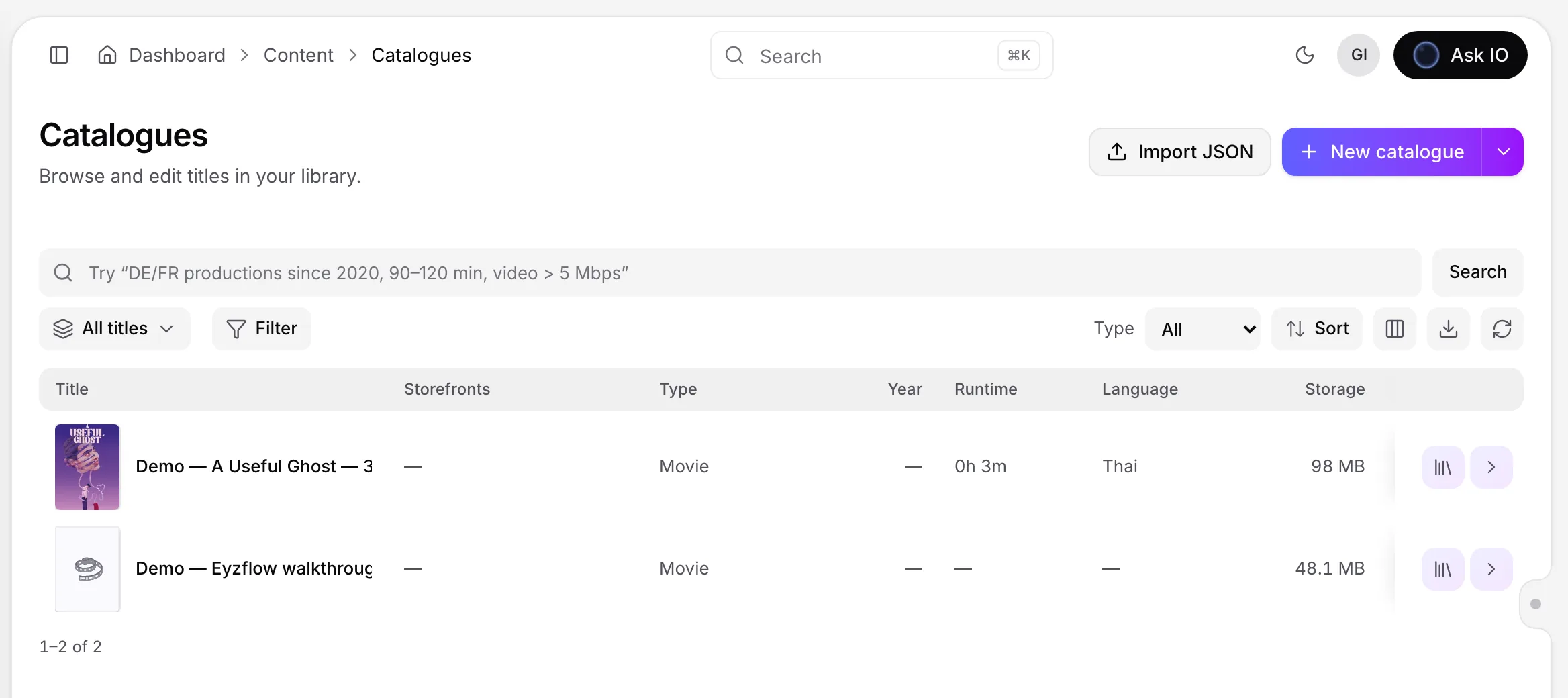
- Open Catalogues under Library.
- Search by keyword, or describe what you are looking for in a sentence if Use the Assistant is available. The assistant turns your description into editable filter cards.
- Narrow the results with Filter or the Type selector. You can filter by movie, series, season, episode, or other type.
- Select a row to open the title. Use the media-assets icon to open its files.
The catalogue list shows each title's storefronts, type, year, runtime, language, storage, and creation date.
Create a catalogue
- Open Catalogues and select New catalogue.
- Complete the five steps:
- Basics: title, type, language, release year and date, and runtime.
- Classification: genres, production countries, spoken languages, festivals, awards, and keywords.
- Identifiers: TMDB, IMDb, ISAN, and your own external ID.
- Localizations: a title, pitch, and overview for each language.
- People and ratings: cast and crew, companies, curations, and age ratings.
- Select Continue to move forward or Back to return to an earlier step.
- On the final step, select Create.
Only the title is required, so you can add the remaining information later. Seasons and episodes are added after creating the series.
Draft a catalogue with AI
You can use documents and additional context to prepare a catalogue draft.
- Select the arrow beside New catalogue, then choose Create with AI.
- Add any available context, such as target languages, an IMDb reference, a reference URL, and notes.
- Select Add document and attach press kits, synopses, or metadata sheets. Documents can come from uploads, Vault, Bridge, or catalogue assets.
- Wait until each document is marked Ready, then select Draft with AI.
- Review the proposed title, type, year, runtime, languages, and confidence score.
- Select Review and create, correct the form if needed, and select Create.
You can re-run the draft. Cancelling asks for confirmation before discarding the draft and its uploaded documents.
Understand a catalogue page
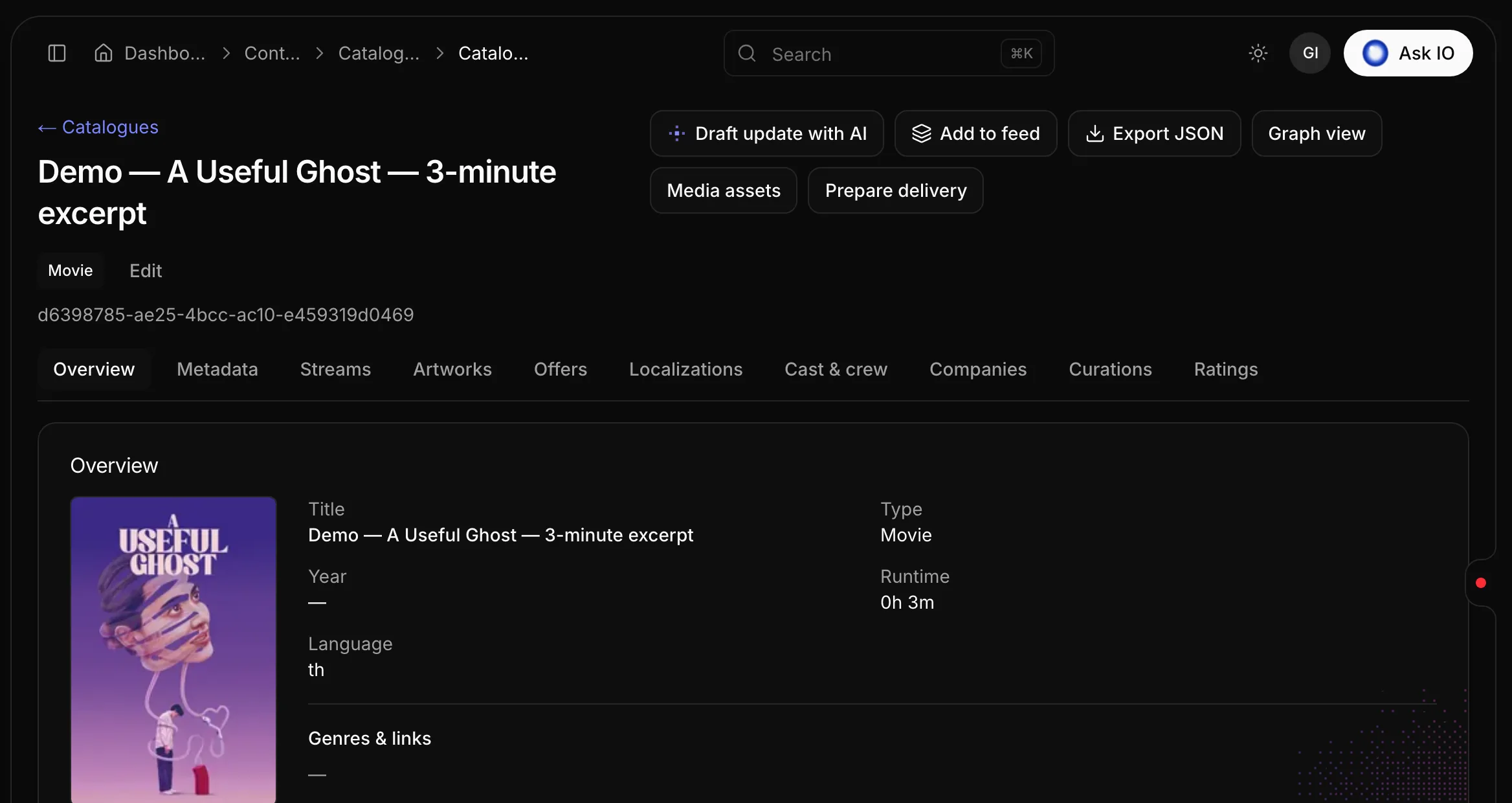
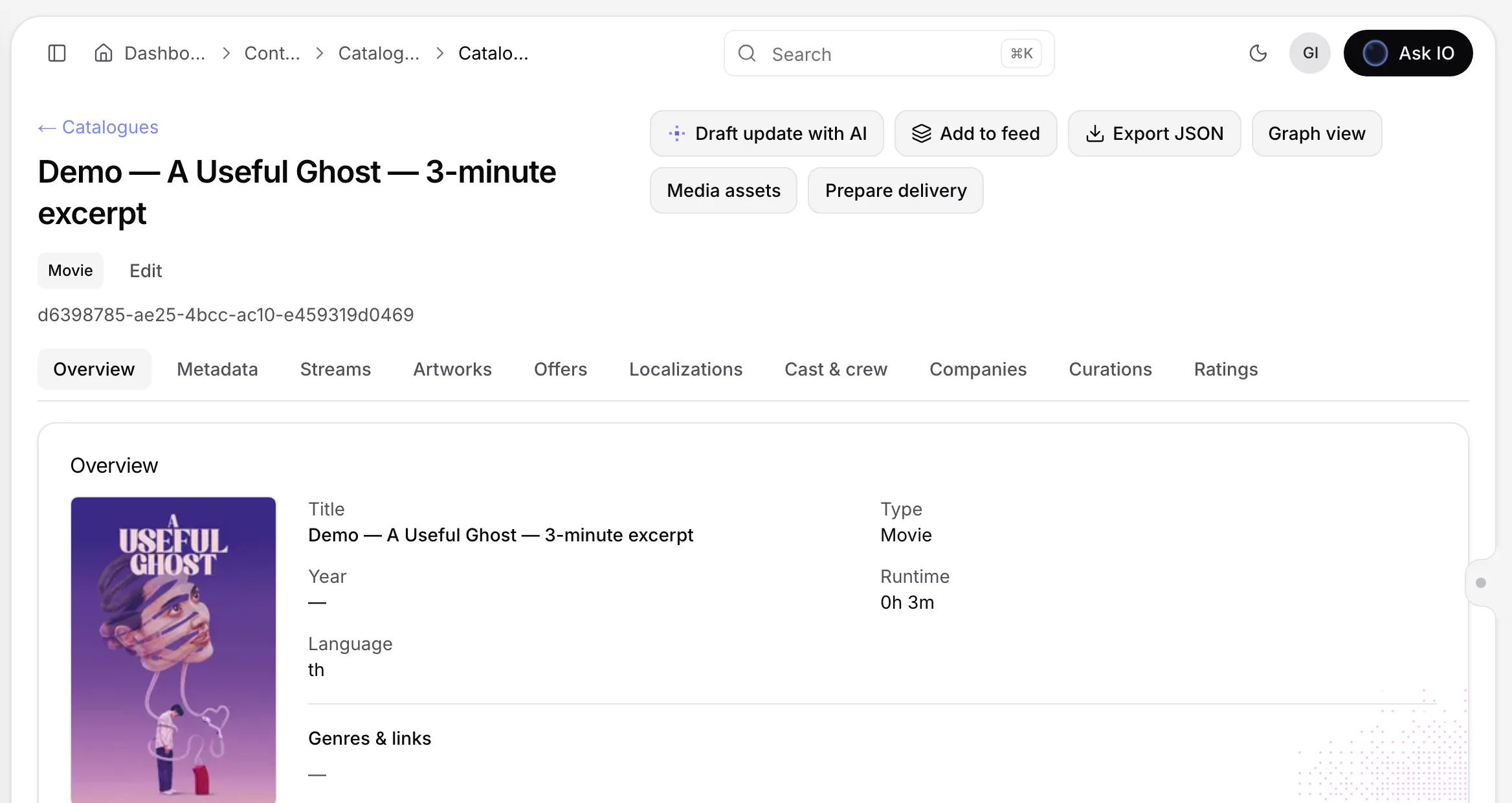
Open a title to see its overview and related information in separate tabs:
- Overview: poster, title, type, parent, year, runtime, language, genres, festivals, and awards.
- Seasons and Episodes: the hierarchy for series content.
- Metadata: identifiers, spoken languages, and countries.
- Streams: streams linked to the title.
- Artworks and Offers.
- Localizations, Cast & crew, Companies, Curations, and Ratings.
Actions above the tabs include editing, drafting an AI update, adding the title to a feed, exporting JSON, viewing the title graph, managing media assets, and preparing a delivery.
Edit a title
- Open the title and select Edit.
- Update its basics, identifiers, or classification.
- Select Save.
Translations, cast, companies, curations, and ratings are managed from their respective tabs.
Add seasons and episodes
To add a season:
- Open the series and select Seasons.
- Select Add season.
- Enter the title and season number, then select Create.
To add an episode:
- Open the season and select Episodes.
- Select Add episode.
- Enter the title and episode number, then select Create.
Use the breadcrumb above the title to move back to the season or series.
Add supporting information
Translations
Open Localizations, select New localization, choose a language, and enter the title, pitch, and overview. For a series, specify whether the localization applies to the series or an episode.
Cast and crew
Open Cast & crew, select Add, enter a person's full name, and choose a role. Drag people to set the order in which storefronts display them.
Age ratings
Open Ratings and select Suggest ratings to look up ratings in the available FSK and IMDb sources. Accept the ratings you want and save them, or select Add rating to enter an agency and rating manually.
Artwork
Open Artworks and select Upload artwork. Choose the artwork type and language, then upload a JPG, PNG, or WebP file. You can also choose a stored image from Vault or Bridge.
Draft an AI update
AI can propose changes to an existing catalogue based on selected documents.
- Open the title and select Draft update with AI.
- Select files from Media assets and documents from the title's ingest sessions. You can select up to 20 documents.
- Add optional target languages, an IMDb reference, a reference URL, or notes describing the desired changes.
- Select Draft update.
- Review the proposed changes and clear any rows you do not want to apply.
- Select Apply update.
The catalogue is not changed until you apply the selected updates.
Add and manage keywords
To add keywords while creating or editing a title, start typing in the Keywords field and select a matching keyword. To create a new one, type its name and press Enter, then save the catalogue. A title can have up to 50 keywords, which retain the order you set.
To manage keywords across the catalogue:
- Open Keywords under Library.
- Select New keyword to add a name, slug, and language.
- To merge duplicates, select two or more keywords, choose Merge, select the keyword to keep, and confirm.
Merging moves the selected titles and feed rules to the keyword you keep and turns the other names into its translations. Deleting a keyword removes it from every title.
Manage media assets
- Open Media assets from the catalogue page, or select the media-assets icon in the catalogue list.
- Create folders with New folder.
- Add files by uploading them, adding copies from Vault, or importing them from Bridge.
Files added from Vault are copied; the original remains in Vault.
Add a title to a feed
- Open the title and select Add to feed.
- Choose a feed, optionally filtering by storefront, and select Continue.
- Choose Start of feed or End of feed, then select Continue.
- Drag the highlighted title to adjust its position and select Save feed.
This action is available for feeds built from titles, but not for episodes. Titles added manually appear before titles found by the feed's rules.
Prepare a delivery or offer
Select Prepare delivery on the catalogue page to open the title's delivery page.
To create an offer, open Offers, select New offer, and complete the offer wizard. The catalogue is filled in automatically.
Copy a catalogue to another workspace
- Open the catalogue and select Export JSON.
- Save the exported file.
- In the other workspace, open Catalogues and select Import JSON.
- Choose the file and decide whether external IDs should be left empty or retained with an import suffix.
- Select Import and keep the dialog open until the process finishes.
The import recreates the catalogue and its genres, keywords, localizations, cast, companies, ratings, awards, festivals, curations, and artworks. Streams are not imported, and an import cannot be undone.
Looking for a quick answer? Read the FAQ