
DOCSCMS AND CATALOGUES
Manage artworks
Updated 31 October 2026
Artworks are the images used by your titles, including box art, covers, hero images, posters, title images, backgrounds, text images and carousel hero images. You can manage them in the organisation-wide Artworks library, or from a catalogue or stream.
Browse the artwork library
- Open Artworks from the sidebar.
- Review each artwork's image, title, status, type, details, language, size, insights and creation date.
- Use Search artworks to find an artwork by title.
- Use the language filter to show Default, All or a specific language.
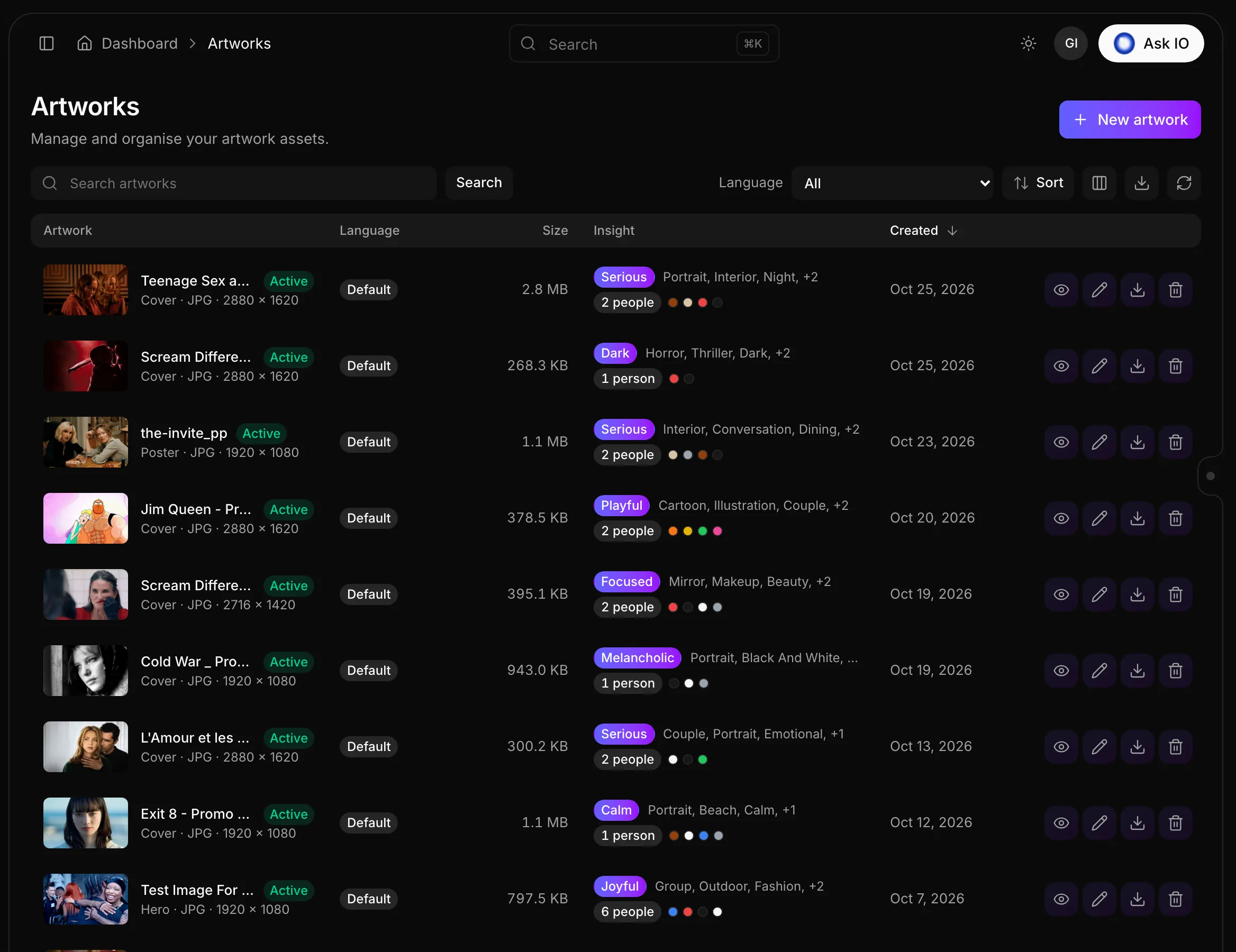
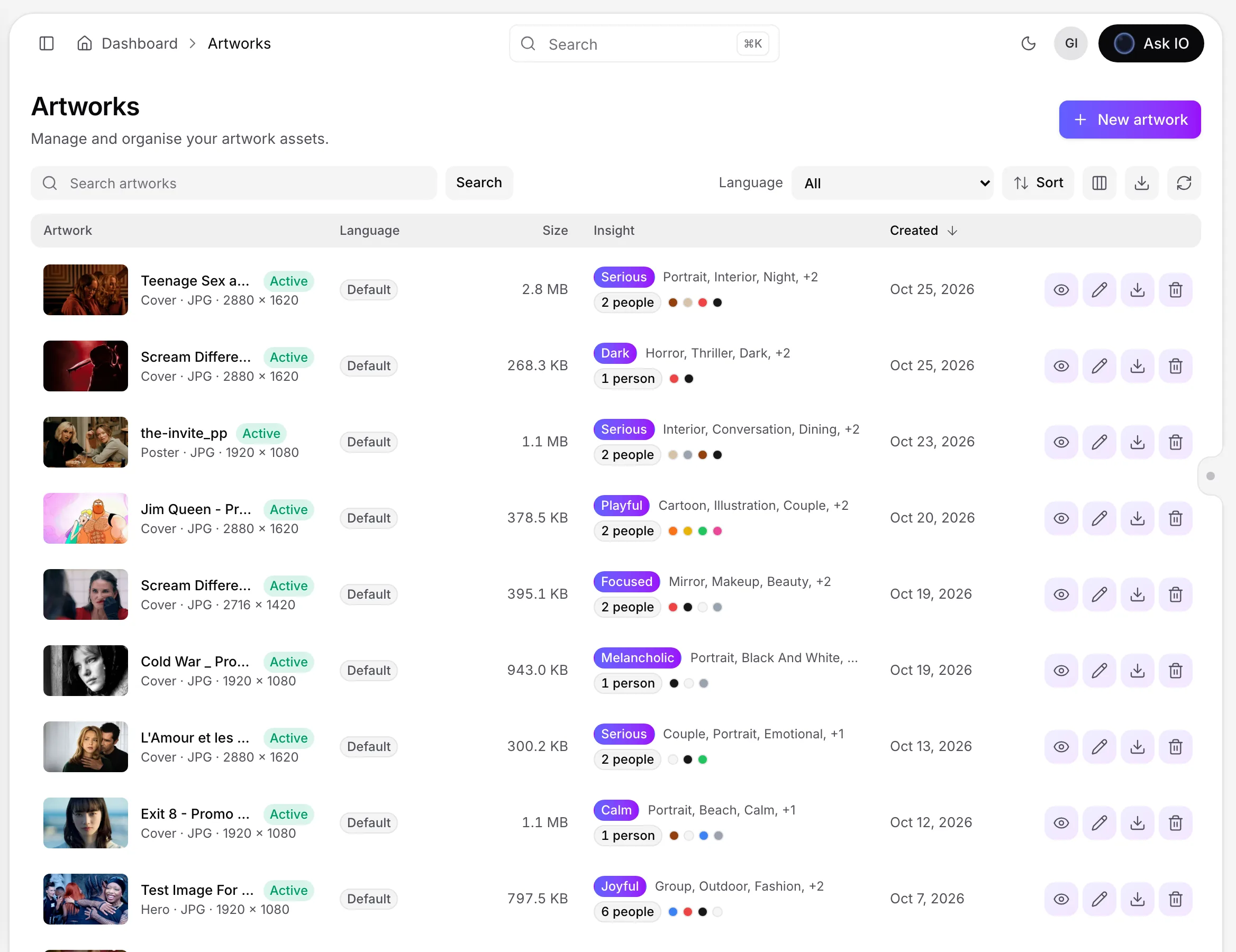
You need the Artworks plan module and View Artworks permission to browse the library.
Upload an artwork
- Open Artworks and select New artwork.
- Drag an image into the upload area, browse for a file, or choose a stored image from Vault or Bridge.
- Confirm the Title, then select the Type and Language.
- Select Upload.
The title initially uses the file name. Available artwork types include Box art, Cover, Hero, Poster, Title, Background, Text, Other and Carousel hero.
New artwork is unavailable without an active plan or when the storage limit has been reached. You need Create Artworks permission to upload. Choosing a stored image also requires the relevant access to Vault or Bridge.
View, download, edit or delete an artwork
From the Artworks library:
- Select an artwork image or its view button to open it at a larger size. You can review its format, file size, status, title, language, creator, updater and timestamps. Use the arrow keys to move between images.
- If the artwork has an insight, review detected colours, text, crop suggestions, people and objects in the side panel.
- Select Download and choose Original, Large WebP, Medium WebP, Small WebP or Thumbnail WebP.
- Select Edit to change the title, type or language, then save your changes.
- Select the bin button and confirm to delete the artwork.
Viewing and downloading require access to the library. Editing requires Edit Artworks permission, and deleting requires Delete Artworks permission. Actions you cannot use are not shown.
Set an artwork language
Choose All languages (default) for artwork that applies to every language, or select one language for localised artwork. The default artwork is used when a language does not have its own artwork.
A title can have one default artwork of each type. If a default artwork of that type already exists, choose a language or replace the existing artwork.
Manage artwork for a catalogue
- Open a catalogue and select its Artworks tab.
- Select Upload artwork.
- Choose the artwork type and language, then choose a JPG, PNG or WebP image, or select a stored image from Vault or Bridge.
- Select Upload.
For each artwork, you can:
- View it.
- Use Edit details to change its type or language.
- Use Replace file to upload a new image in its place.
- Delete it.
The required permissions depend on the action: viewing requires View Artworks, uploading requires Create Artworks, editing details requires Edit Artworks, replacing a file requires both Edit Artworks and Create Artworks, and deleting requires Delete Artworks.
Manage artwork for a stream
- Open the stream and select Artwork.
- If the stream is linked to a catalogue, select Open catalogue artworks to manage the artwork there.
- Otherwise, select Upload artwork, choose the type and language, choose a JPG, PNG or WebP image—or choose a stored image—and select Upload.
- For an existing artwork, use Edit artwork to change its type or language, Replace file to upload a new image, or Share to send it through Bridge.
Uploading requires Create Artworks. Editing requires Edit Artworks. Replacing a file requires both Edit Artworks and Create Artworks. Sharing requires the relevant archive and Bridge file access. Stored-image choices appear only when you have the relevant Vault or Bridge permissions.
Note
Video Intelligence can also select artwork from a video. For more information, see What a Video Intelligence analysis contains.
Looking for a quick answer? Read the FAQ