
DOCSWORKFLOWS AND AUTOMATION
Create workflows from templates and connect apps
Updated 31 October 2026
Templates help you get started with ready-made workflows that you can adjust and save as your own. Connections let workflows communicate with other apps and are managed for your organisation in Settings.
Start with a template
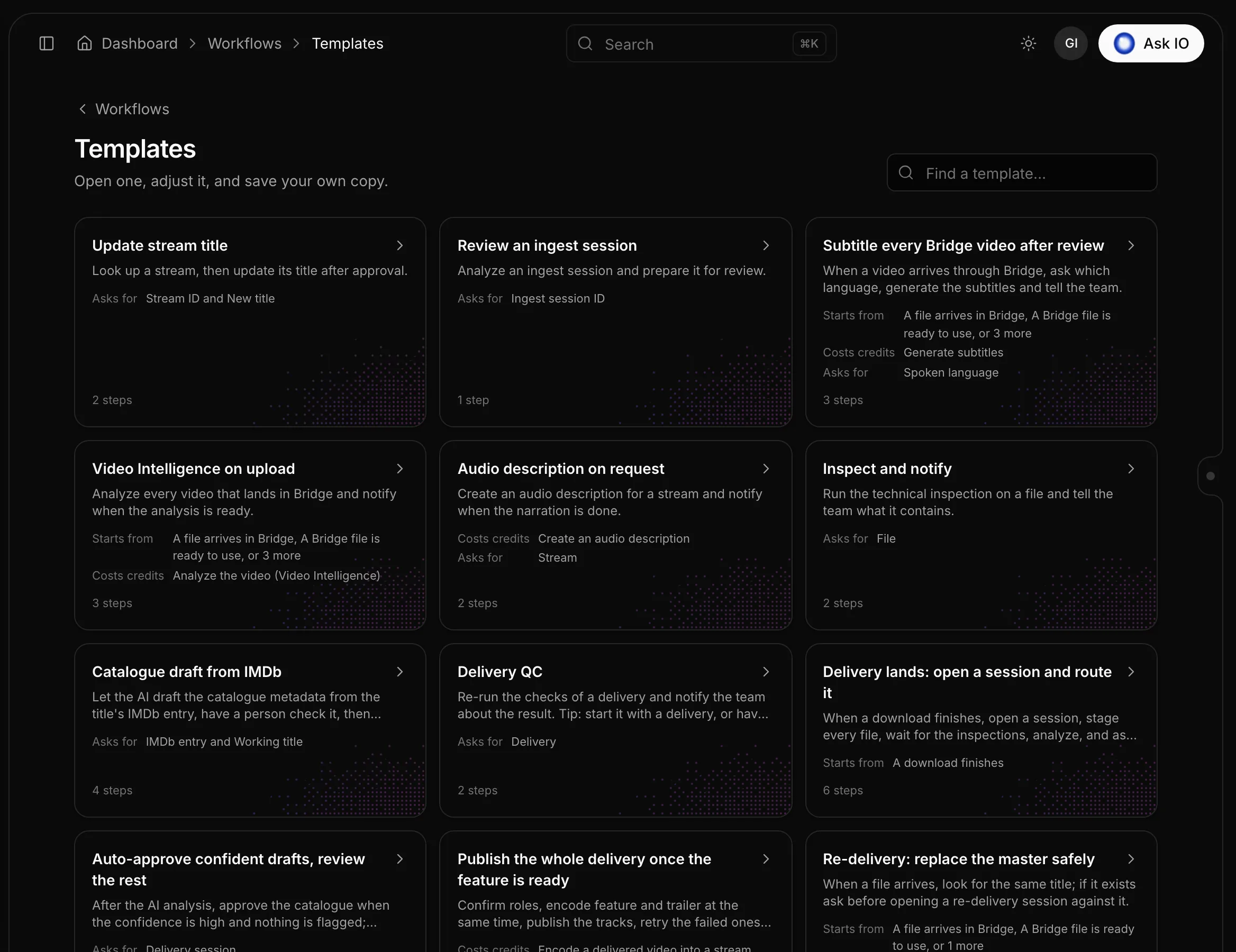
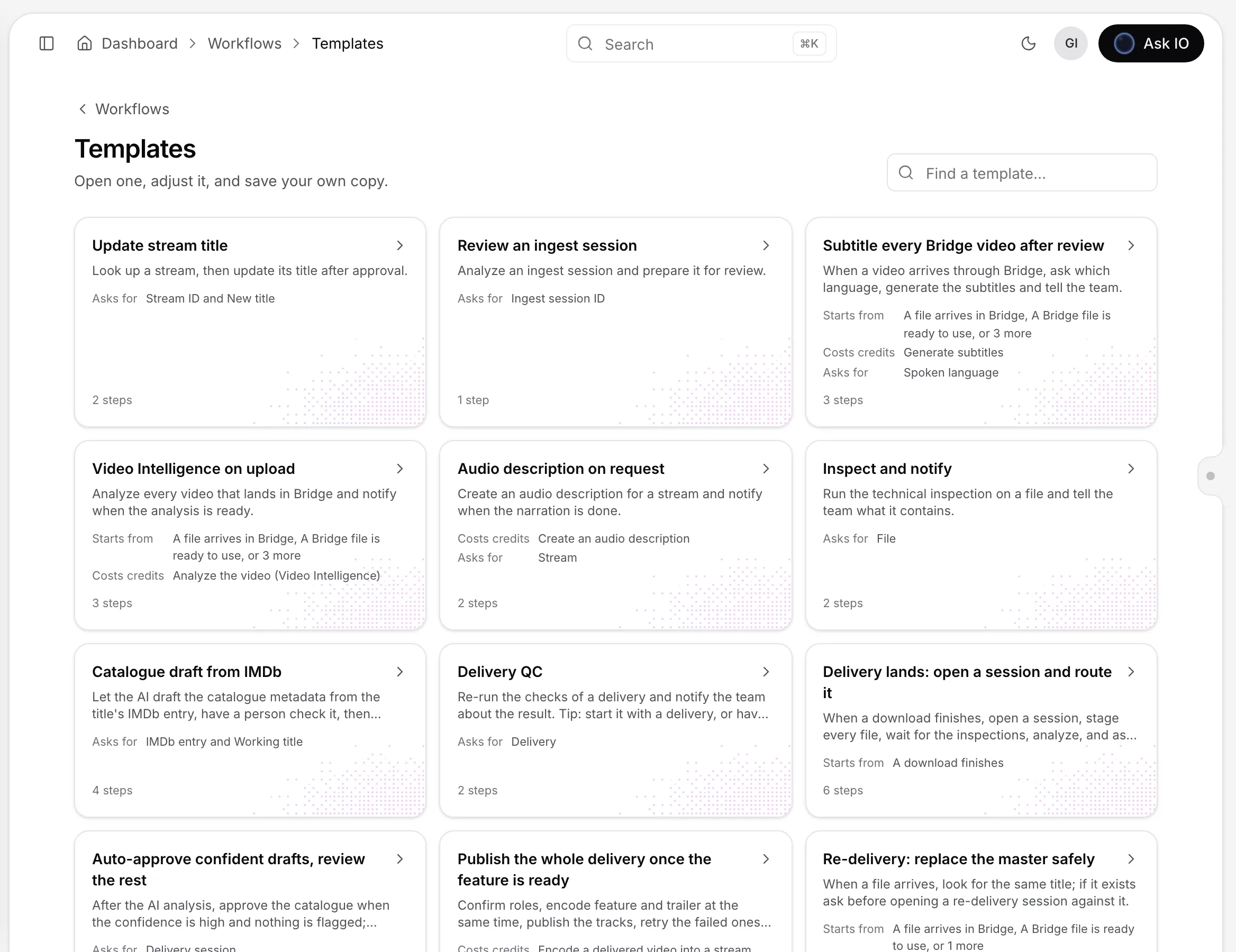
- Open Templates under Workflows, or choose From a template on My workflows.
- Search with Find a template…. Each template card shows:
- Starts from: what can start the workflow.
- Needs: the apps it uses and whether each app is connected.
- Costs credits: the steps that use compute credits.
- Asks for: the information requested when someone starts it.
- Select a template to open it on the workflow board.
- Make your changes and select Save. Your copy appears in My workflows with its own name and versions.
Saving a template as a workflow requires permission to manage workflows and permission to use every step in the template. Every step in the copy is treated as new.
Start with a trigger
You can also create a workflow by choosing what starts it:
- On My workflows, select Pick what starts it.
- Search with Find a moment…. For example, choose a file arriving or a schedule. Moments are grouped by type.
- Select a moment. A new board opens with that trigger in place.
- Add the next steps on the board, then save the workflow.
Connect an app
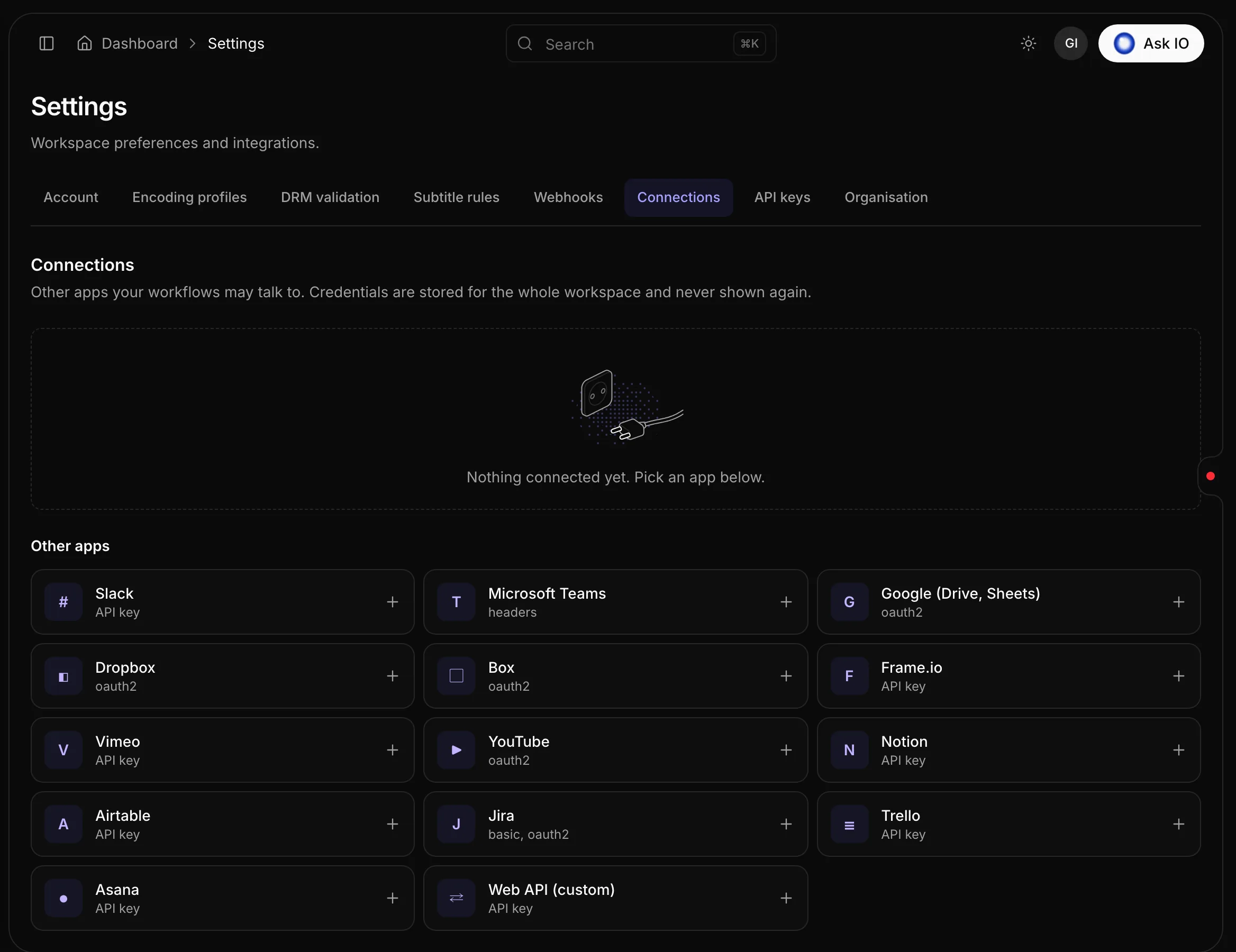
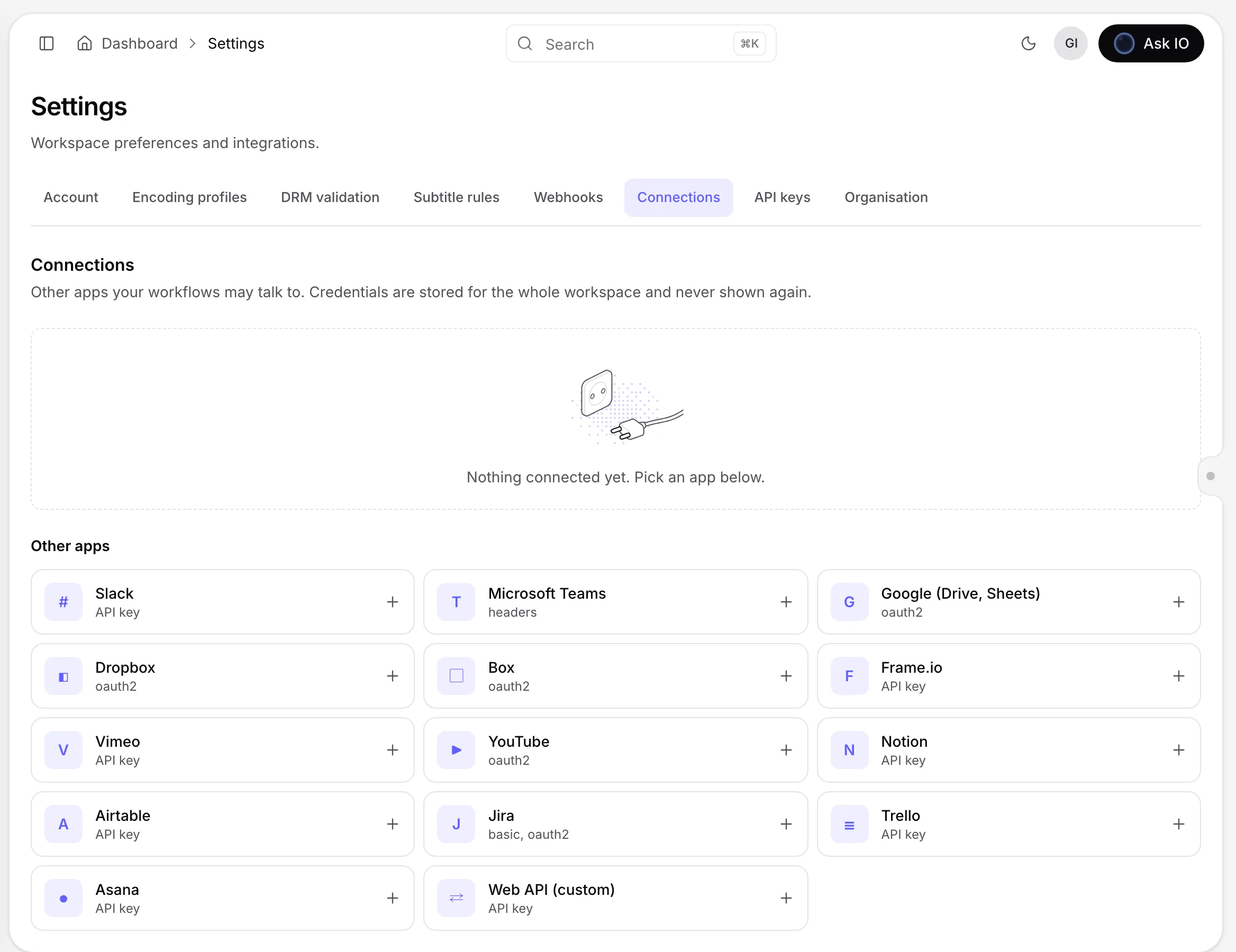
- Open Settings, then open Connections.
- Under Other apps, select the app you want to connect.
- In Connect <app>, choose an available connection method: sign in, API key, username & password, or headers.
- For sign-in connections, select Continue to <app>, sign in, and allow access. The sign-in window closes automatically.
- For other methods, name the connection, enter the required details, and select Connect.
A confirmation message indicates that the connection is ready to use. Connection credentials are stored for the whole organisation and are not shown again.
In the workflow builder's Add a step menu, the Other apps section shows whether an app is connected or must be connected first.
Important
Adding or changing connections requires permission to manage workflow connections. Without that permission, you can view connections but cannot add or change them.
Check, renew, or revoke a connection
In Settings > Connections, each connection shows its status, app and account, last check time, expiry time, and the workflows that use it. A connection can be working, expired, revoked, or in error.
Use these actions to manage a connection:
- Test: check the connection immediately.
- Rotate keys: obtain new keys for an API-key connection, then select Save new keys.
- Sign in again: renew a sign-in connection.
- Select the connection name to rename it.
- Revoke, then confirm with Yes, revoke, to remove the connection. Workflows that use it stop at the step that needs the connection.
Managing, renewing, or revoking connections requires permission to manage workflow connections.
Looking for a quick answer? Read the FAQ