
DOCSSTREAMS AND MEDIA DELIVERY
Prepare, check, and send deliveries
Updated 31 October 2026
A delivery packages one catalogue title for a platform, such as Amazon Prime Video or Apple TV. EYZFlow checks the package’s video, audio, subtitles, artwork, and metadata against the selected platform specification. Prime Video packages can be sent to Amazon; Apple TV packages are prepared and checked in EYZFlow but are not sent to Apple.
Before you start
You need the Deliveries plan module and permission to view deliveries. Preparing or changing a package, selecting files, and running checks require the corresponding delivery permissions. Sending a Prime Video package also requires permission to deliver titles, a connected Prime Video account with Aspera configured, and the title’s availability information pushed to Amazon.
Prepare a delivery
- Open a title from Catalogues and select Prepare delivery.
- Choose the Amazon Prime Video or Apple TV platform tab.
- Select Prepare delivery on a platform that does not already have a delivery for the title.
- Confirm the platform and the specification version shown in the dialog.
- Select Create package.
The package starts with the title’s main video as the feature, plus its trailers and bonus extras. A title can have at most one delivery per platform.
Configure the package
Open Package on the delivery page. For each stream, you can:
- Include or remove it.
- Assign the role Feature, Trailer, or Bonus.
- Select a type for trailers and bonuses, such as Trailer, Teaser, TV spot, Clip, Featurette, or Interview.
- Add an optional title or synopsis override.
- Select Add stream to include another stream from the title.
- Choose Save package when finished, or discard the changes.
The package must contain exactly one feature, and every included trailer or bonus must have a type.
Select the video file used for checks
Each stream defaults to Auto — best available, which selects from the stream’s available flavours. To choose a different file:
- Open the stream’s Video file selector.
- Select a flavour or a media asset, such as a ProRes master.
- To use a Vault file, choose From Vault…, select the video, and choose Use this file.
- Save the package.
The Judging… status identifies the file used by the checks and shows whether it is being inspected, has failed inspection, has been inspected, or has not yet been inspected. If a selected file was removed, choose another file.
Run checks and resolve issues
- Select Run checks on the delivery page. After a report exists, use Run checks again to refresh it.
- Review the totals for blocking issues, warnings, manual QC, and passed checks.
- Open the report sections for Videos, Audios, Subtitles, Metadata, and Artworks. Language-specific sections have a tab for each language.
- Use All checks to include warnings and notes, or Blocking to return to blocking issues only.
Issues provide a route to the relevant fix when you have the required permission. Depending on the issue, you may be taken to a stream’s encoding, audio, or subtitle settings; the title’s artwork settings; or the affected metadata field.
If a video file has not been inspected, select Run media inspection. When inspection finishes, run the delivery checks again. You can preview artwork thumbnails, upload missing artwork where appropriate, and play streams that support playback.
Important
A Prime Video delivery must be Ready—with blocking issues resolved—before it can be sent. If checks cannot run, the delivery page shows the reason.
Send a package to Prime Video
- Open the Amazon Prime Video tab.
- Run the checks and resolve blocking issues until the delivery is Ready.
- Select Deliver to Prime Video.
- If more than one Prime Video account is available, choose the account and select Send to Amazon.
EYZFlow uploads the feature, trailers, audio, subtitles, artwork, and title metadata to Amazon. Large files may take hours to upload and process. The delivery page then shows the upload progress and Amazon’s verdict for each file.
For Apple TV, the Deliver button remains disabled because EYZFlow does not send the package to Apple.
Monitor a delivery and resend files
After sending a Prime Video package, the delivery page shows the latest attempt, including upload progress, Amazon processing, acceptance, requested changes, or failure. A file table shows upload states, verdicts, errors, and any files Amazon expected but did not receive. Earlier attempts are available below the latest attempt.
When the upload has finished, you can resend:
- Rejected files.
- Failed files.
- Selected files.
The title metadata and asset manifest are sent again with every resend.
Delete a delivery
- Open the platform tab on the title’s delivery page.
- Select Delete.
- Confirm with Delete delivery.
Deleting removes that platform’s package and check report. The title’s streams, artwork, and metadata remain unchanged.
Find deliveries across titles
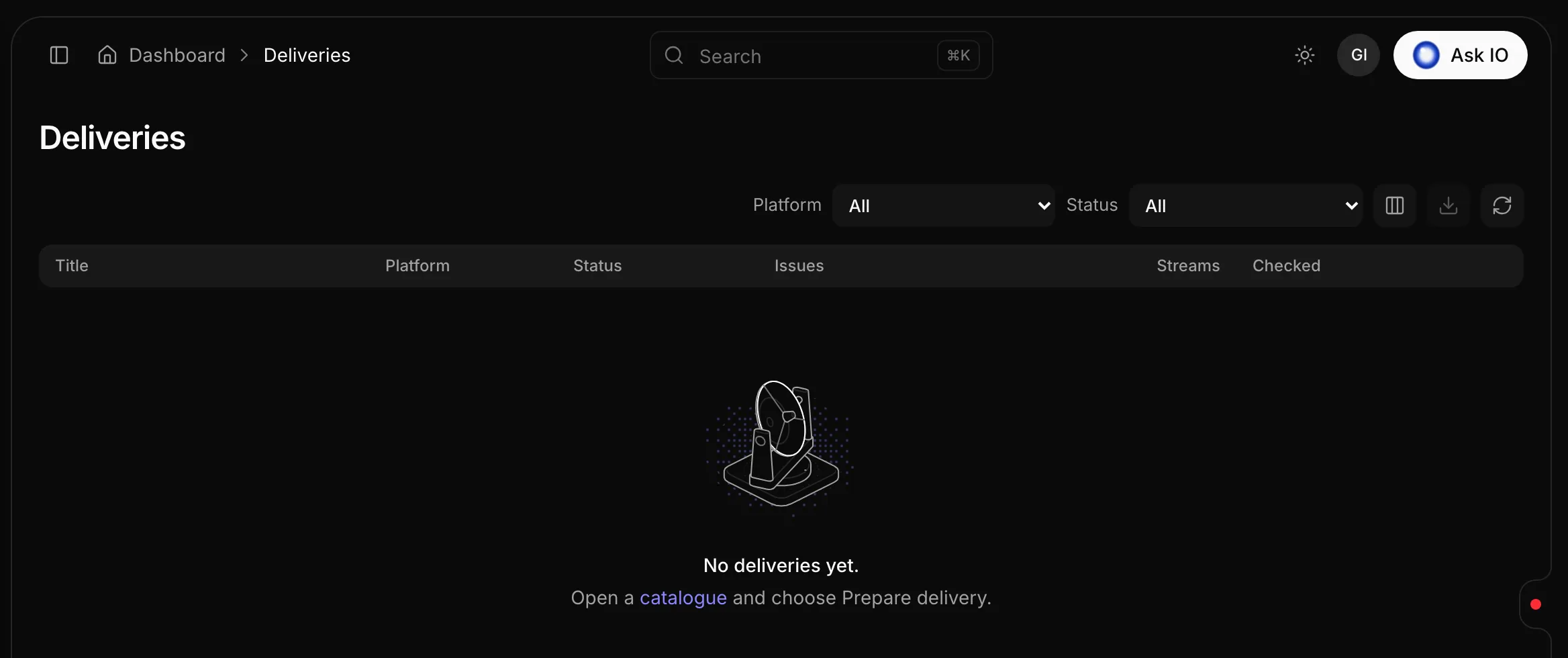
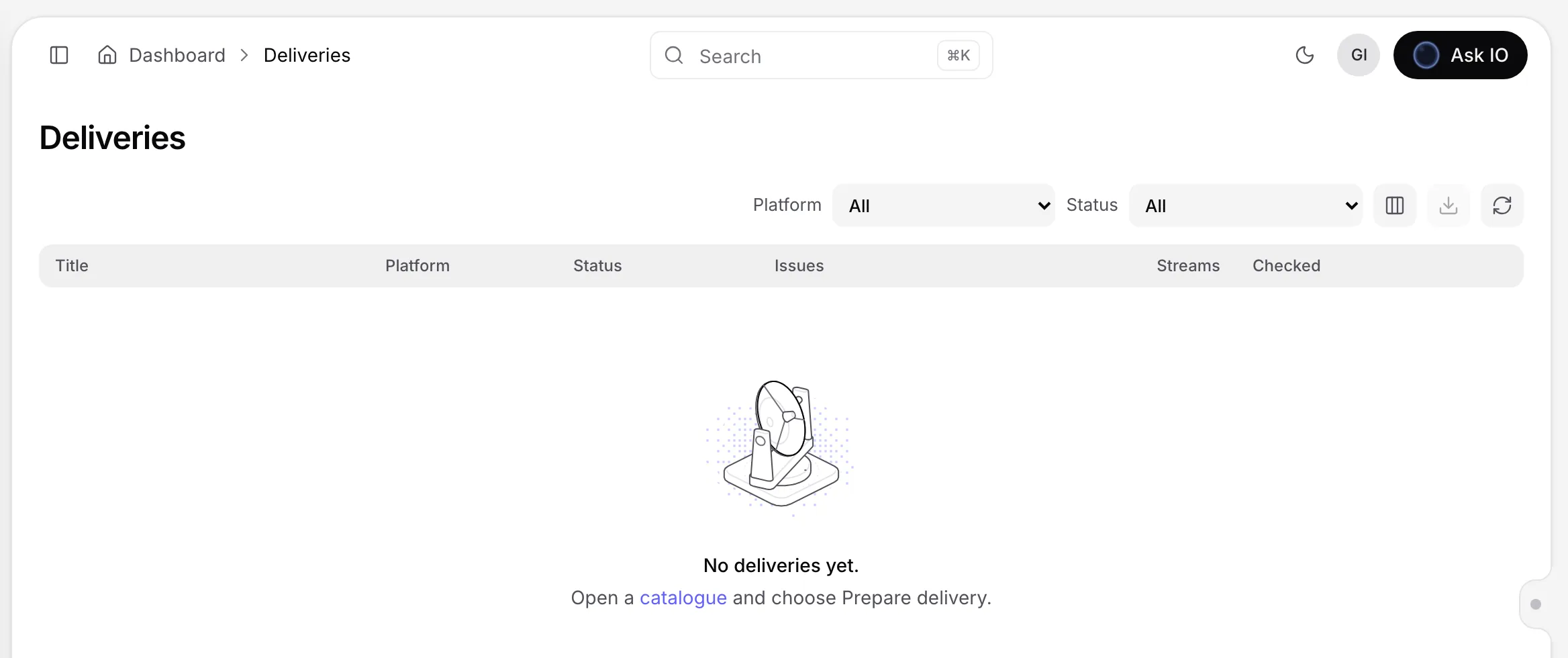
Open Deliveries under Distribution. Use the Platform and Status filters to narrow the list, or select Clear filters to show all deliveries. Select a row to open the title’s delivery page.
The list shows each title, platform, status, issue totals, package stream count, and the last check time. Delivery statuses include Draft, Blocked, Ready, Checking, Delivering, Delivered, Failed, Amazon is processing, Accepted by Amazon, and Needs changes.
Looking for a quick answer? Read the FAQ