
DOCSVIDEO INTELLIGENCE
Start Video Intelligence on a stream
Updated 31 October 2026
Video Intelligence analyses a stream so you can search its scenes, identify people and objects, find ad breaks and music, and ask IO questions about the video. Starting an analysis uses compute credits.
Before you start
- The stream must be Ready, meaning encoding has finished.
- You need permission to create Video Intelligence analyses. You also need permission to view Video Intelligence to see the feature and its results.
- Your organisation needs the Video Intelligence plan module to use the Video Intelligence page.
- Check that you have enough compute credits for the stream. The start dialog shows the estimated cost and your current balance.
Start an analysis
- Open the stream from Streams.
- Select More actions, then Video Intelligence.
- Review the stream's Runtime, Estimated cost, and Your balance.
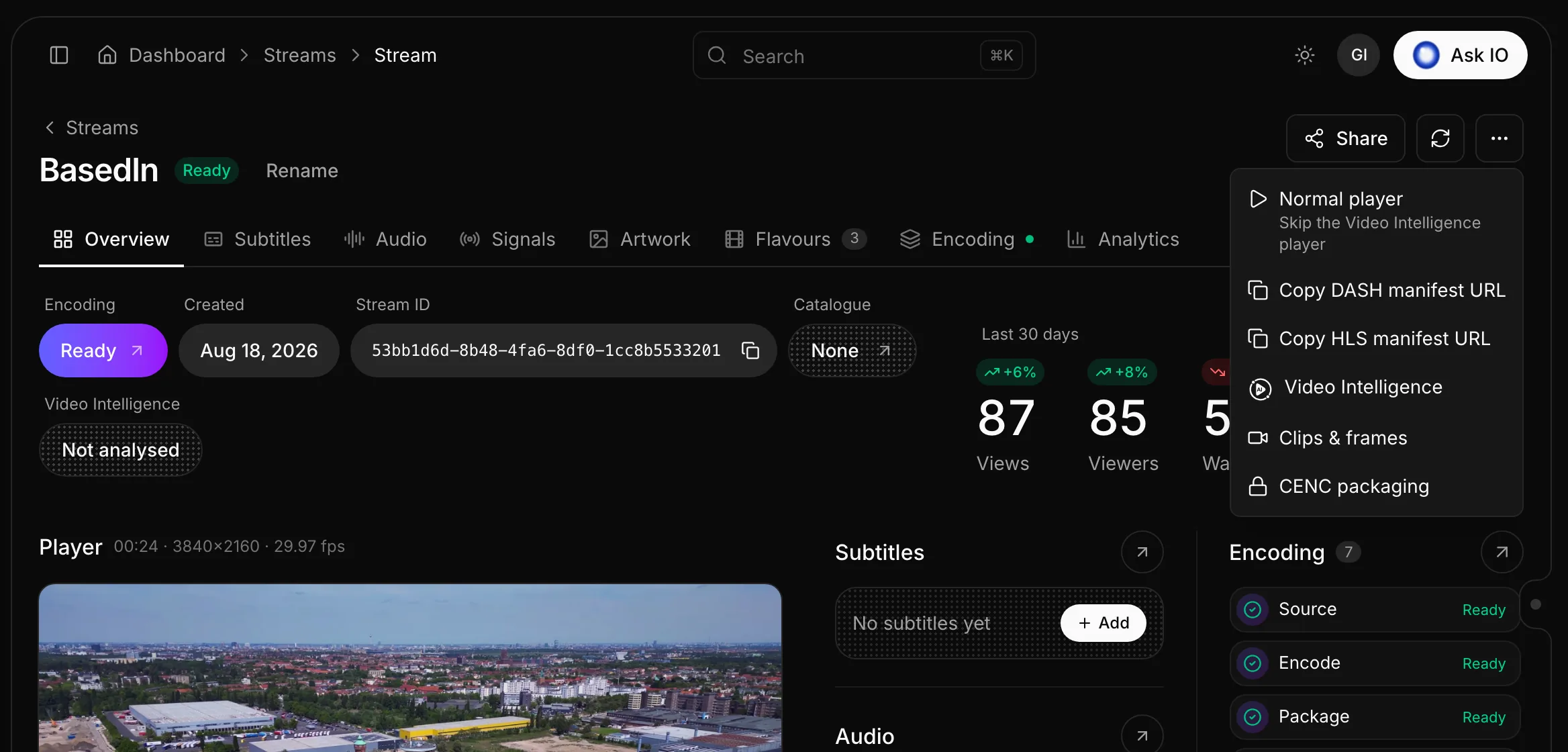
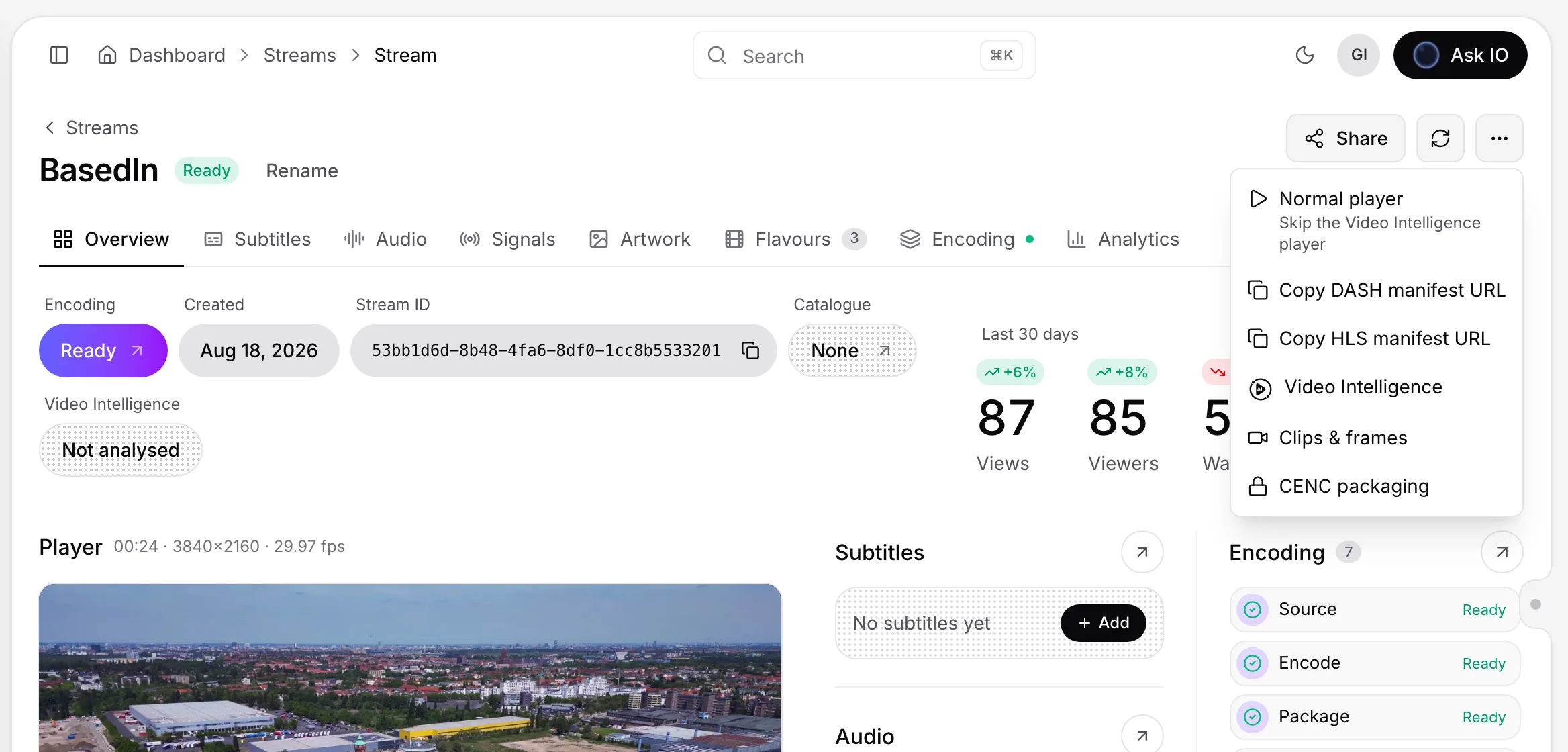
- Select Start.
If your balance is too low, the dialog displays a message that more compute credits are needed and offers Buy credits instead of Start. After you add credits, the estimate updates.
Follow the analysis
While the analysis runs:
- More actions on the stream shows Preparing… instead of the Video Intelligence option.
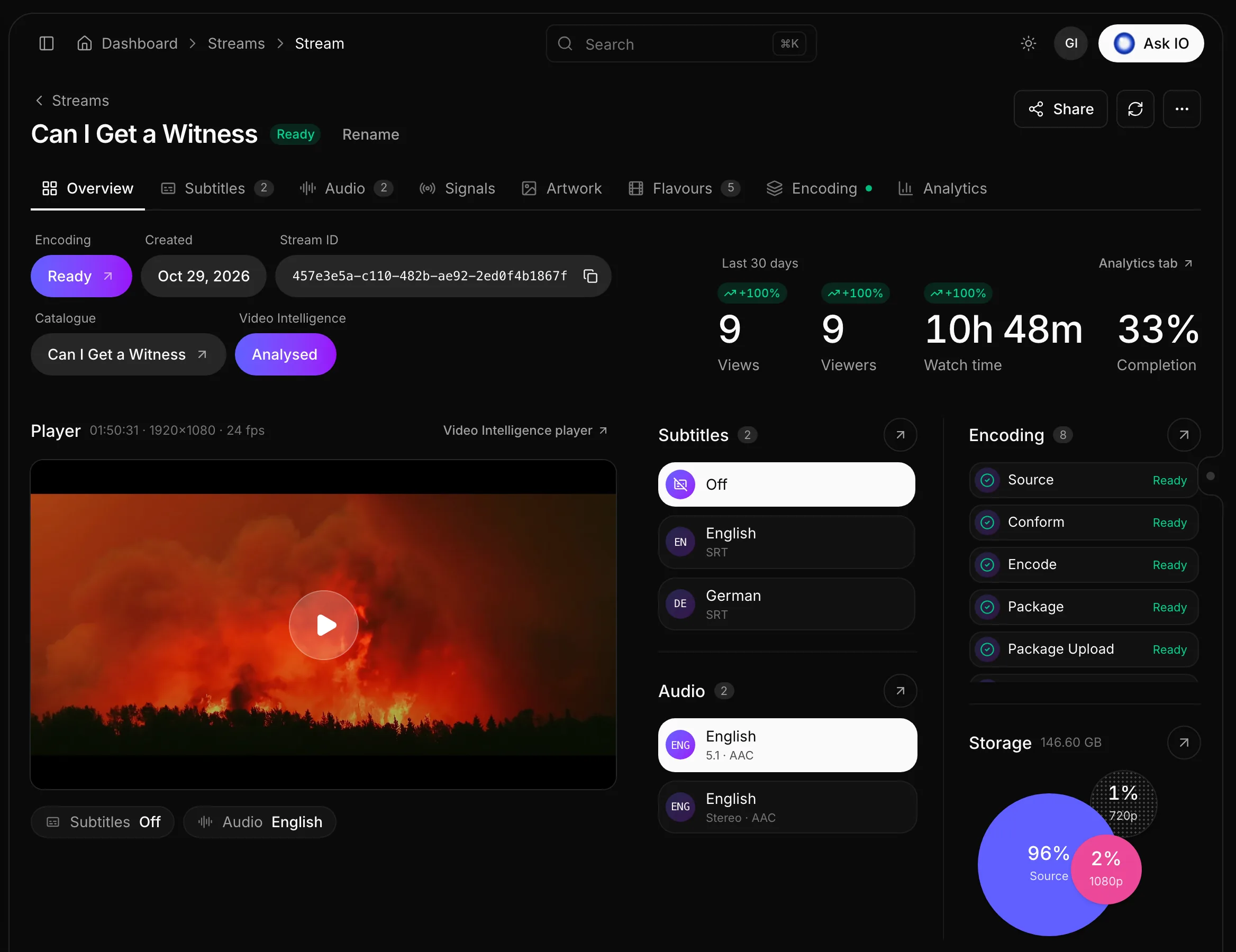
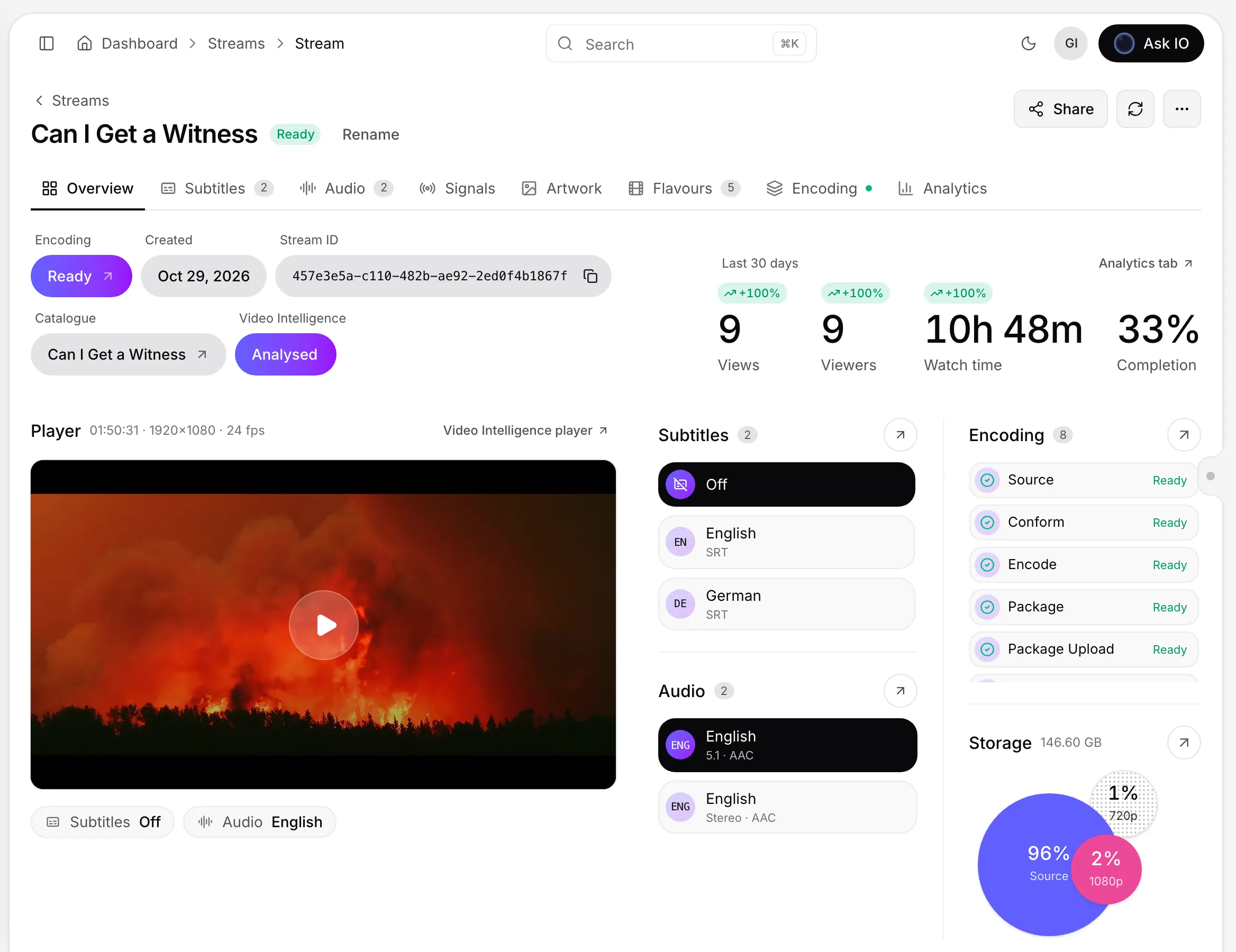
- The Video Intelligence status on the stream overview shows Analysing.
- The Video Intelligence page shows the analysis status: Pending, Analyzing, Enriching, Ready, or Failed. Running analyses also show a percentage and the steps as they start and finish.
When processing is complete, the stream status shows Analysed and the analysis status is Ready.
Retry a failed analysis
From the stream page, select More actions, then Retry Video Intelligence. Choose the retry type:
- Rerun repeats the full analysis.
- Retry repeats only failed enrichment steps, such as chapters, characters, names, or profile, without analysing the scenes again.
You can also retry a failed analysis from its row on the Video Intelligence page. Retrying requires permission to create Video Intelligence analyses.
Use the results
When the analysis is ready:
- Select Play, or open the Video Intelligence player from the stream overview, to view scenes, characters, events, ad breaks, artwork, and music.
- Use More actions to ask IO about the video.
- Review the scenes on the overview timeline.
- Use the Signals tab to import credits and ad breaks from the analysis.
For more detail, see What a Video Intelligence analysis contains, Video Intelligence chat, Stream signals and share links, and Compute credits and AI tool billing.
Looking for a quick answer? Read the FAQ