
DOCSWORKSPACE ADMINISTRATION
Settings and administration in the dashboard
Updated 31 October 2026
Use Settings to manage your personal preferences and workspace features such as encoding profiles, DRM validation, subtitle rules, webhooks, connections, API keys, and organisation-level IO consent. Open Settings from the account menu in the dashboard header.
Find your way around Settings
The tabs available to you depend on your permissions:
- Account: Change your dashboard language, graphics quality, password, and personal IO choices.
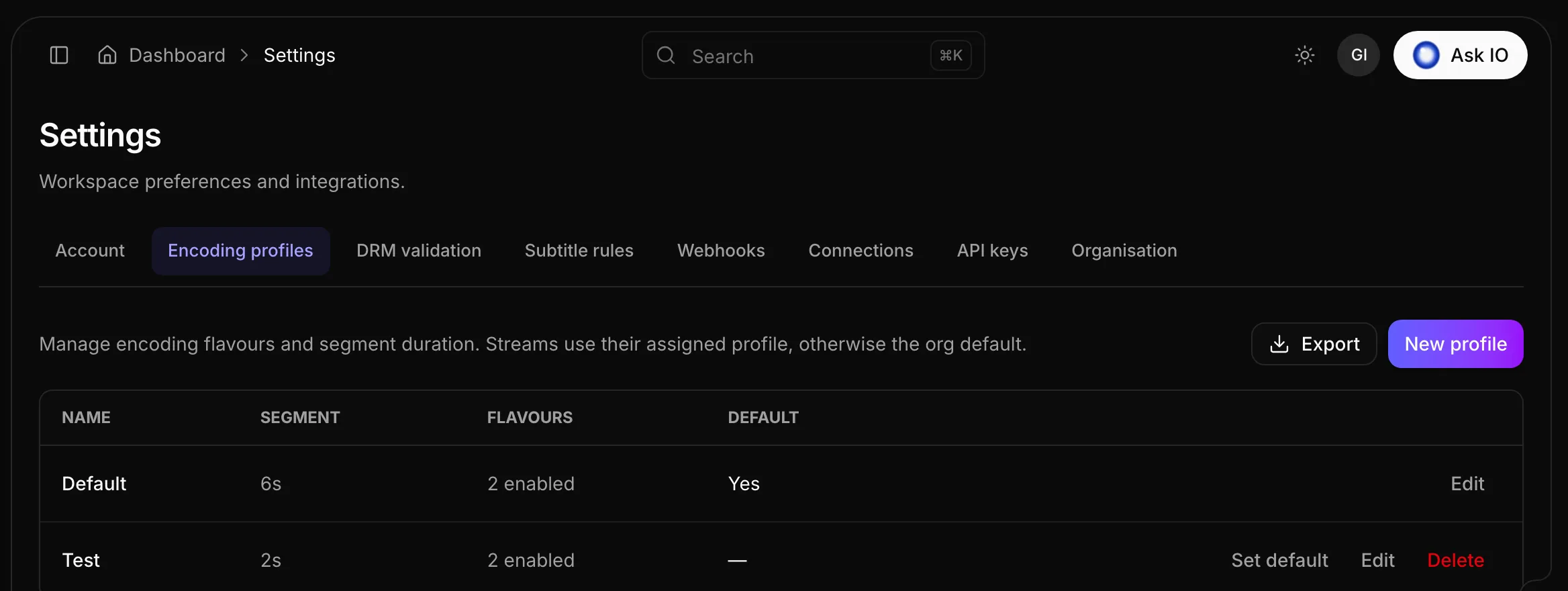
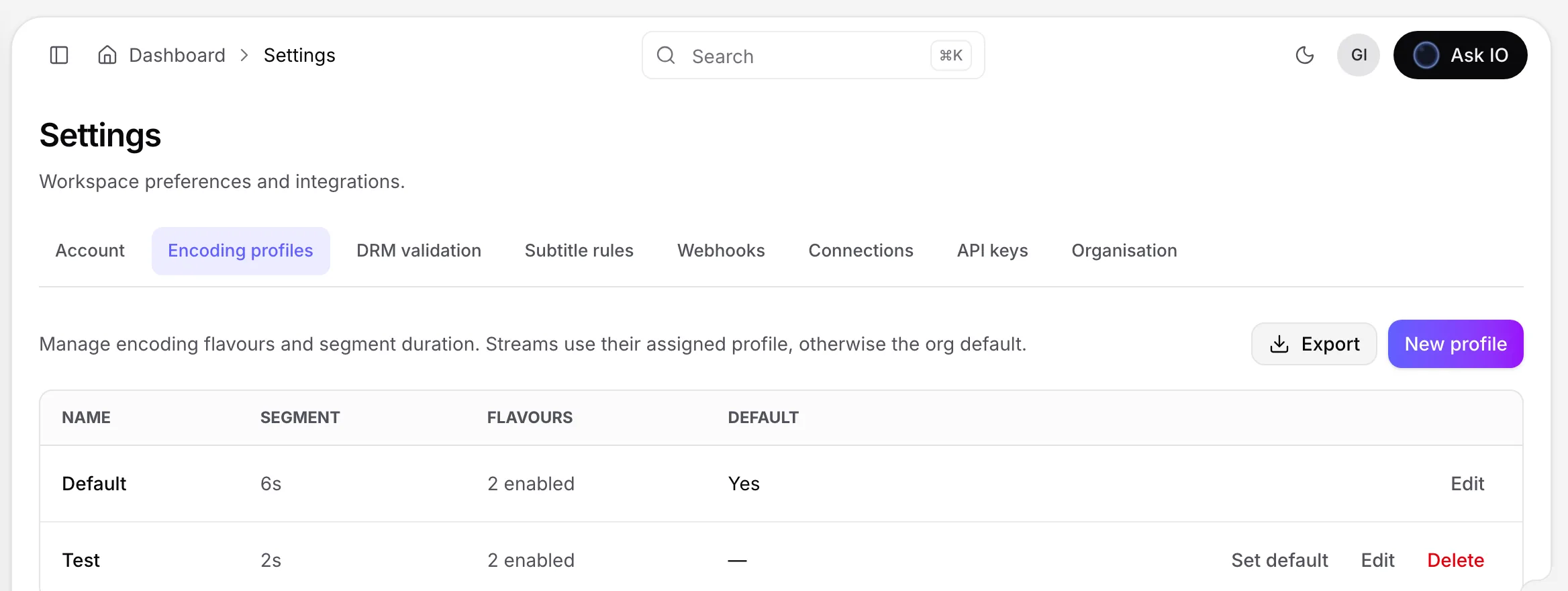
- Encoding profiles: Define stream flavours and segment durations.
- DRM validation: Configure how player licence requests are checked.
- Subtitle rules: Review and manage subtitle rule sets, when you have the required permission.
- Webhooks: Configure workspace events sent to an HTTPS endpoint, when you have access.
- Connections: Manage apps that workflows can communicate with, when you have access.
- API keys: Manage keys for the EYZFlow API, when you have access.
- Organisation: Manage the organisation's decision about retaining IO conversations and EYZMedia, when you have the required permission.
Update your personal settings
Change the dashboard language
- Open Settings on the Account tab.
- In the Language card, select English, Deutsch, or Français.
The language names remain written in their own languages, so they can be identified regardless of the current dashboard language.
Choose graphics quality
- Open Settings on the Account tab.
- Under Graphics quality, select Auto, Light, or High.
Auto enables animated effects when your browser's graphics hardware can run them smoothly and otherwise keeps effects light. Light keeps effects still, while High always enables them. This setting is saved in the current browser only, and reduced-motion preferences are always respected.
Change your password
- Open Change Password from the account menu, or open the Account tab in Settings.
- Enter your current password, a new password, and confirmation of the new password.
- Select Save password.
A new password must contain at least eight characters, including an uppercase letter, a lowercase letter, a number, and a special character. It must differ from the current password, and both new-password fields must match. A successful change displays Password updated.
Manage organisation settings
Set the organisation's IO consent
- Open Settings and select the Organisation tab.
- Read the IO conversations and EYZMedia card, then select the option to agree or decline.
- To reverse an earlier agreement, select Withdraw consent, then confirm with Withdraw.
The organisation-level decision applies to everyone in the organisation. The card shows who made the decision and when, and asks for a new decision if the wording changes. Withdrawing consent deletes everything EYZMedia kept from the organisation's IO conversations; each person's own answer remains unchanged.
On the Account tab, the IO assistant card contains your personal answers as switches. Until the organisation has agreed, nothing is kept and you can only withdraw an earlier yes.
Create or change an encoding profile
- Open Settings and select Encoding profiles.
- Select New profile, or select Edit on an existing profile.
- Enter a name and a segment duration from 2 to 10 seconds. The default is 6 seconds.
- For each quality—4K (2160p), Full HD (1080p), HD (720p), SD (480p), or 360p—enable the flavour and enter a bitrate from 100 to 50,000 kbps. At least one flavour must be enabled.
- Select Save.
Reset flavours to defaults enables all five qualities with bitrates of 6000, 3000, 1500, 750, and 550 kbps respectively. A stream uses its assigned profile, or the organisation's default when no profile is assigned. Select Set default on a profile to make it the organisation's default. The default profile cannot be deleted.
Add a DRM validation source
- Open Settings and select DRM validation.
- Select New source.
- Enter a name and select a type:
- External HTTP checks each request at your endpoint and can include request headers.
- HMAC JWT uses an HMAC secret.
- Internal uses storefront Bearer tokens and entitlement checks, without an endpoint or shared secret.
- Set whether the source is enabled and whether it is the default. You can also set the licence duration, an optional session user ID override, and whether to use CENC keys only.
- Select Save.
The default licence duration is 10,800 seconds. Before you add a source, existing licence checks continue to apply. Adding the first source changes the process: every licence request is checked against your sources, and requests that match no enabled source are refused. The first source becomes the default. The default source cannot be deleted.
For an HMAC JWT source, Rotate secret immediately invalidates the previous secret and displays the new one only once. Copy the new secret before selecting Done.
Review subtitle rules and connections
Subtitle rules lists organisation rule sets covering line length, number of lines, reading speed, display duration, gaps between subtitles, and frame rate. New projects use the default rule set unless another is selected. Built-in rule sets are read-only. Creating, editing, duplicating, or making a rule set the default requires the relevant subtitle-management permission.
Connections lists apps that workflows can communicate with. Connection credentials are stored for the workspace and are not shown again.
Review organisation activity
- Open Audit Logs from the account menu.
- Review each row's time, action, entity, target, and status. Entries are shown newest first.
- Use Search audit logs and select Search, or press Enter.
- Select Filter, add rules for entity type, action, status, user ID, or date, and select Apply.
- Select Clear filters to show all entries again.
You can sort the grid and export the list as a CSV file. Viewing audit logs requires the appropriate permission.
Looking for a quick answer? Read the FAQ