
DOCSWORKFLOWS AND AUTOMATION
Monitor workflow runs and handle reviews
Updated 31 October 2026
Use Activity to see what your workflows are doing, investigate individual runs, and resolve anything that needs attention. Use Questions for me to answer questions and approvals that workflows are waiting on.
Note
You need View workflows to access Activity, run pages, and Questions for me. You need Manage workflows to stop or retry runs.
Check workflow activity
- Open Activity under Workflows in the sidebar.
- Use the summary tiles to view Running now, Waiting for a person, Working on jobs, Finished today, Need attention, or Credits today.
- Select a tile to filter the run list. Select it again, or choose clear …, to return to all runs.
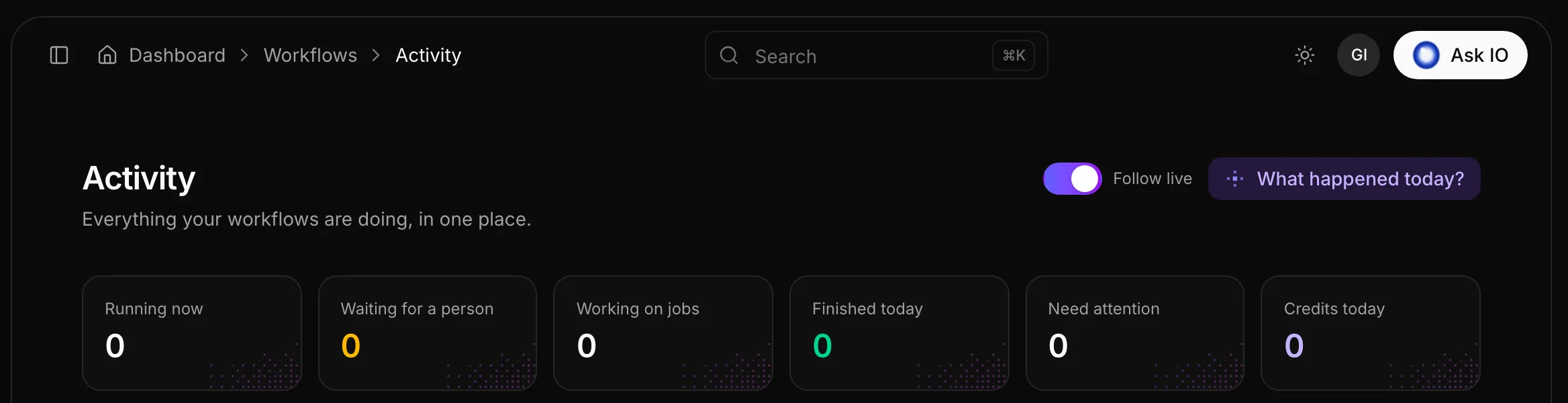
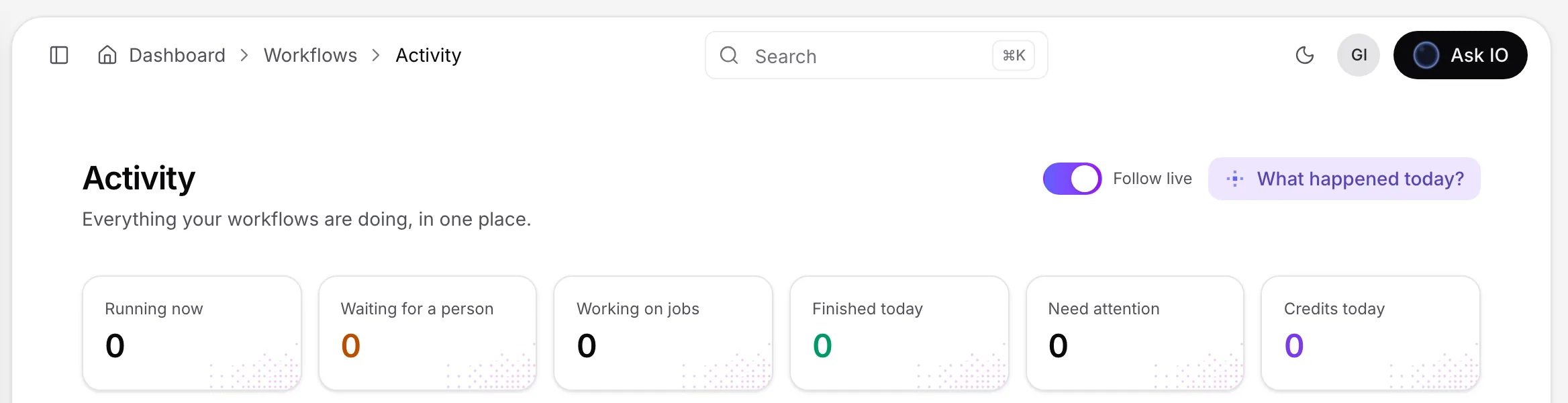
Follow live is enabled by default, so the page stays up to date while runs change.
You can also select What happened today? to ask IO for a short activity summary. Follow-up questions include What needs my attention? and Which workflow fails most?
The Workflows section provides a card for each workflow. Cards show recent runs, successful-run counts, typical duration, common failure points, current stuck work, the latest run, and the workflow's on/off switch.
Resolve items that need attention
The Needs attention section on Activity can include:
- Questions waiting for you or your team. You can answer these in place.
- Failed runs. Choose Try again, Try again from “<step>”, Reassign…, or Stop. Reassign… opens the run so you can choose another person.
- Runs that have passed their deadline. Choose Stop.
- Schedules that did not run. Choose Open the workflow.
When there is nothing to handle, the section says Nothing needs you right now.
Find and open a run
- Open Activity, then go to All runs.
- Filter by workflow, start method, and date range. You can filter by a file, a schedule, a person, another workflow, or a test, and specify From and To dates.
- Select a run name to open its details. From there, you can open the run, stop it while it is running, or try it again when it has failed.
- Select multiple runs to retry or stop them together.
- Choose Show more to load older runs.
On My workflows, select a row's arrow to open Activity filtered to that workflow's runs.
Understand a run page
A run page shows when and how the run started, its progress, and the state of every step. Step states include done, failed, running, waiting, not yet, skipped, and undone. An active run page refreshes automatically.
Use the run page to:
- Read What we found for an explanation of a problem or a wait, and use the available fix when one is provided.
- Select Ask about this run to ask IO questions such as Why is this stuck? or What failed and how do I fix it?
- Select Stop it to stop a run that is still in progress.
- Select Run again after the run has ended to start a new run.
- On a failed or finished step, select Try again from here or Run again from here to restart from that step.
- Select Try again from here with the latest version to restart that step using the workflow's current version.
- Select Open workflow to open the workflow board.
Answer workflow questions and approvals
Questions for me collects the questions and approvals that workflows are waiting for.
- Open Questions for me under Workflows. The number in the sidebar shows how many questions are waiting for you.
- Review each card's workflow, review type, request time, and deadline. Select see the run to inspect the related run.
- Answer directly on the card by choosing an option, Yes or No, or Approve or Reject. Select Send answer when it is available.
- Choose Decline to say no to the step.
- To respond to several reviews together, select them and choose Approve all, Decline all, or an option followed by for all.
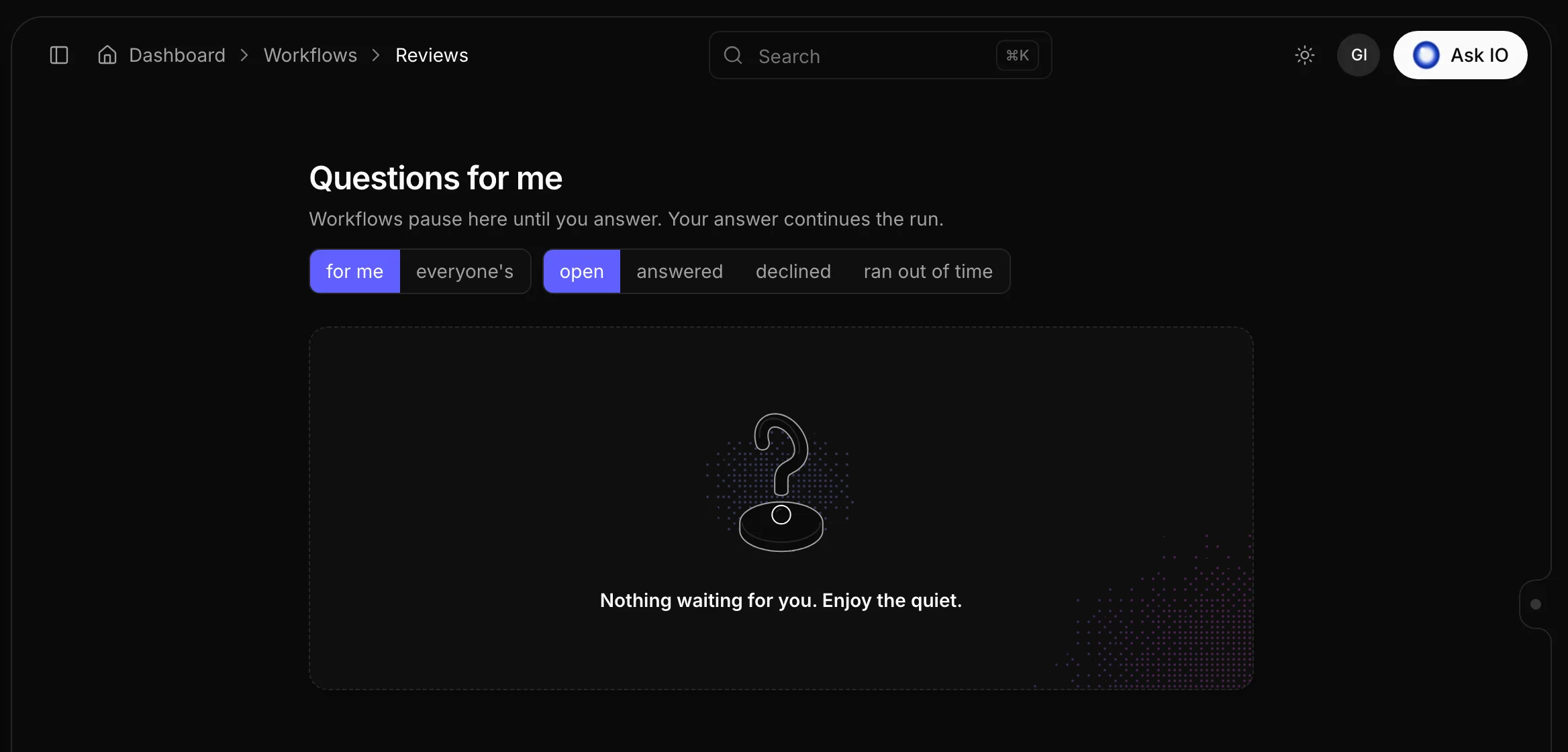
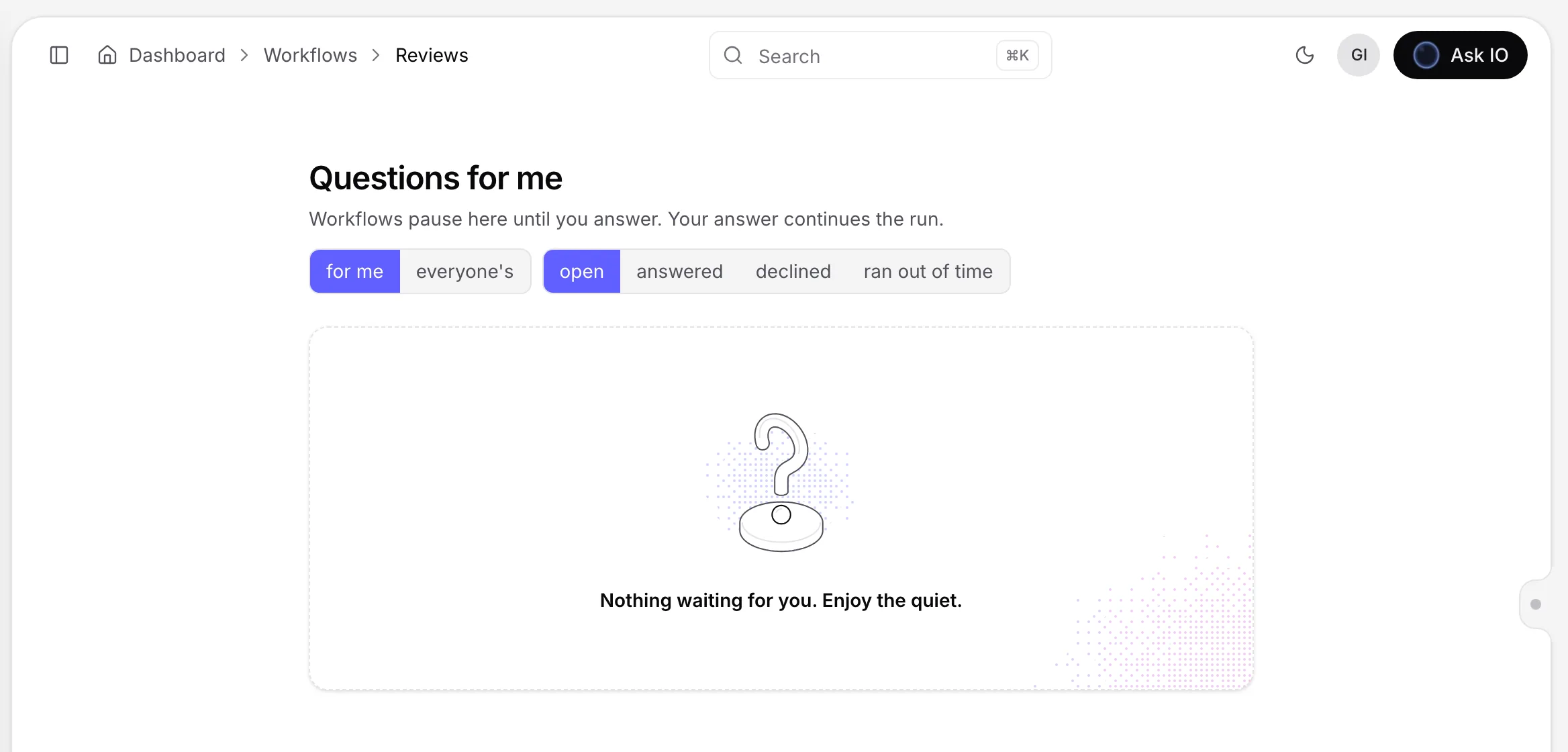
Switch between open, answered, declined, and ran out of time reviews. If you have Decide any workflow review, you can also switch from for me to everyone's reviews. Your answer continues the run.
Some steps cost credits; the review card indicates approximately how much when applicable.
Use the dock and notifications
On wider screens, the Workflows section in the right-edge dock shows Running now, Waiting for a person, Need attention, and Finished today, along with up to four Questions for you. Use All questions to open Questions for me, or Open workflow activity to open Activity.
You may receive a notification when a run fails or waits for credits, a connected app, or a service that limits requests. A notification can also be sent when a workflow check finds a problem. Select the notification to open the relevant run or workflow.
Looking for a quick answer? Read the FAQ