
DOCSSTREAMS AND MEDIA DELIVERY
Create clips and frames from a stream
Updated 31 October 2026
Clips & frames lets you save a still frame or cut a short clip from a stream. You can download the result or add it to the stream catalogue’s media assets.
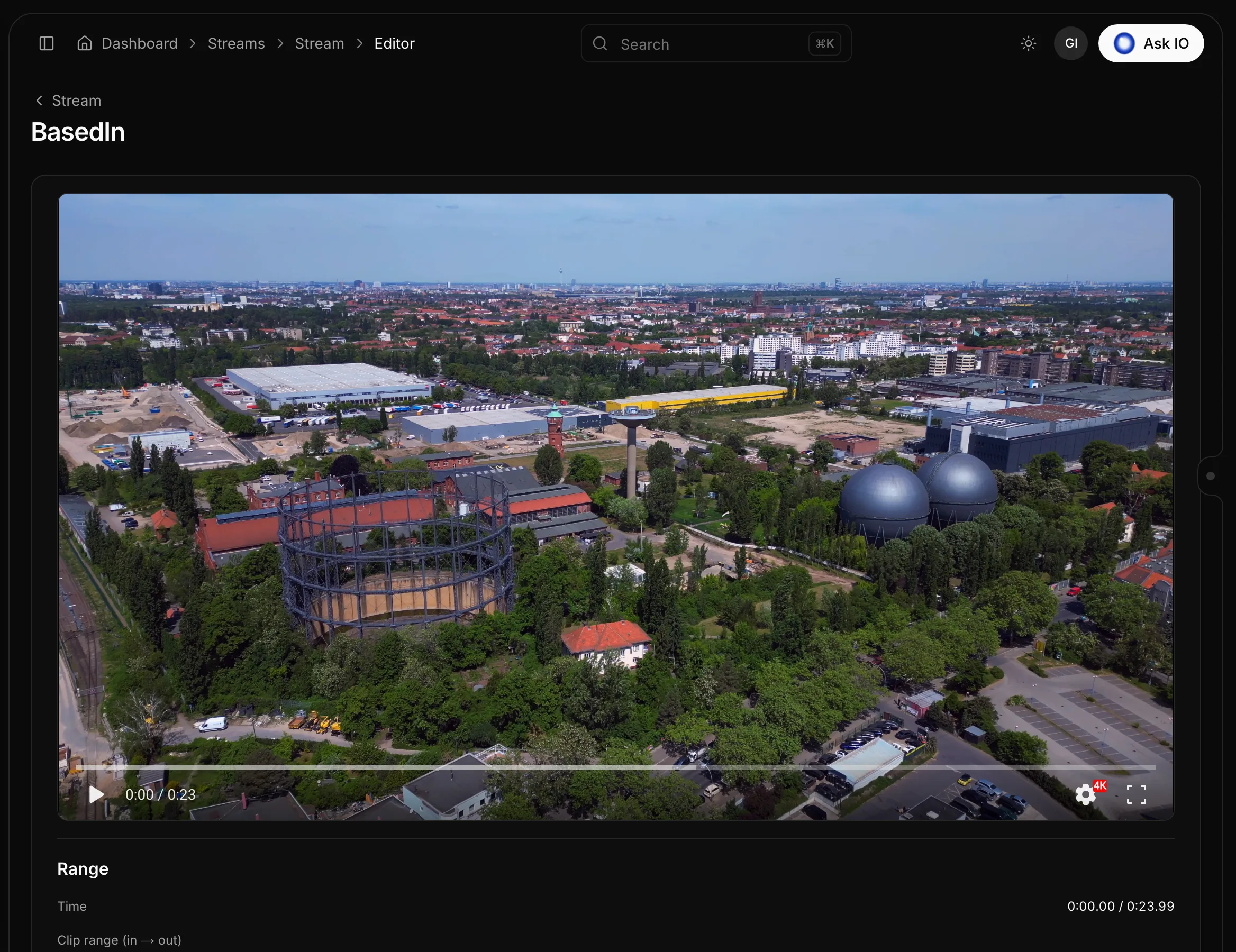
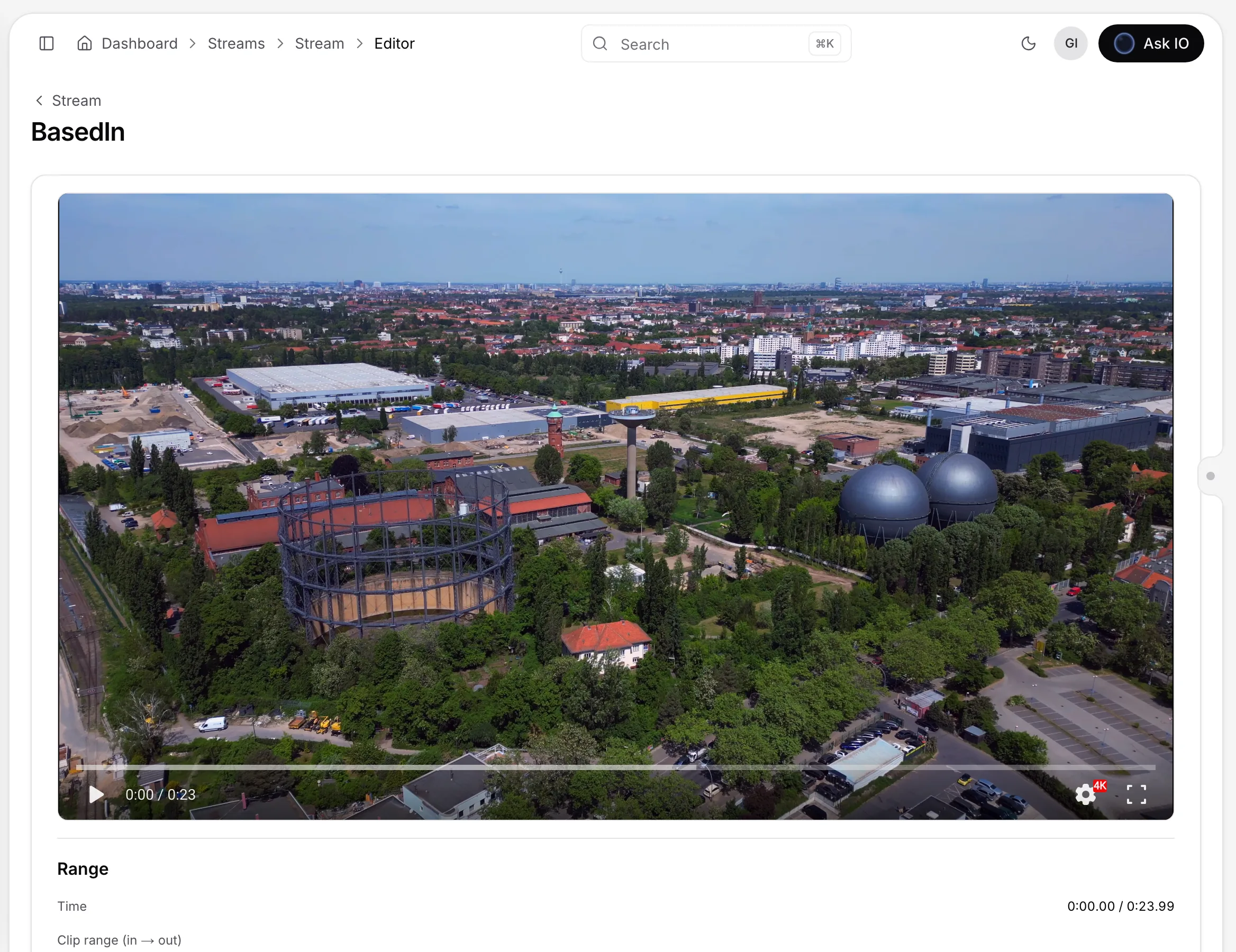
Open Clips & frames
- Open the stream from Streams.
- Select More actions, then Clips & frames.
- Choose a flavour for the editor. The list shows each flavour’s resolution, bitrate, codec, type, flavour type, and size. The source flavour is listed first. Select the flavour you want to use.
- Use the Stream link in the editor to return to the stream page.
You need the View VideoEditor permission to open Clips & frames. The preview is available once the stream is Ready.
You can also open a catalogue media asset in the editor by selecting Trim or edit from its row menu.
Save a frame
- In Clips & frames, play the video and pause at the moment you want to capture.
- Select Save frame.
- The frame opens in a dialog and is added to Created files.
Cut a clip
- Play to the start of the section you want and select Mark in.
- Play to the end and select Mark out. Alternatively, drag the range below the player. The In and Out times show below the player.
- Select Preview range to play the selected section. Select Full length to reset the selection to the entire video.
- Select Create clip. The clip opens in a dialog and is added to Created files.
A clip must be at least 0.04 seconds long.
Download or add a file to media assets
- Find the frame or clip under Created files.
- Select Download to save it, or Add to media assets to store it with the stream’s catalogue.
- Select Remove to remove one file from the list, or Clear list to empty the list.
To add a file to media assets, the stream must be linked to a catalogue. The created-files list lasts only for the current visit to the page, so download or add anything you want to keep before leaving. You cannot add a file after its temporary link has expired.
Looking for a quick answer? Read the FAQ