
DOCSCOMPUTE CREDITS AND AI BILLING
Compute credits and AI tool billing
Updated 31 October 2026
Overview
EYZFlow AI tools use compute credits from a wallet shared across your organisation. Credits can be used across all projects. One credit represents one Sign minute, and usage is counted in whole minutes with a minimum of one minute.
Credits are used for:
- Subtitle and transcription projects
- HoH Audio projects
- Audio Description projects
- The video analysis required by a project
- Starting Video Intelligence on a stream
Note
The exact rates depend on your organisation’s pricing. EYZFlow shows an estimate for your video before you start a project.
Check your balance
You can see your balance in these places:
- Compute credits at the bottom of the open sidebar
- Your balance in the create-project wizard, next to Estimated cost
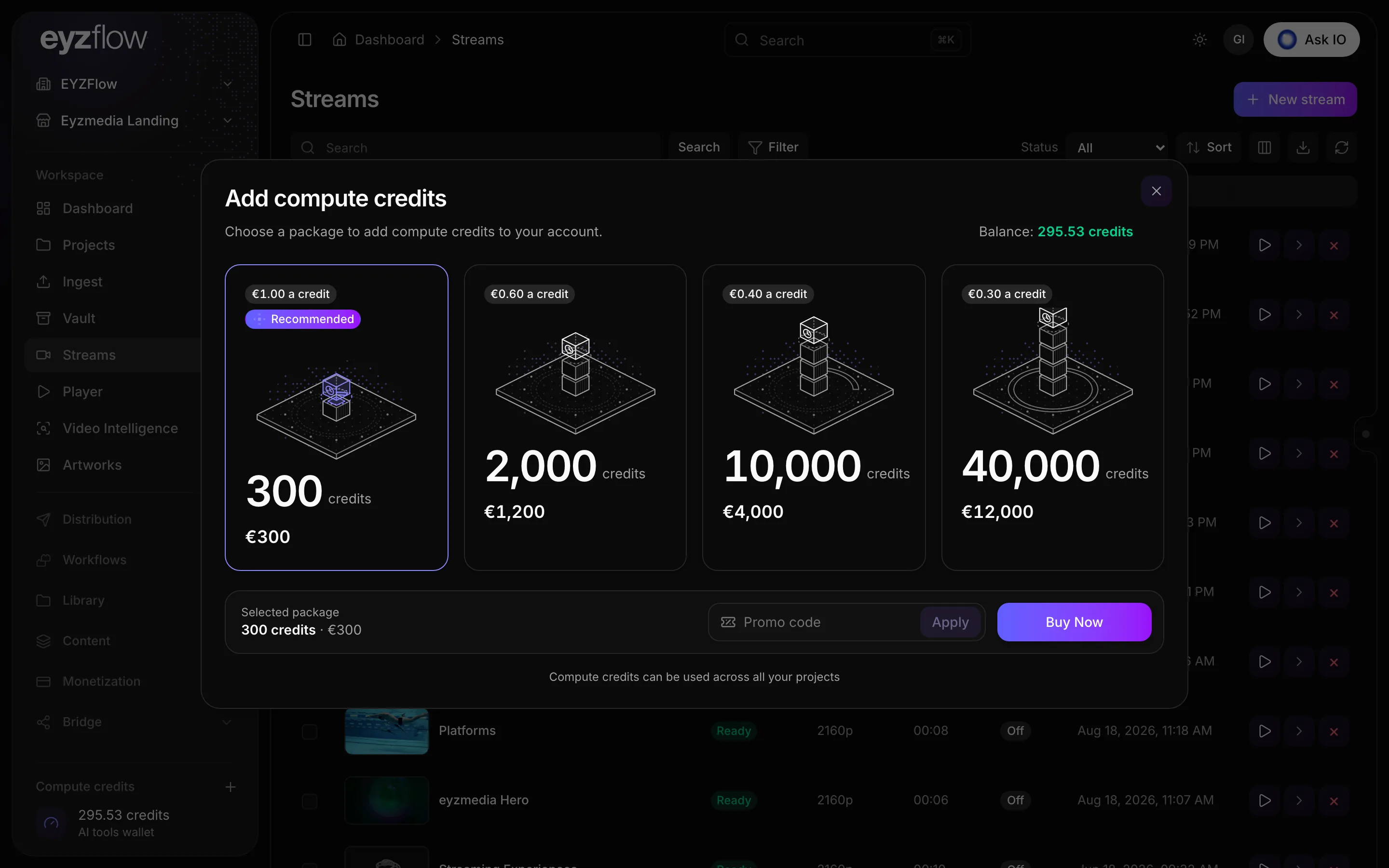
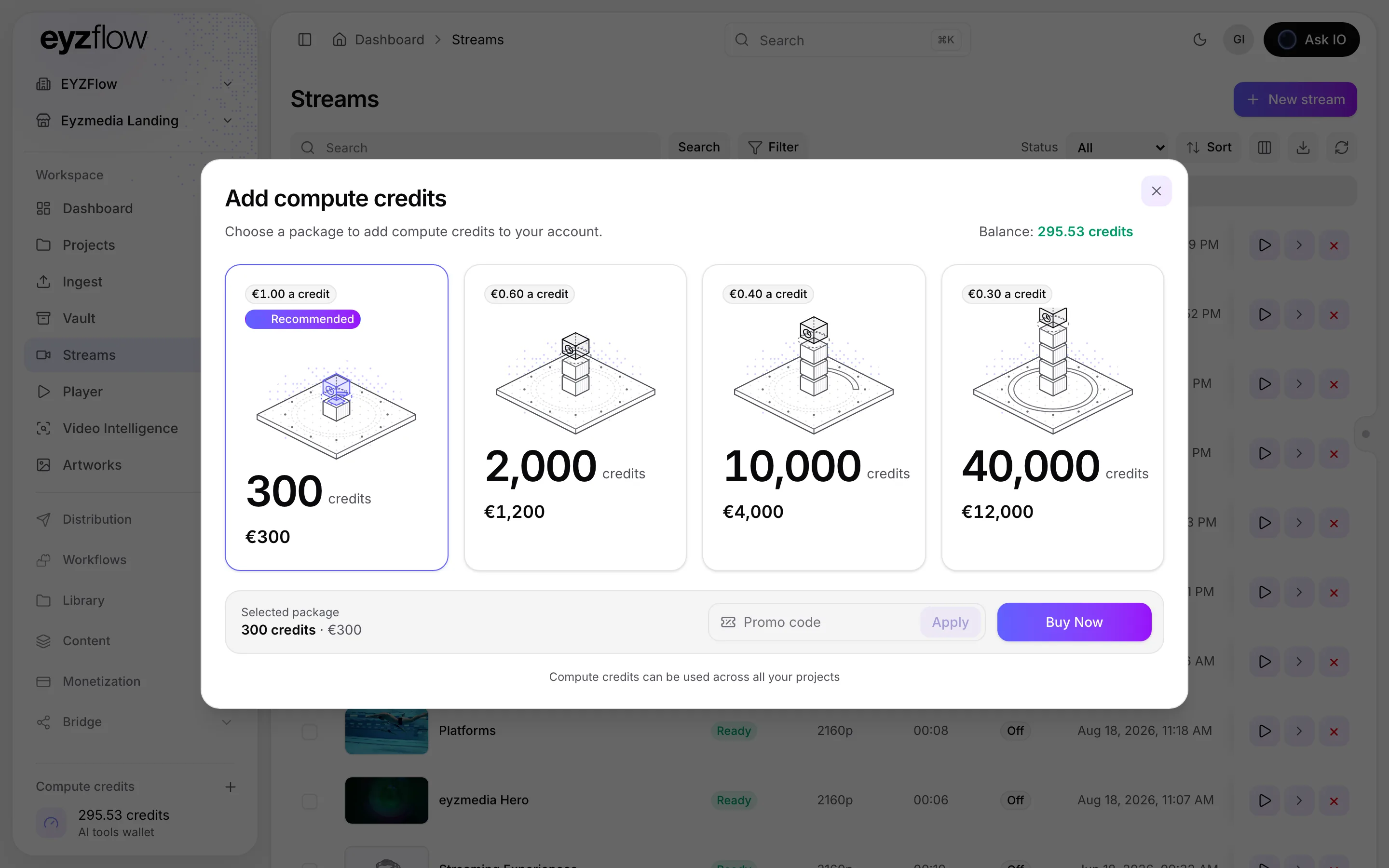
- Balance at the top right of the Add compute credits dialog
The balance updates automatically after a purchase.
Understand what affects the cost
- Each subtitle track uses credits. The first track is charged in full; additional languages cost less. Each closed-caption language also uses credits.
- HoH Audio is charged per minute.
- Audio Description is charged per minute. Re-voicing an edited script charges only for the lines you changed.
- Video analysis is charged once per video. Reusing an analysis that has already been paid for does not incur another analysis charge.
- A source audio track other than the stream’s first track has its own analysis charge.
- Video Intelligence shows its cost and your balance in the start dialog before you confirm.
For a monthly estimate, use the Sign calculator on the Subscription page.
Check a project’s estimate
In the project creation guide, add your source and review the estimate before starting:
- Subtitles and Transcription: the Language settings step shows Estimated cost and Your balance. The estimate changes as you add target and closed-caption languages. The Add context step shows the estimate again with the video runtime.
- HoH Audio and Audio Description: the Review and start step shows the runtime, estimated cost, and balance.
The estimate uses the actual video length and accounts for whether the video’s analysis has already been paid for.
Buy compute credits
- Select Add more—the plus beside Compute credits in the sidebar—or select Buy credits in the create-project wizard.
- Select a package. The dialog shows the available credits, price, and any saving; one package may be marked Recommended.
- Optional: enter a code in Promo code and select Apply.
- Select Buy Now and complete payment.
You return to the page you were using, and your balance updates.
Organisation members can also buy credits from the Video Intelligence start dialog, Pay for this job in the create-project wizard, or the Not enough compute credits message. Access to some sidebar and Subscription-page controls requires the relevant permission.
Redeem a free-credits code
- Open the Add compute credits dialog.
- Enter the code in Promo code and select Apply.
- When the field changes to Free credits code, select Redeem.
The dialog confirms the number of free credits added, and your balance updates. Redeeming the code does not charge you.
Pay for one project
If your balance is lower than a project’s estimate, the create-project wizard can offer payment for only the missing credits:
- In the Not enough compute credits for this estimate warning, select Pay for this job.
- Complete payment.
- Return to the wizard and select Start.
This option buys only the credits needed for that job, rather than a package.
When you do not have enough credits
- If your balance is zero or below, Continue remains unavailable on the source step.
- If your balance is lower than the estimate, Start remains unavailable.
- For Video Intelligence, the start dialog tells you that more credits are needed and provides Buy credits.
Use Buy credits or Pay for this job in the relevant warning to continue.
Looking for a quick answer? Read the FAQ